
 MeiFiles
Choose a view
Show a folder as a detailed list, a compact grid, thumbnails, columns or a size map, and sort it by name, size or date.
Each pane has its own view. Choose the one that fits the folder: a list for documents, thumbnails for photos, a size map to find what takes the space.

Switch the view#
Click in the pane, then choose a view from the View menu:
| View | Keys | Best for |
|---|---|---|
| Detail View | ⌘1 | Names with size, date and permissions in columns |
| Brief View | ⌘2 | Many names at once, in a compact grid |
| Thumbnail View | ⌘3 | Photos and images |
| Column View | ⌘4 | Moving through nested folders, one column per level |
| Size View | ⌘5 | Seeing which items take the most space, as a map of tiles |
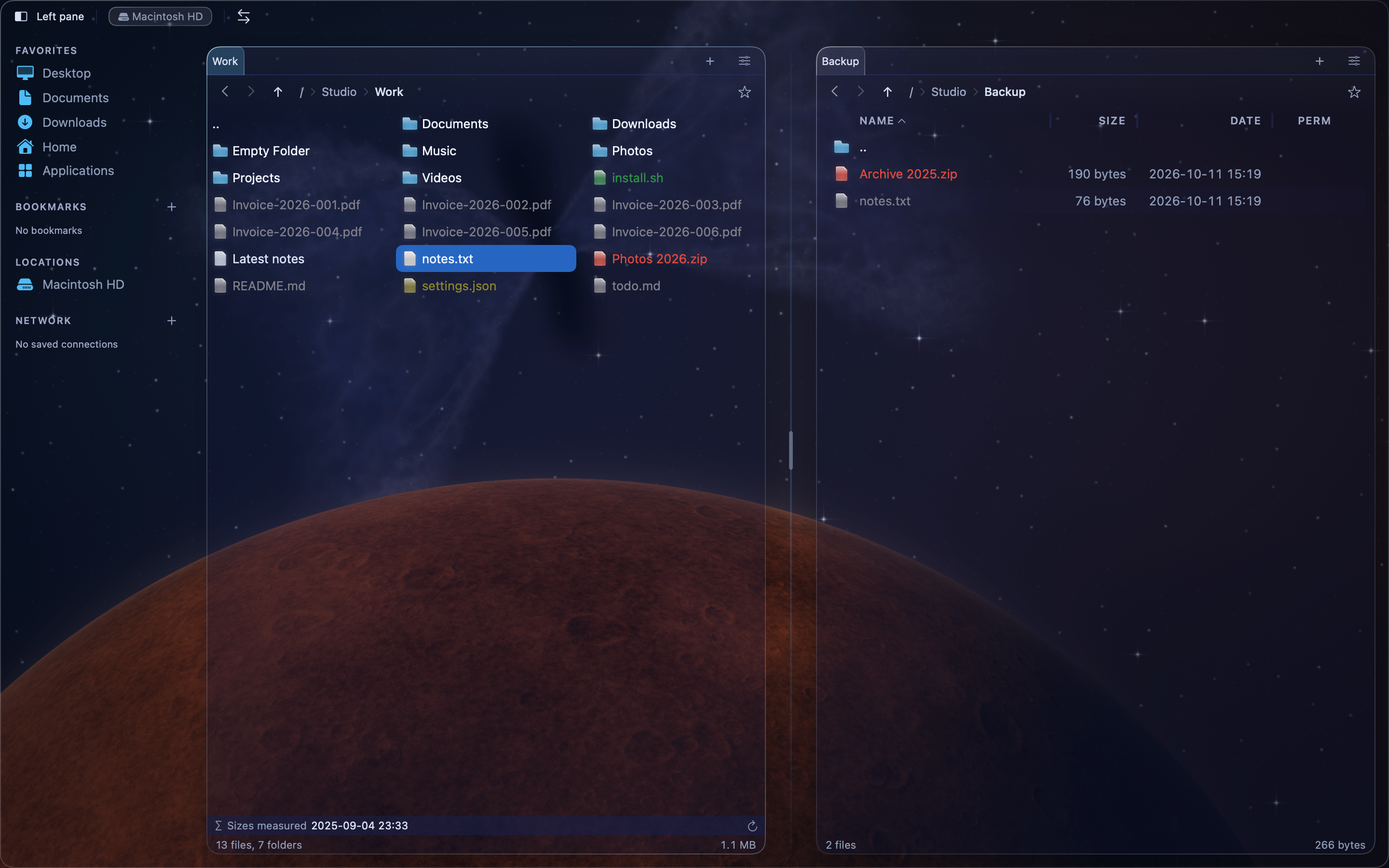
In Brief and Thumbnail view, the arrow keys move the cursor in all four directions.
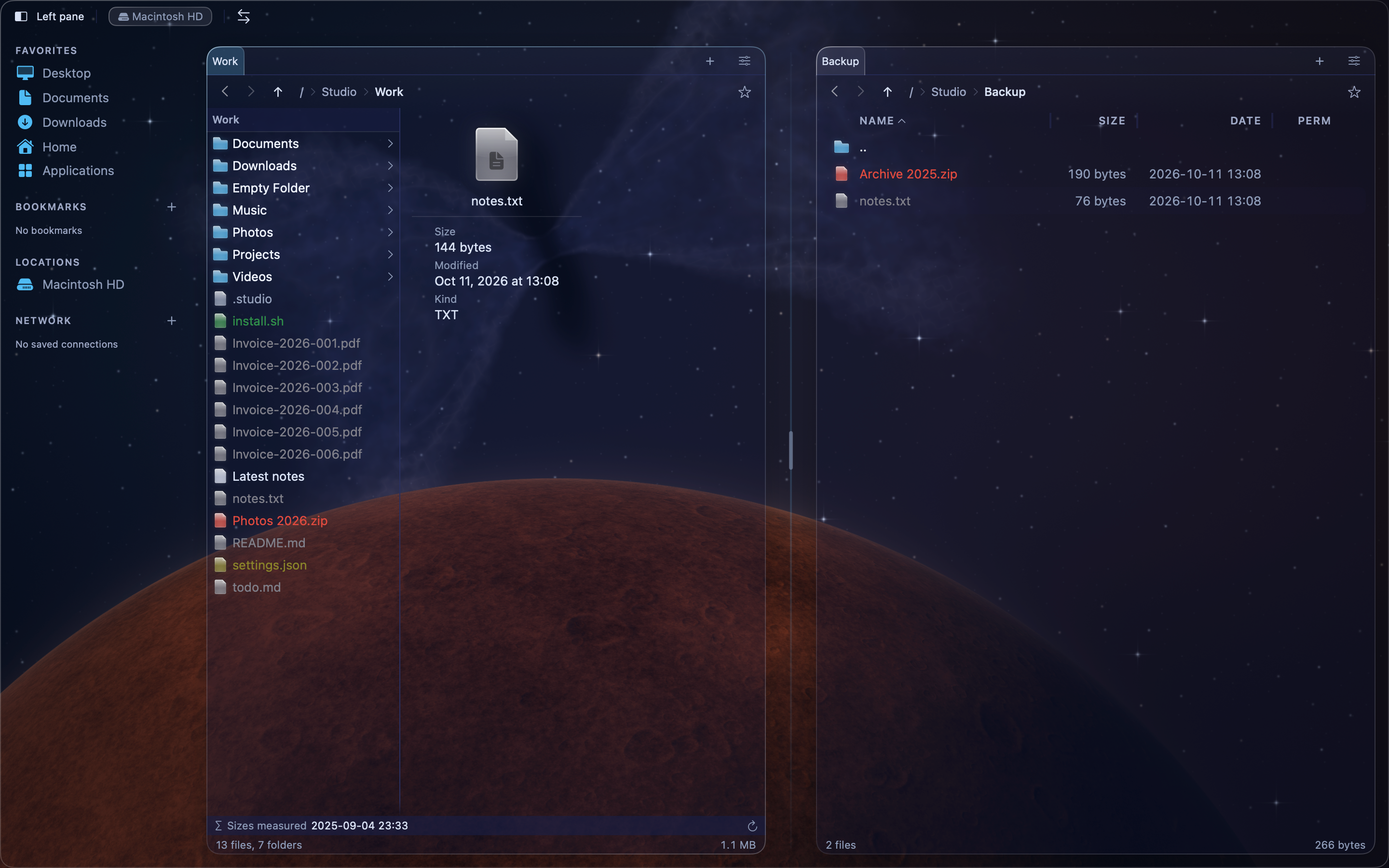
To open every pane in the same view at launch, open Settings > Panels. Set On launch to Always start with a fixed mode, then choose the Fixed mode.
Sort the list#
In Detail view, click a column header, such as Name, Size or Date, to sort by it. Click the same header again to reverse the order.
To keep folders above files, turn on Settings > Panels > Sort directories first.
Adjust the columns#
- Drag the line between two column headers to change a column's width.
- Double-click that line to fit the column to its content.
- Control-click the header and choose Customize Columns… to show, hide or reorder columns.
Show hidden files#
Press ⌘. (Command-period), or choose View > Toggle Hidden Files. Hidden files, such as files whose names start with a period, appear in the active pane. Press ⌘. again to hide them.
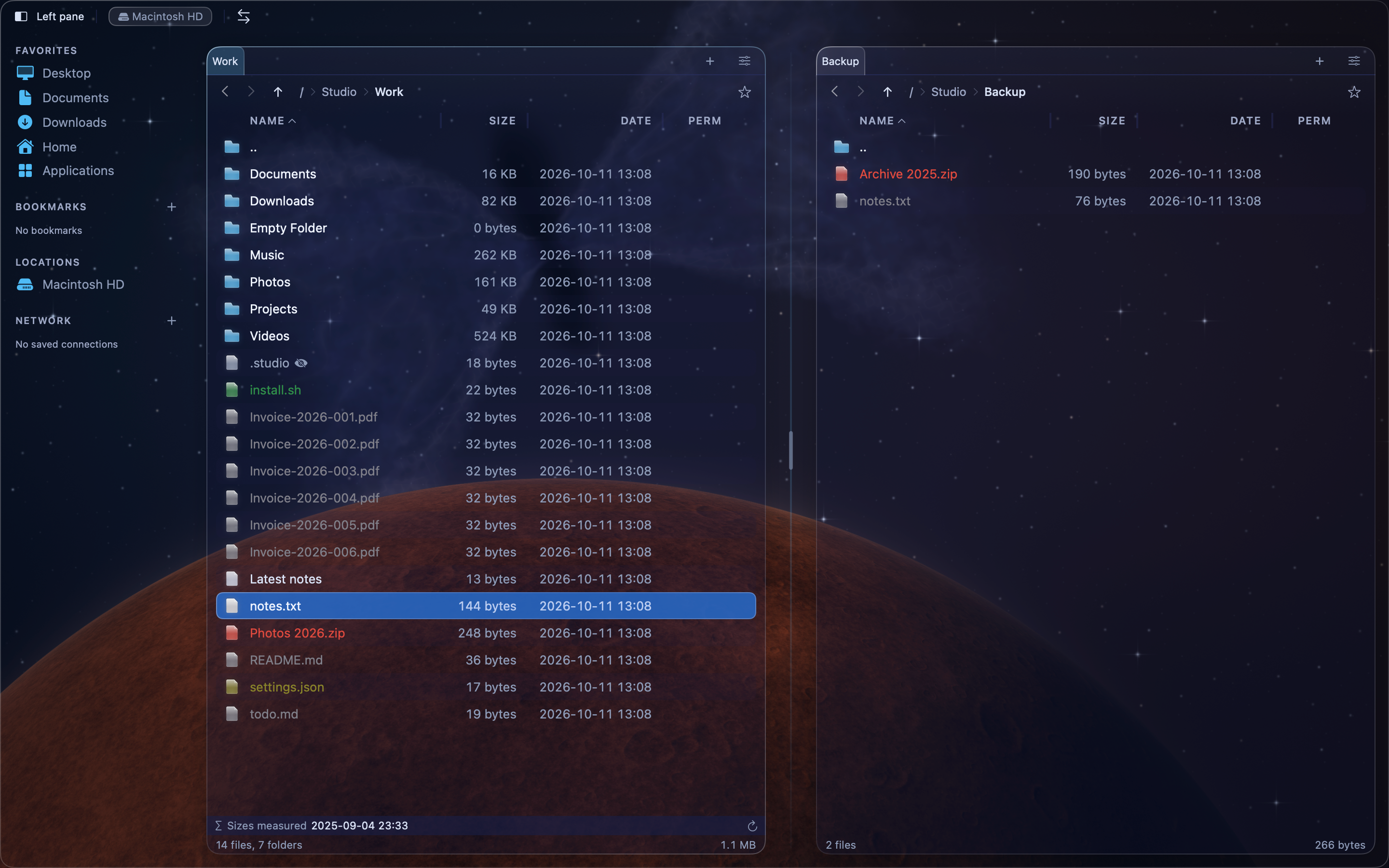
To show hidden files by default, turn on Settings > Panels > Show hidden files.