
 MeiFiles
Calculate folder sizes
Work out how much space each folder in a pane takes, and keep the sizes until you ask again.
A folder's size is not shown until MeiFiles adds up everything inside it. Calculate the sizes to see which folders are large, or to sort a pane by size.
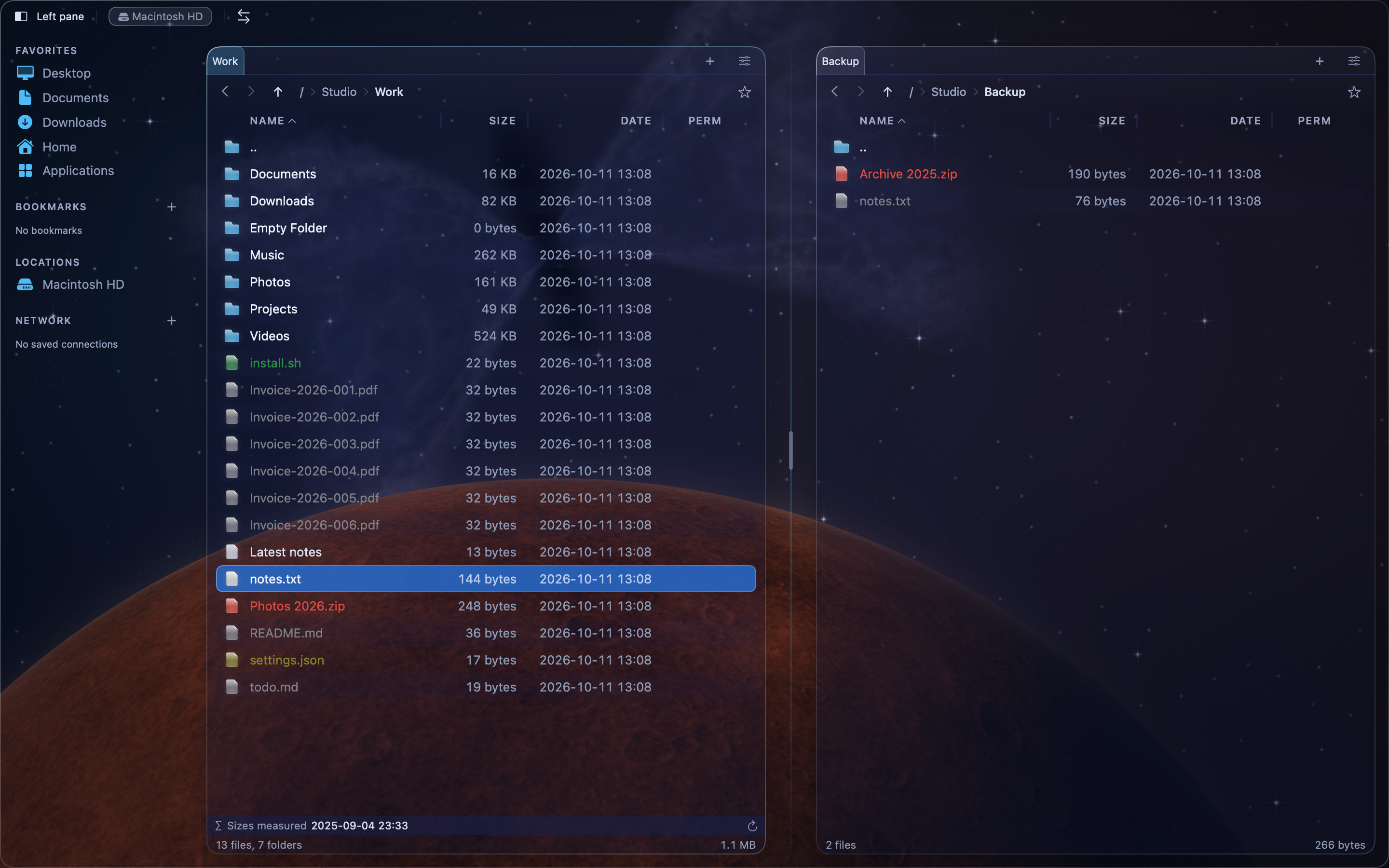
Calculate the sizes of all folders in a pane#
- Open the folder in the active pane.
- Choose Tools > Calculate Folder Sizes, or press Shift-F1 (
⇧F1).
MeiFiles measures each folder in the pane, one after another. The pane footer shows the progress, for example Sizes: 3 / 12, and the name of the folder it is reading. Each size appears in the list as soon as it is known.
To stop, click the stop button at the end of the footer. Sizes already measured stay in the list. Opening another folder also stops the calculation.
Tip: To sort by size, click the Size column heading after the calculation.
Read the footer#
When the calculation ends, the footer shows Sizes measured and the date and time of the measurement.
If some folders could not be opened, the footer shows how many, for example 2 unreadable. The sizes of the folders that contain them are then too small. To let MeiFiles into a folder, see Give MeiFiles access to your folders.
Update the sizes#
MeiFiles keeps the sizes, also after you quit and open the app again. It does not measure again by itself, because a large folder can take minutes to read.
To measure again, click the recalculate button at the end of the footer, or choose Tools > Calculate Folder Sizes again.
Each calculation is also saved as a measurement. You can compare two measurements later to see what grew. See Find out what filled the disk.