
 MeiFiles
See what takes up space with the size map
Show a folder as a map of tiles, where the largest items take up the most room.
The size map draws each item in a folder as a tile. The bigger the item, the bigger its tile, so the files and folders that fill your disk stand out at once.
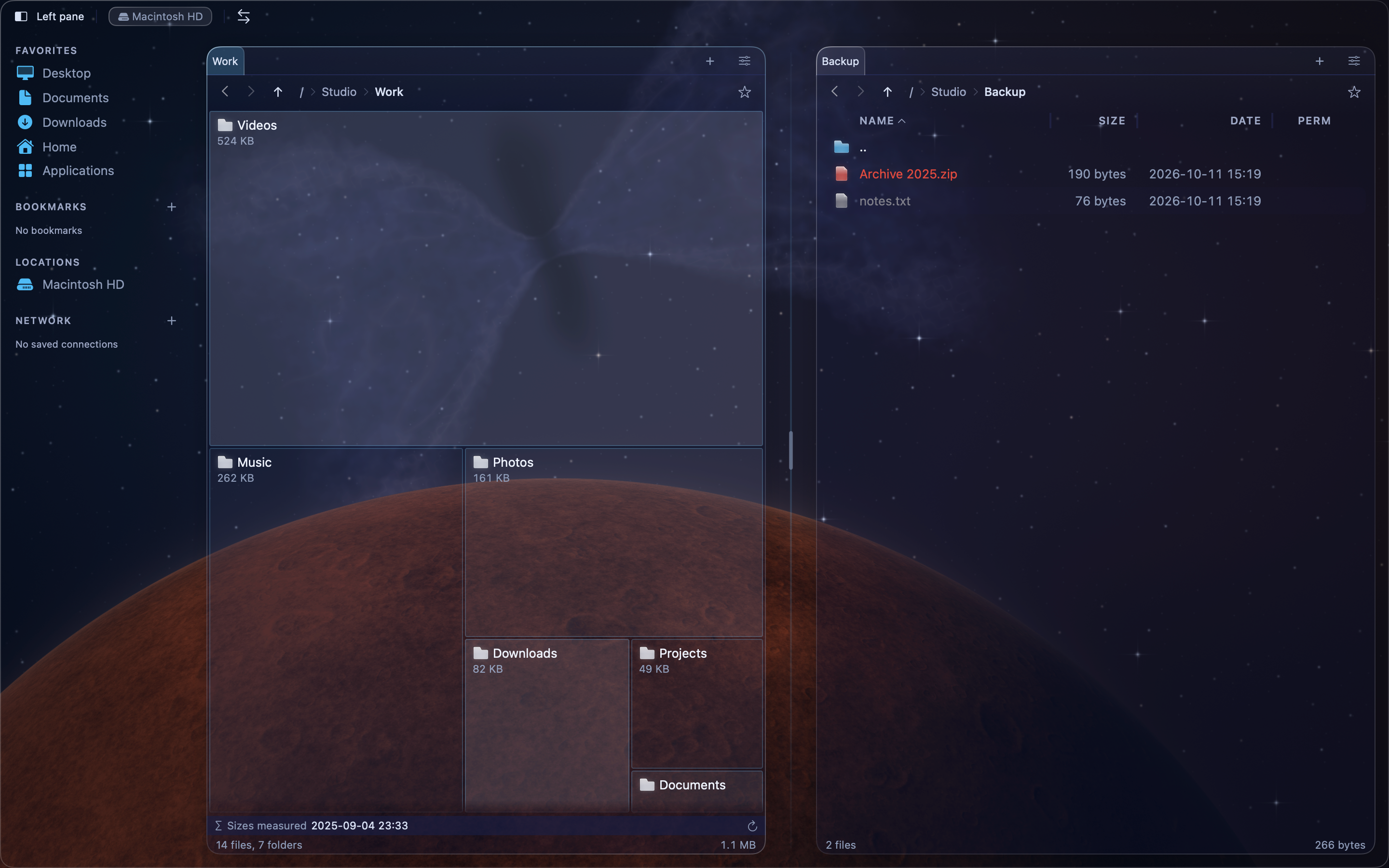
Show the size map#
- Open a folder in the active pane.
- Press Command-5 (
⌘5), or choose View > Size View.
MeiFiles measures the folders whose sizes it does not know yet. The tiles grow while it works. The pane footer shows the progress, the same way as Calculate folder sizes.
To go back to the list, press ⌘1 (View > Detail View).
Read the map#
- The largest item is at the top left. The area of each tile is its share of the folder's total size.
- A tile shows its name and size when there is room. Hold the pointer over a small tile to see them.
- Items too small to draw are gathered in one tile, for example 24 smaller items.
Work with the tiles#
- Double-click a folder tile to open it. The map then shows that folder.
- Double-click a file tile to open the file.
- Click a tile to put the cursor on it. Then copy, move or delete it as in the list.
- Right-click a tile for the same context menu as in the list.
To go up one level, press Delete (Go > Go to Parent).
Tip: Open the size map in one pane and a folder on another disk in the other pane. Then move large items there with
F6.
Update the sizes#
The map uses sizes MeiFiles already knows. To measure again, click the recalculate button at the end of the pane footer.