
 MeiFiles
Bookmark folders
Save the folders you use often, open them in one step, and reopen recent folders.
A bookmark takes you back to a folder in one step. The path bar star, the sidebar, and the Bookmarks menu all show the same list.
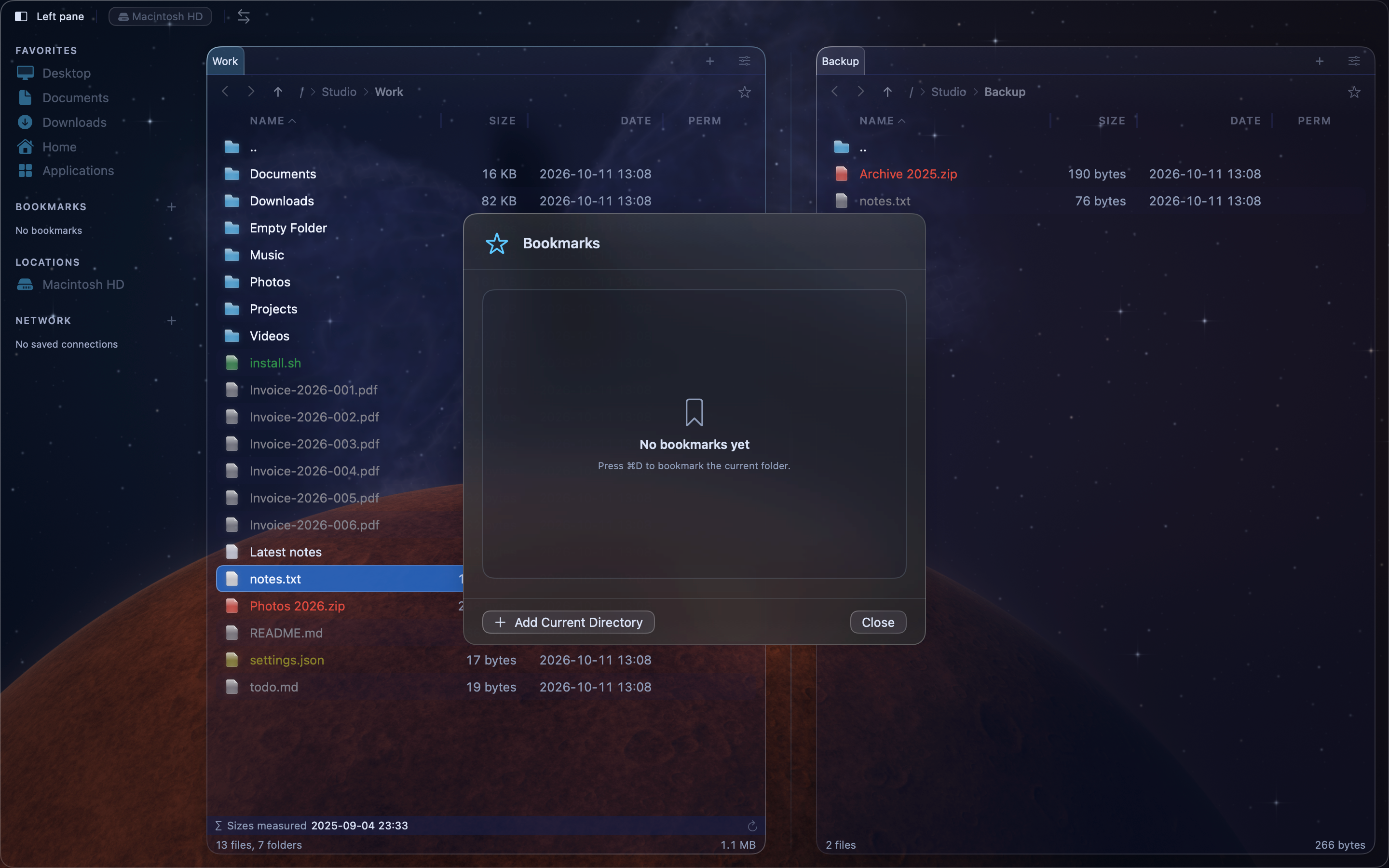
Bookmark a folder#
- Open the folder in the active pane.
- Press
⌘D, or choose Bookmarks > Add Bookmark.
You can also click the star in the path bar, or click + next to Bookmarks in the sidebar. The star turns solid when the folder is bookmarked. The bookmark takes the name of the folder.
Open a bookmark#
Do one of these:
- Choose the folder from the Bookmarks menu.
- Click it in the Bookmarks section of the sidebar.
- Choose Bookmarks > Edit Bookmarks…, then click the folder.
The folder opens in the active pane.
Remove a bookmark#
- Open the bookmarked folder.
- Press
⌘D, or choose Bookmarks > Remove Bookmark.
You can also click the solid star in the path bar, or Control-click the bookmark in the sidebar and choose Remove Bookmark.
Organize bookmarks#
- Choose Bookmarks > Edit Bookmarks….
- Drag a bookmark up or down to change the order.
- Click the trash icon to remove a bookmark.
- Click Add Current Directory to bookmark the folder in the active pane.
- Click Close.
Reopen a recent folder#
MeiFiles keeps a list of the last 20 folders you opened.
- Choose Bookmarks > Recent Directories.
- Choose a folder.
To empty the list, choose Bookmarks > Recent Directories > Clear Recent Directories.