
 MeiFiles
Give MeiFiles access to your folders
Let MeiFiles read your folders, and see or remove the access you gave.
macOS lets an app from the Mac App Store open only the folders you choose. You choose a folder once, and MeiFiles can then open everything inside it.
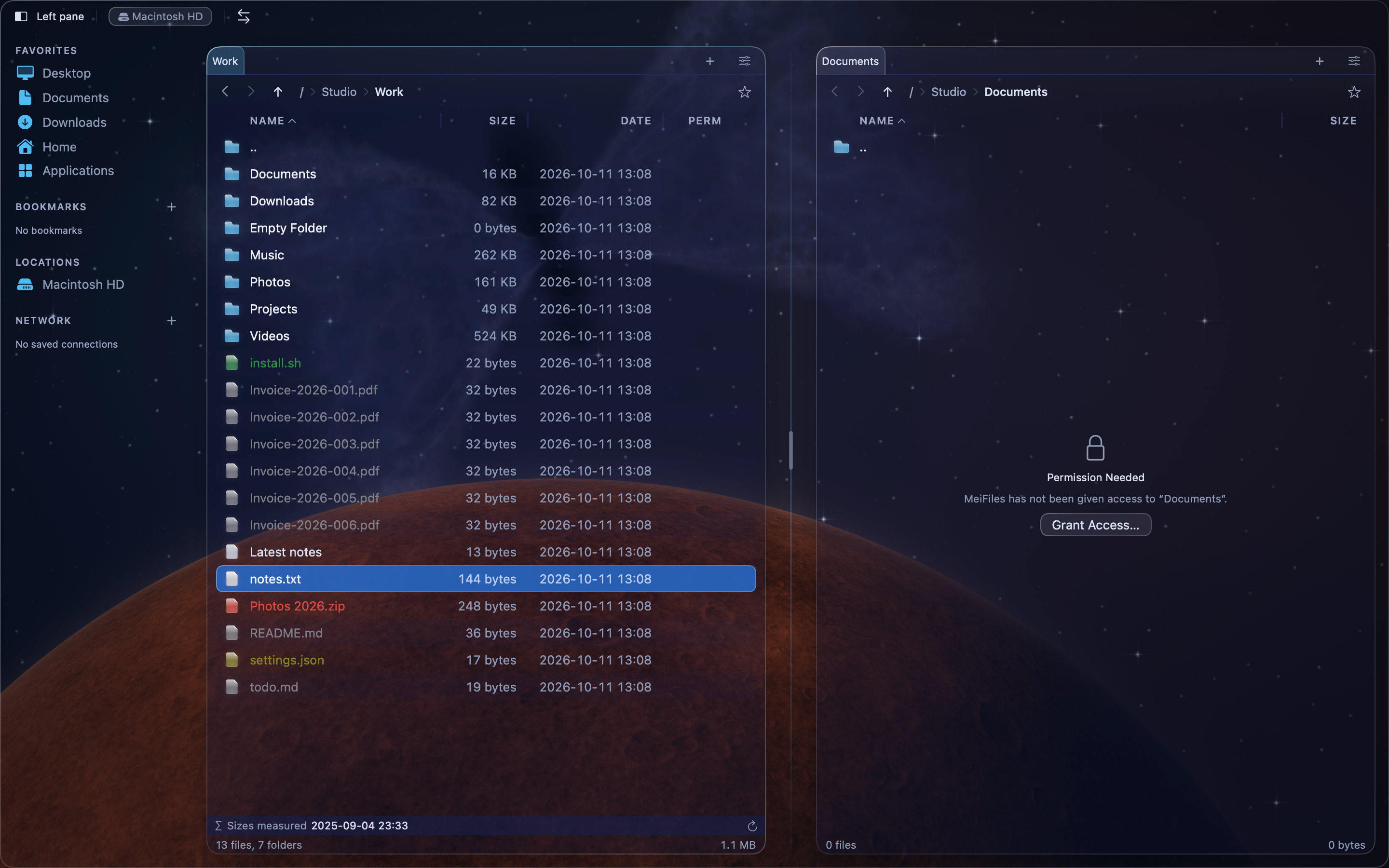
When you open a folder that MeiFiles cannot read, the pane shows Permission Needed. On the first launch, this usually happens in your home folder.
Grant access from a pane#
- Open the folder. The pane shows Permission Needed.
- Click Grant Access….
- In the window that opens, select the folder, or a folder above it.
- Click Grant Access.
The pane opens the folder. Access covers every folder inside the one you chose.
Tip: Grant access to your home folder once. MeiFiles can then open everything in it, and you rarely see Permission Needed again.
Grant access in Settings#
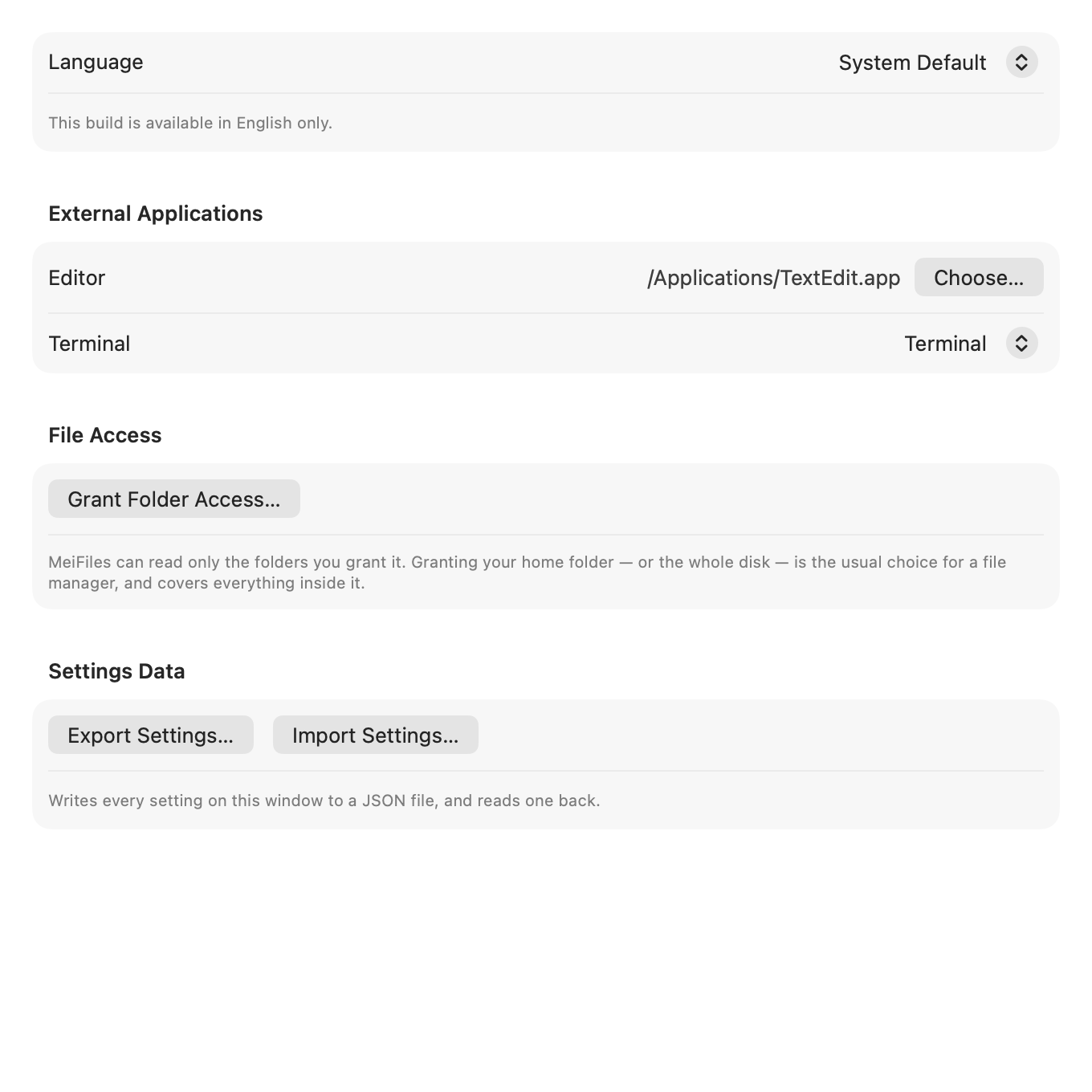
- Choose MeiFiles > Settings…, then click General.
- In File Access, click Grant Folder Access….
- Select a folder, then click Grant Access.
File Access lists every folder you granted. MeiFiles remembers them between launches.
Remove access#
- Choose MeiFiles > Settings…, then click General.
- In File Access, click Remove next to the folder.
MeiFiles stops reading that folder at once.
Note: Access to an external disk comes back when you connect the disk again.
Other places that ask for access#
- A copy or move can include a folder MeiFiles cannot read. MeiFiles warns you before it starts, with a Grant Access… button.
- In the folder tree, a folder MeiFiles cannot read shows a folder icon with a question mark. Open it to grant access.