
 MeiFiles
Troubleshooting
Solutions for folder access, Empty Trash, Open in Terminal, hard-to-read glass, server connections and settings.
Solutions for the problems people meet most often. If yours is not here, see Support.
A pane shows Permission Needed#
MeiFiles is a Mac App Store app. macOS lets it open only the folders you give it.
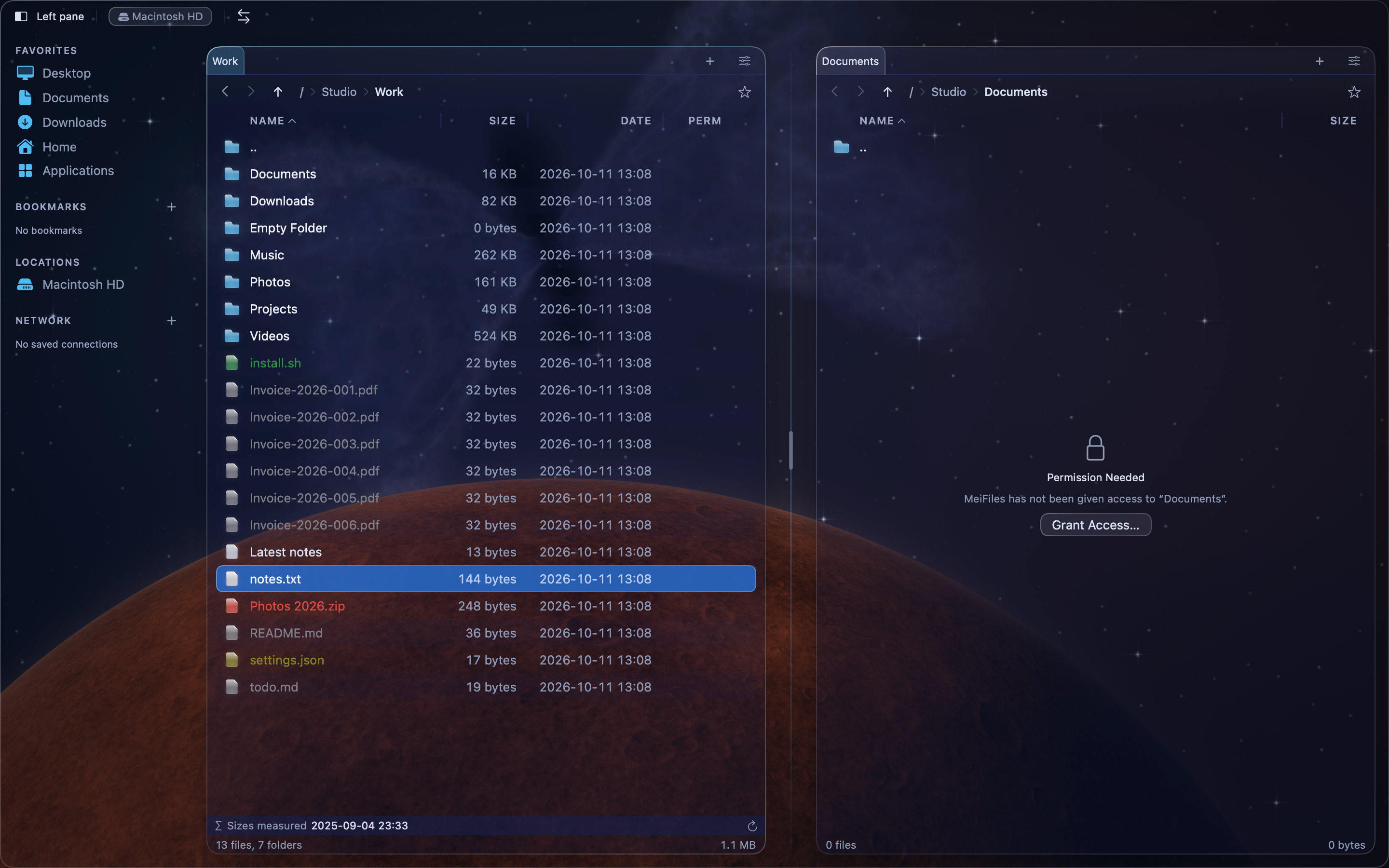
- Click Grant Access….
- Choose the folder, then click the button to confirm. To give access to everything at once, choose your home folder.
A grant covers every folder inside it and is kept between launches. To see or remove grants, open Settings > General > File Access.
Empty Trash does not work#
MeiFiles asks Finder to empty the Trash. The first time, macOS asks whether MeiFiles may control Finder. Click Allow.
If you see Could Not Empty Trash and a message about Automation:
- Open System Settings > Privacy & Security > Automation.
- Under MeiFiles, turn on Finder.
- Choose File > Empty Trash… again.
Open in Terminal does nothing#
- Open Settings > General.
- Check that the app chosen in Terminal is installed on your Mac.
Text on the glass is hard to read#
This applies to the New Era themes.
- In Settings > Appearance, move the Glass slider to the left.
- Or set Behind the panels to Generated or Solid. Desktop Through Glass shows your wallpaper, and some wallpapers make text harder to read.
- Or turn on Reduce transparency in System Settings > Accessibility > Display. MeiFiles then uses solid panels.
- Or choose a Classic theme in View > Theme.
MeiFiles also uses stronger colors when Increase contrast is on in the same place.
A server connection fails#
- Check the address, port, user name and password.
- MeiFiles connects over FTP, WebDAV and S3. SFTP and SMB are not available in the Mac App Store version.
- A slow server may need more time. Increase Connection timeout in Settings > Operations.
- If a pane shows Connection Lost, click Reconnect.
Put settings back to their defaults#
Most sections of Settings have their own reset button:
| Where | Button |
|---|---|
| Appearance > Fonts | Reset to Skin Defaults |
| Appearance > Custom Colors | Reset All to Skin Defaults |
| Appearance > File Type Colors | Reset All File Colors |
| Viewer > Zoom | Reset to 100% |
| Keyboard | Reset All Defaults |
| Toolbar > Toolbar Items | Reset to Defaults |
| Toolbar > Command Bar Labels | Reset All to Defaults |
To reset everything, quit MeiFiles, then enter this command in Terminal:
sh defaults delete orensoft.MeiFiles
Caution: This also removes your folder access, bookmarks and saved servers. Export your settings first if you may want them back.