
 MeiFiles
Undo changes and review the Operation Log
Reverse recent file operations, see what each operation did, and finish a copy or move that was interrupted.
Each MeiFiles window remembers its recent file operations. You can reverse them one by one, and read what happened in the Operation Log.
Undo the last operation#
- Choose Edit > Undo File Operation, or press
⌘Z. - MeiFiles names the operation it will reverse, for example Undo Rename to 'Agenda.md'? Click Confirm.
Press ⌘Z again to reverse the operation before that. A window keeps up to 20 steps.
| You can undo | You cannot undo |
|---|---|
| Copy, move and duplicate | A permanent delete |
| Rename | Emptying the Trash |
| New folder, new file, links | Batch rename |
| Move to Trash | Changes to properties and permissions |
| Compress to ZIP |
Undo does not bring back an item that Replace removed during a copy or move. See Resolve name conflicts.
Review the Operation Log#
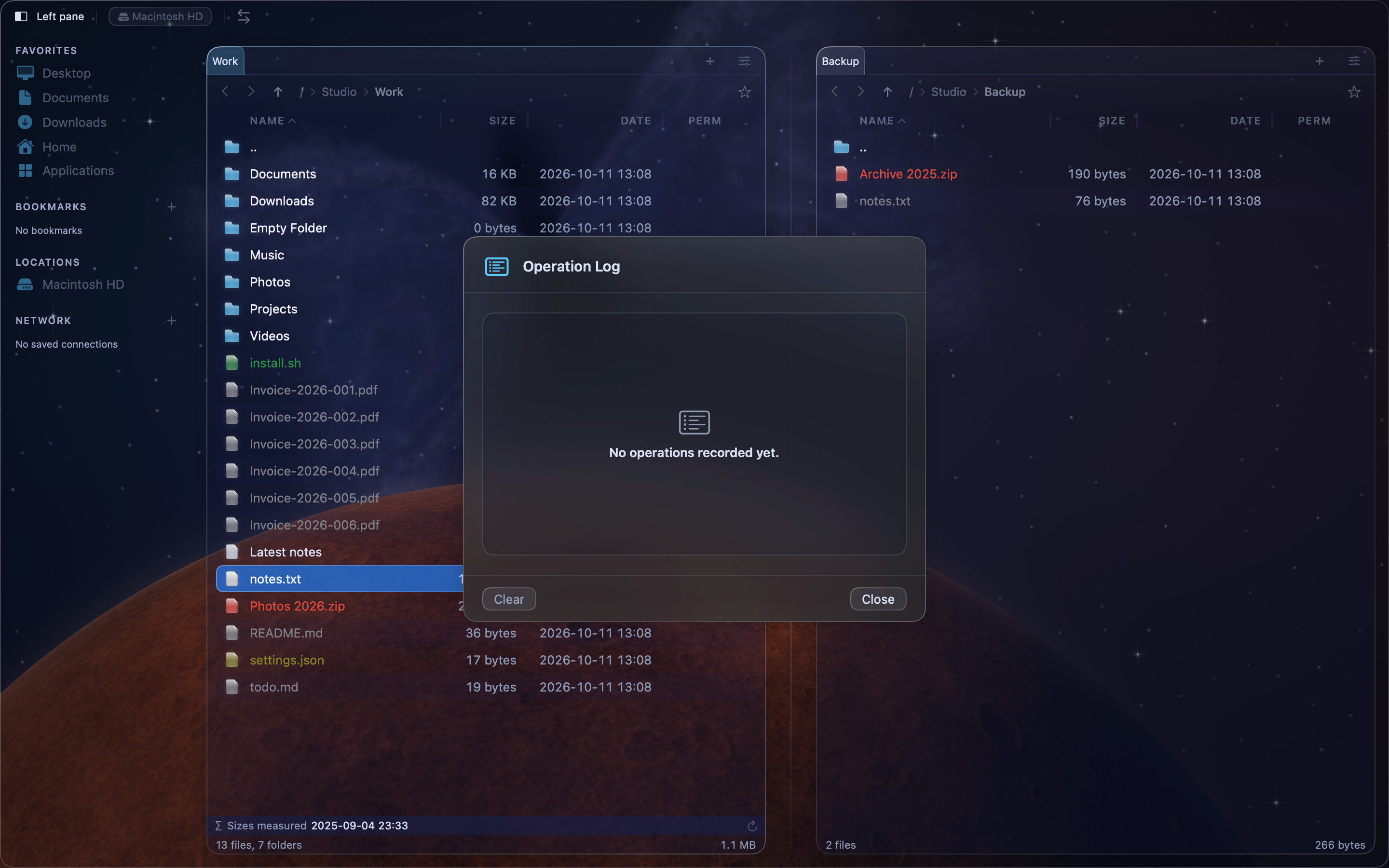
Choose Tools > Operation Log…, or press ⌥⌘L. Each line shows the operation, the time, the items and the destination. A failed or stopped operation shows the reason in red.
The log keeps the last 100 operations of the window since MeiFiles was opened. Click Clear to empty it.
Finish an interrupted operation#
If MeiFiles quits in the middle of a copy or move, for example after a power cut, the Interrupted Operations Found sheet opens at the next launch. Each operation shows how many files were done, pending and failed.
- Click Resume to copy or move the pending files. Name conflicts are asked about as usual.
- Click Discard to forget the operation. The files already copied stay where they are.
- Click Close to decide later. The sheet opens again at the next launch.