
 MeiFiles
Glossary
The words MeiFiles and this guide use, with short definitions.
The terms used in MeiFiles and in this guide. Names in bold are spelled as the app shows them.
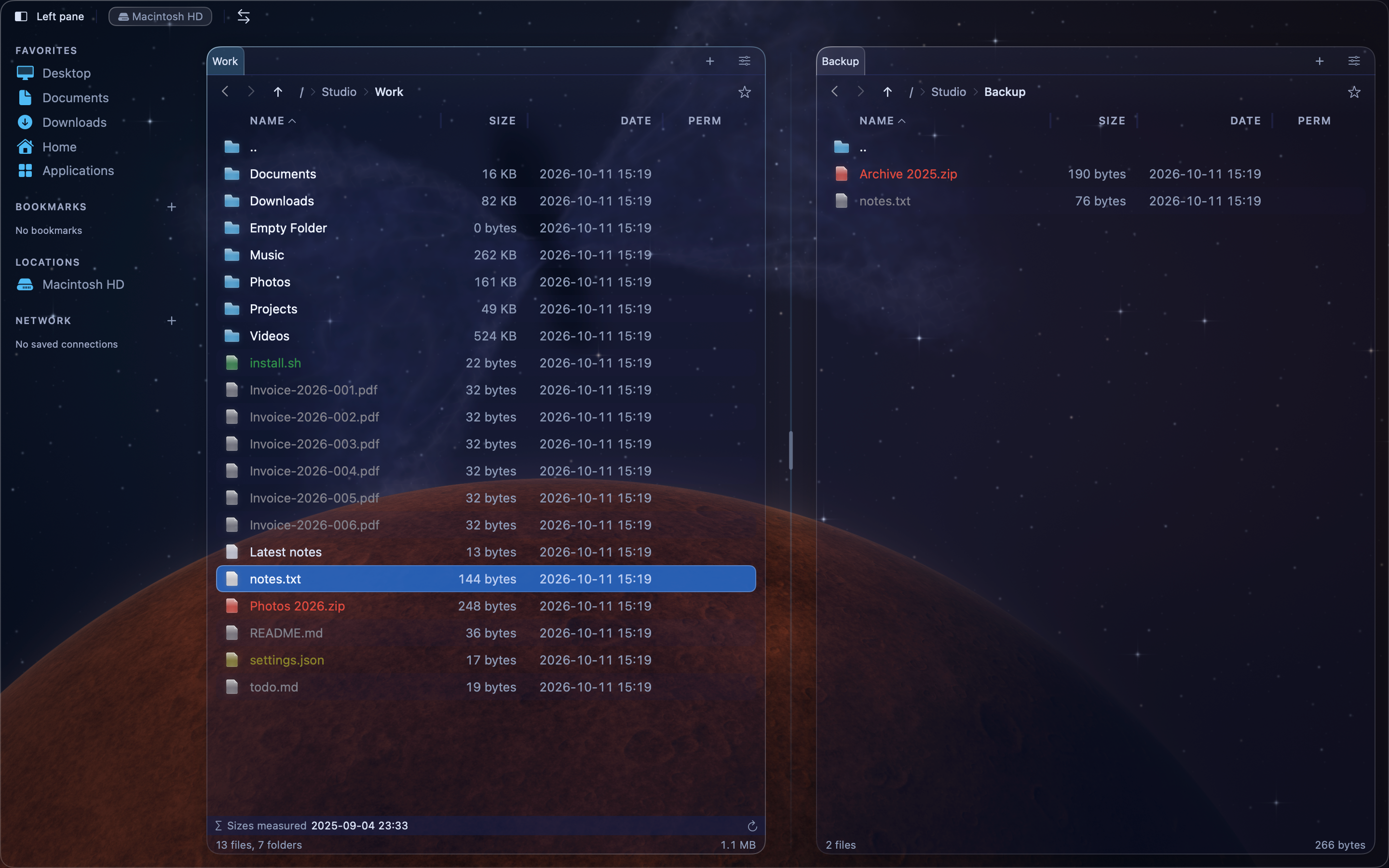
Window and panes#
| Term | Meaning |
|---|---|
| Pane | One of the two file lists side by side. Also called a panel in menu names, such as Swap Panels. |
| Active pane | The pane that receives your keys. Commands such as Copy use its files. Press Tab to switch. |
| Other pane | The pane that is not active. Copy to Other Panel… and Move to Other Panel… use it as the destination. |
| Cursor | The highlighted row in the active pane. It is the item a command uses when nothing is marked. |
| Marked files | Files you selected for a command, for example with Space or Select by Pattern…. Commands use the marked files before the cursor. |
| Path bar | The bar above each pane that shows the current folder. Double-click it to type a path. |
| Crumb | One folder name in the path bar. Click a crumb to go to that folder. |
| Tab | Another folder kept open in the same pane. Each pane has its own tabs. See Panel > New Tab. |
| Sidebar | The column on the left with drives, bookmarks and servers. Only in the New Era themes. |
| Tree sidebar | A folder tree beside the panes. See View > Toggle Tree Sidebar. |
| Toolbar | The row of buttons at the top of the window. You choose its buttons in Settings > Toolbar. |
| Function-key bar | The row of buttons for F1 to F10 at the bottom of the window. Only in the Classic themes. Its labels are the Command Bar Labels. |
| Command line | A text field above the function-key bar in the Classic themes. It answers a few built-in commands, such as cd and ls. |
| View mode | How a pane shows its files: Detail View, Brief View, Thumbnail View, Column View or Size View. |
| Preview | A pane that shows the contents of the file under the cursor. See View > Toggle Preview. |
| Quick Look | The macOS preview window. Press Space on a file. |
Files and disk space#
| Term | Meaning |
|---|---|
| Size map | The Size View: files and folders drawn as tiles, sized by how much space they use. |
| Folder sizes | The total size of each folder, shown after Tools > Calculate Folder Sizes. MeiFiles keeps them between launches. |
| Measurement | The file sizes of a folder, saved at one moment in What Filled the Disk…. Compare two measurements to see what grew. |
| Operation Log | The list of file operations MeiFiles ran. See Tools > Operation Log…. |
| Transfer Queue | The list of file transfers to and from servers. See View > Transfer Queue. |
| Bookmark | A saved folder. Add one with Bookmarks > Add Bookmark. |
| Folder access | Permission you give MeiFiles to open a folder and everything inside it. See Settings > General > File Access. |
| Permission Needed | The message a pane shows for a folder MeiFiles may not open yet. Click Grant Access…. |
Themes and appearance#
| Term | Meaning |
|---|---|
| Theme | The look of the whole window. Also called Skin in Settings. |
| New Era · Space | The default theme: dark glass over a generated space backdrop. |
| New Era · Winter | Light glass over a generated winter landscape. |
| 2000s Classic | A theme in the style of the Windows file managers of the 2000s. |
| 90s Classic | A theme in the style of the DOS file managers of the 1990s. |
| Backdrop | What the New Era themes show behind the panes. Set in Behind the panels. |
| Pattern | A six-digit number that picks the generated backdrop. Also called a seed. |
| Glass | The see-through panels of the New Era themes. The Glass slider sets how clear they are. |
| Custom Colors | Your own colors for the file list, such as Cursor Background. |
| File Type Colors | The colors of file names by type, such as Archives or Images. |