
 MeiFiles
Get info and change permissions
See the details of a file, and change its permissions, flags, dates and owner, for one file or many.
Get Info shows everything about one file and lets you change its permissions, flags and dates. Edit Properties… changes the same settings for many files at once.
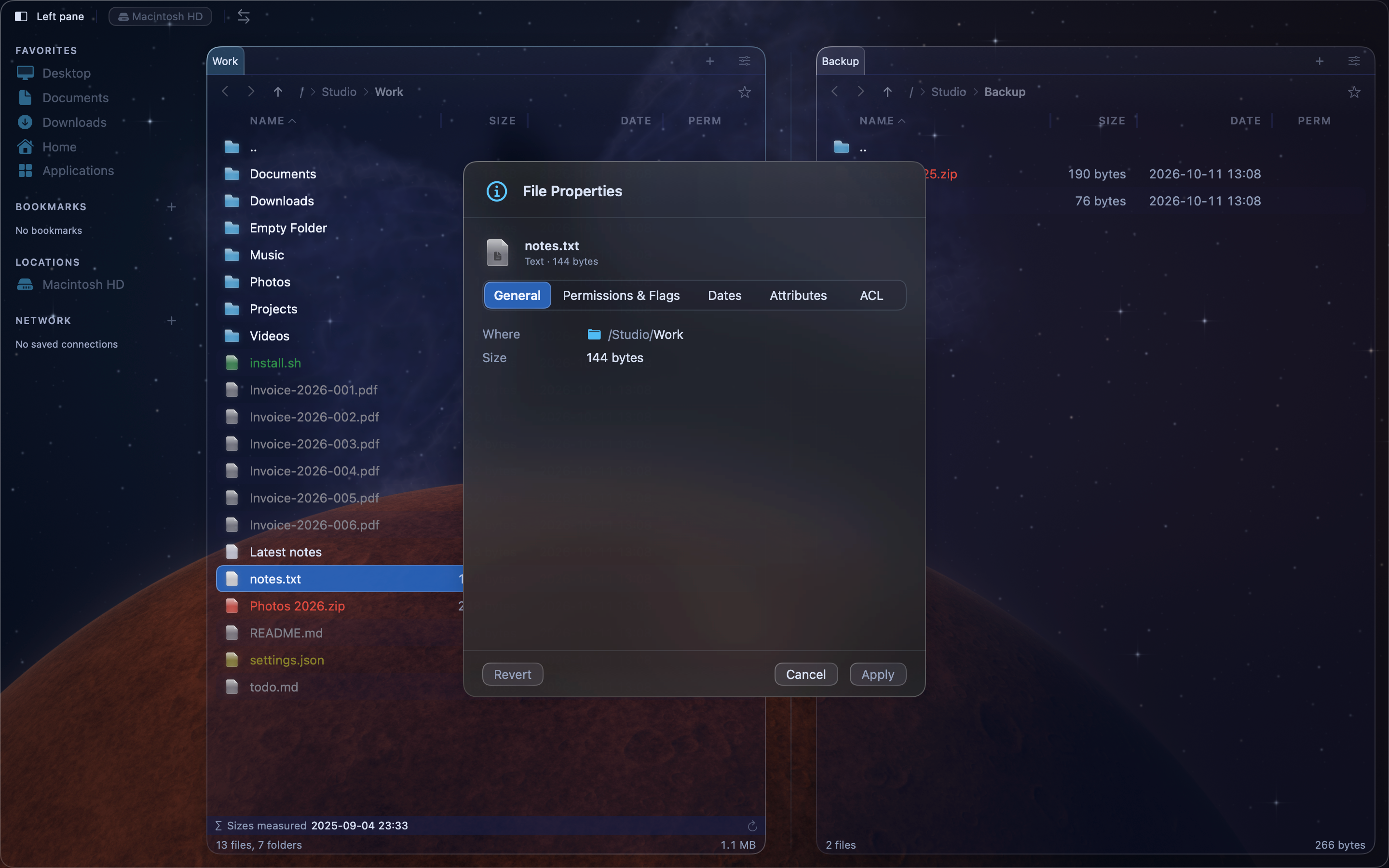
See the details of a file#
- Move the cursor to the file or folder.
- Press
⌘I, or choose File > Get Info.
The File Properties sheet has five sections:
| Section | What it shows |
|---|---|
| General | Kind, size, location, dates, tags and, for a link, its target |
| Permissions & Flags | Owner and group, read, write and execute permissions, and the flags |
| Dates | The creation and modification dates, which you can change |
| Attributes | The extended attributes stored with the file |
| ACL | The access control entries, with a Copy ACL button |
Change permissions and flags#
- In File Properties, choose Permissions & Flags.
- Turn Read, Write and Execute on or off for Owner, Group and Other. The Octal value, such as
644, follows your changes. - Under Flags, turn Hidden or Locked (User Immutable) on or off. If the file came from the internet, click Remove next to Quarantine Flag to clear it.
- Click Apply. Click Revert to go back to the values you started with.
Change many files at once#
- Mark the files. See Select files.
- Choose File > Edit Properties….
- Change permissions, flags or the modification date. A box with a dash means the files differ. Click it to set the same value for all.
- Click Apply.
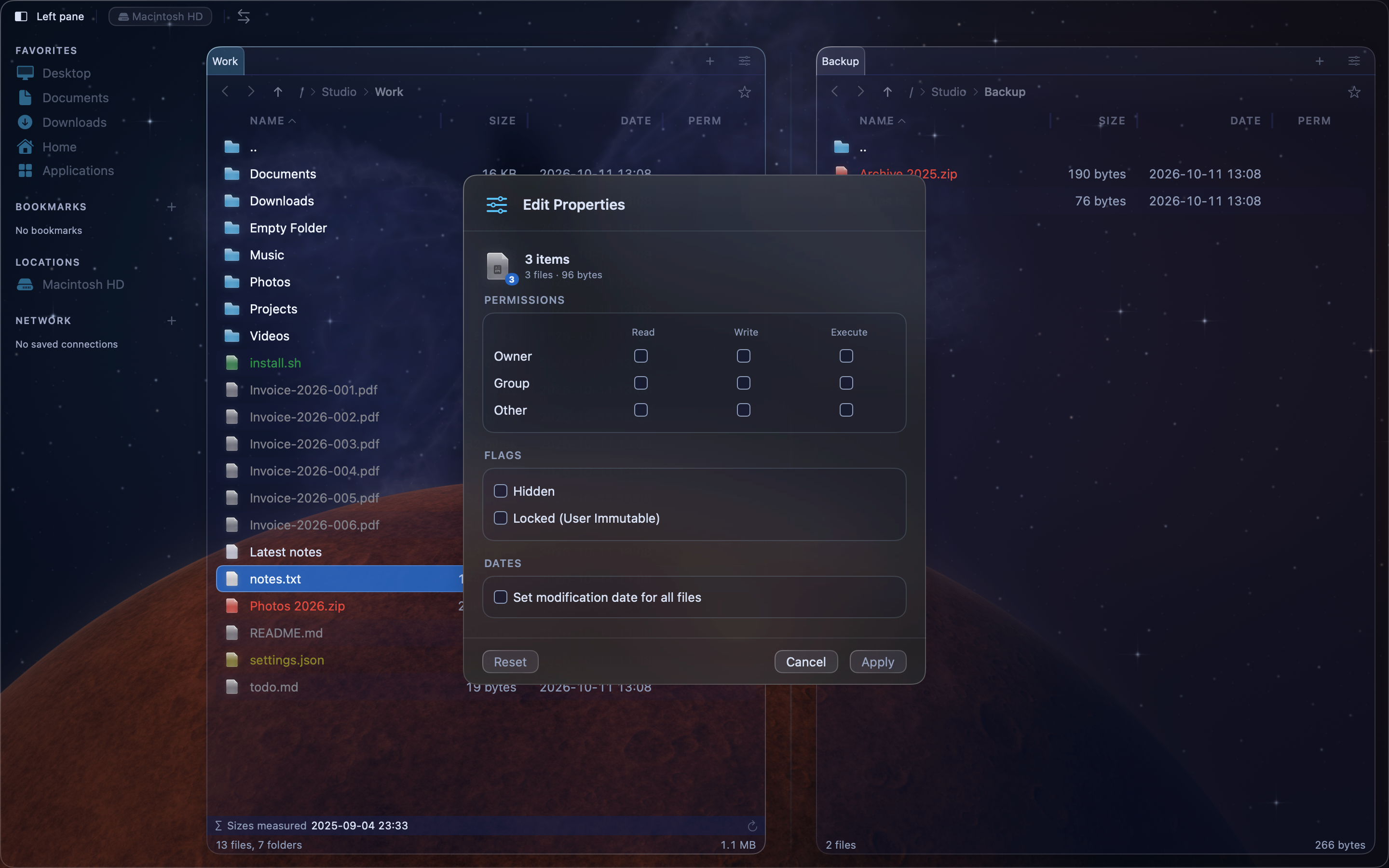
Only the values you change are written. Click Reset to discard your changes.
Change the owner#
- Move the cursor to the file.
- Choose File > Change Owner…, or Control-click the file and choose Change Owner….
- Type the Owner and Group names, then click Apply.
Changing the owner often needs administrator rights. If macOS refuses, MeiFiles shows the reason.
Note: Changes to permissions, flags, dates and owner cannot be undone with
⌘Z.