
 MeiFiles
Find files
Search a folder and all its subfolders by file name, by text inside files, or with a regular expression.
Find files by name, by the text they contain, or by a pattern. Then open the folder of any result in the active pane.
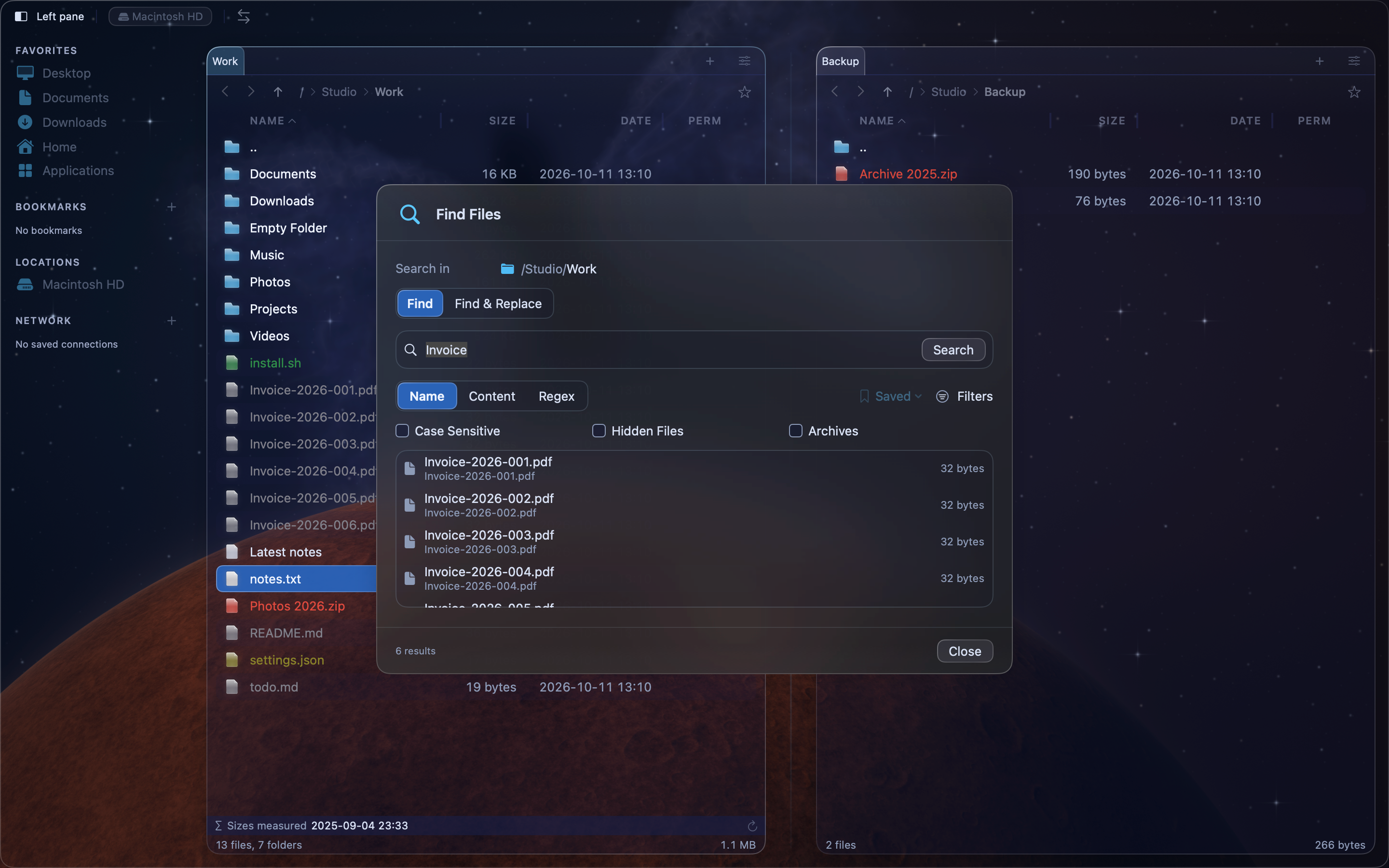
Search for files#
- Press Command-F (
⌘F), or choose File > Find Files…. You can also press⌥F7. - Type what you are looking for in the Search… field.
- Under Match by, choose how to match:
- Name finds files and folders whose name contains the text.
- Content finds text files that contain the text.
- Regex matches file names against a regular expression, for example
^IMG_\d+\.jpe?g$.
- Press
Return, or click Search.
Results appear while the search runs. Click Stop (⌘.) to end it early. The line below the results shows how many were found.
MeiFiles searches the folder shown under the search field, and every folder inside it.
Note: A Name search uses the Spotlight index, so it is fast. Files in folders that Spotlight does not index are not found.
Choose search options#
- Case Sensitive treats
Reportandreportas different. - Hidden Files also searches files and folders whose names start with a dot.
- Archives also looks at the names of files inside ZIP and TAR archives.
Narrow the results with filters#
Click Filters to show more conditions. A file must meet all of them.
| Filter | What it does |
|---|---|
| Type: | Only Documents, Images, Audio, Video, Source Code or Archives. Any turns the filter off. |
| Size: | Only files between Min and Max, in Bytes, KB, MB or GB. Leave Max empty for no upper limit. |
| Date: | Only files changed After one date and Before another. |
Click Clear Filters to remove all of them.
Open a result#
Double-click a result. The sheet closes, and the active pane opens the folder that contains the file. If the result is a folder, the pane opens that folder.
Save a search#
- Set up the search.
- Click Saved, then choose Save Current Query….
- Type a name, then click Save.
To use it again, click Saved and choose its name. A saved search keeps the text, Match by, Case Sensitive and Hidden Files. To remove one, choose Saved > Delete Saved….