
 MeiFiles
Use passwords and archive properties
Open password-protected ZIP archives, and see what an archive contains and how well it is compressed.
Enter a password to open a protected archive. Check an archive's properties to see how many files it holds and how much space it saves.
Open a password-protected archive#
- Put the cursor on the archive and press
Return. - In the Password Required sheet, type the password.
- Click Open.
If the password is wrong, MeiFiles says so and asks again. Click Cancel to give up.
MeiFiles does not remember the password. It asks each time you open the archive.
To extract files from a protected archive, open it with the password first. Then select the files and press F5 to copy them to the other pane.
Note: MeiFiles can open password-protected ZIP archives. It cannot create them: Compress to ZIP… makes archives without a password.
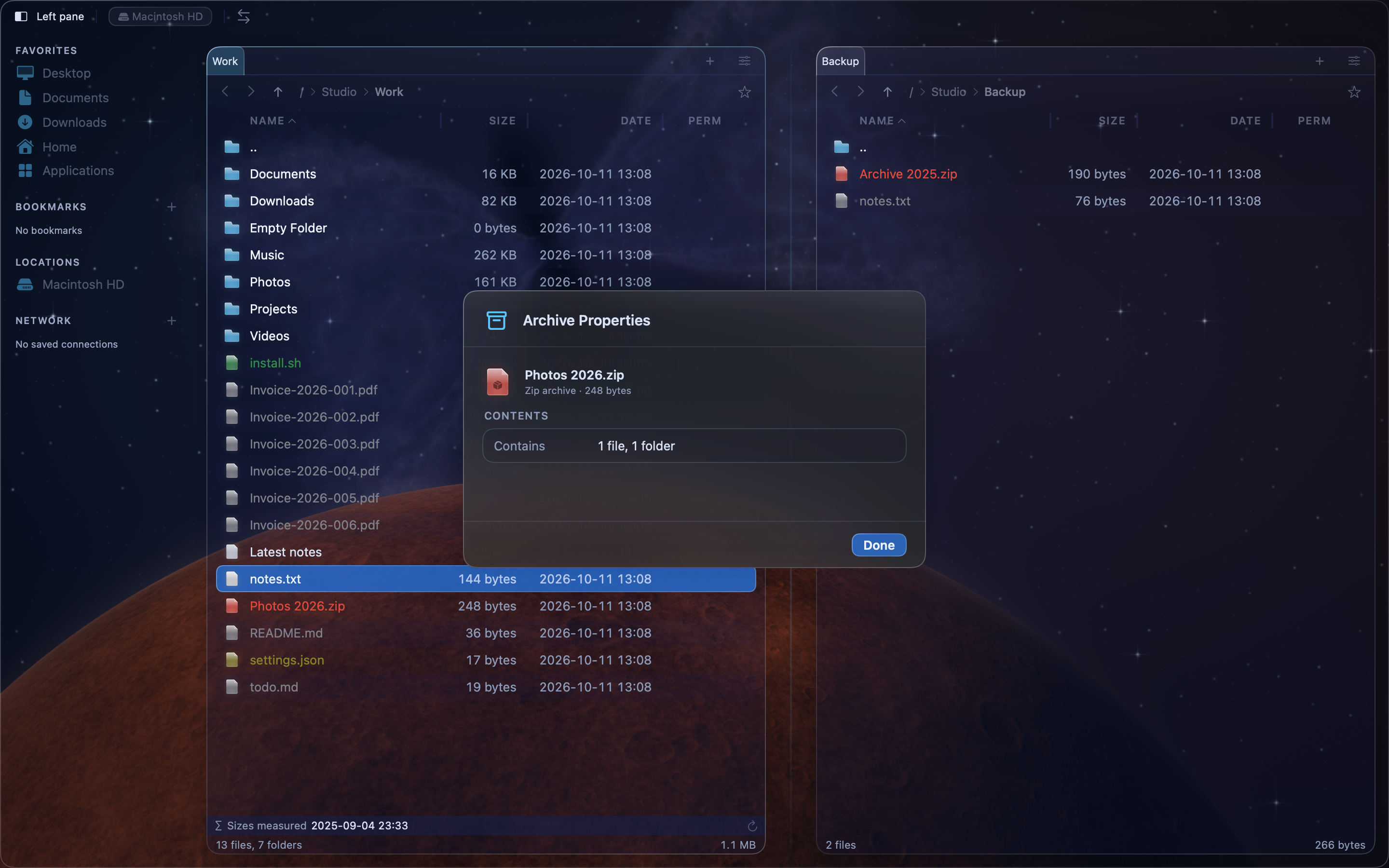
See archive properties#
- Put the cursor on the archive.
- Choose File > Archive Properties….
The sheet shows the archive's name and folder, and these details:
| Detail | Meaning |
|---|---|
| Format | The type of archive, from its file name extension. |
| Entries | The number of files and folders in the archive. |
| Total Size | The size of the contents after extraction. |
| Archive Size | The size of the archive file itself. |
| Compression | The archive size as a percentage of the total size. A lower number means better compression. |
| Directories | The number of folders in the archive. |
| Files | The number of files in the archive. |
Click Done to close the sheet.