
 MeiFiles
Use the sidebar and folder tree
Open favorite places, bookmarks, disks, and servers from the sidebar, and browse with a folder tree.
The sidebar lists places you open often. The folder tree shows the folders of your disks beside a pane, so you can see where you are.
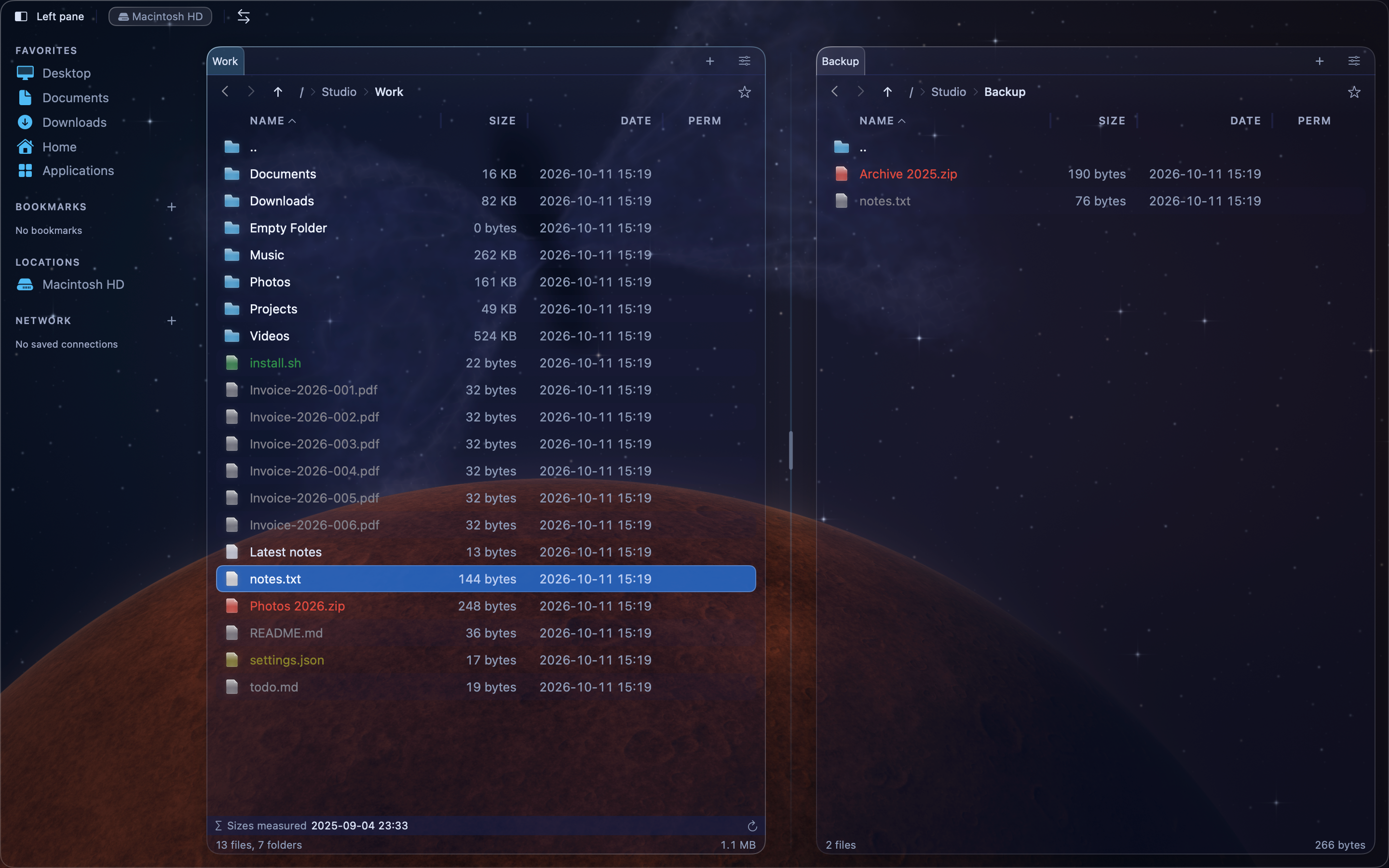
Use the sidebar#
The sidebar appears in the New Era · Space and New Era · Winter themes. Click an item to open it in the active pane.
| Section | What it lists |
|---|---|
| Favorites | Desktop, Documents, Downloads, Home, and Applications. |
| Bookmarks | Your bookmarked folders. Click + to bookmark the current folder. |
| Locations | Your disks and connected volumes. |
| Network | Your saved server connections. Click + to connect to a server. |
Control-click an item for more commands:
- A bookmark: Remove Bookmark.
- A disk you can eject: Eject.
- A server connection: Connect, Edit…, and Remove. A green dot shows a connected server.
To show or hide the sidebar, press ⇧⌘S, or choose View > Toggle Sidebar.
Show the folder tree#
- Click in the pane where you want the tree.
- Press
⇧⌘T, or choose View > Toggle Tree Sidebar.
The tree appears on the left side of that pane. Each pane has its own tree. The tree is available in every theme.
Browse with the folder tree#
- Click a folder to open it in the pane.
- Click the arrow next to a folder to expand or collapse it.
- Drag the right edge of the tree to make it wider or narrower.
The tree follows the pane. When you open a folder in the list, the tree expands to show it.
Note: A folder icon with a question mark is a folder MeiFiles cannot read yet. Open it to grant access.