
 MeiFiles
Preview files
Show the file under the cursor in the preview pane or in Quick Look, with syntax highlighting, line numbers and image details.
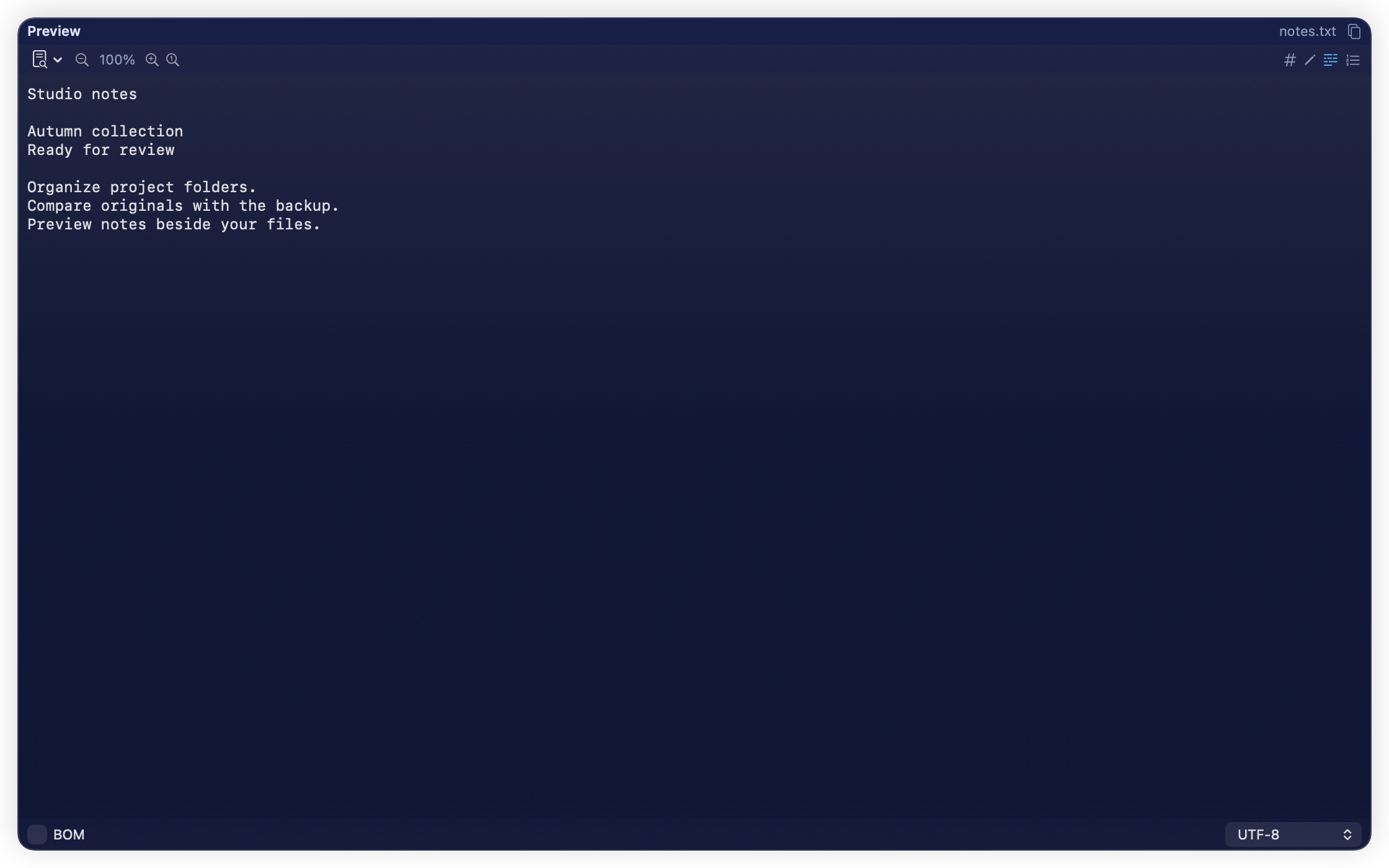
The preview pane shows the file under the cursor next to the panes. Move the cursor, and the preview follows. You can read a file without opening another app.
Open the preview pane#
Press F3 or ⌘P, or choose View > Toggle Preview. Press the same key again to close the pane.
The pane shows:
- Text and code, with syntax highlighting. An encoding menu at the bottom lets you read a file that is not in UTF-8.
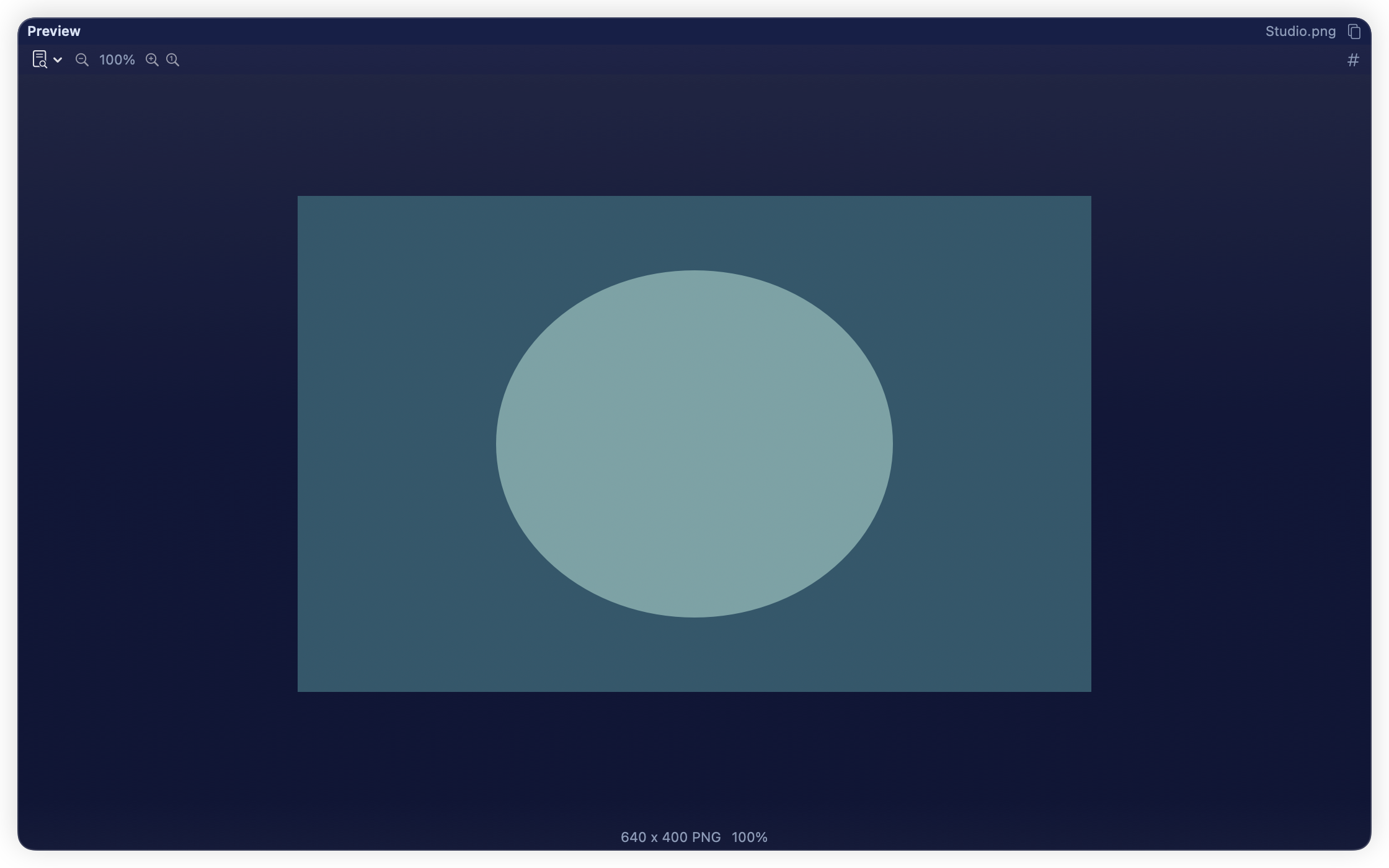
- Images, with their size in pixels and their format.
- PDF files and other types, through macOS Quick Look.
A folder has no preview. A very large file shows its size instead of its content.
Use the preview toolbar#
| Button | What it does |
|---|---|
| Zoom Out, Zoom In, Reset Zoom | Make the text or image smaller or larger |
| Word Wrap | Wrap long lines to the width of the pane |
| Line Numbers | Show or hide line numbers |
| Hex View | Show the raw bytes of the file |
| Edit File | Edit a text file in the pane. See Edit text and binary files. |
Set the defaults in Settings > Viewer: Word wrap, Show line numbers, Default text encoding and Zoom level.
Open the preview in its own window#
Choose View > Detach Preview Window, or click the window button at the top right of the pane. The window keeps showing that file while you go on working in the panes.
Use Quick Look#
Press Space on a file to open it in macOS Quick Look. Use the arrow keys to move to the next file; Quick Look follows. Press Space again to close it.