
 MeiFiles
Choose a theme
Switch between the MeiFiles themes and see what each one changes.
MeiFiles has four themes. You can also make your own version of a New Era theme. A theme sets the colors, fonts and layout of the whole window, not only a tint.
Switch the theme#
- Choose View > Theme.
- Choose a theme. The window changes at once.
You can also choose a theme in Settings > Appearance with the Skin menu.
New Era · Space#
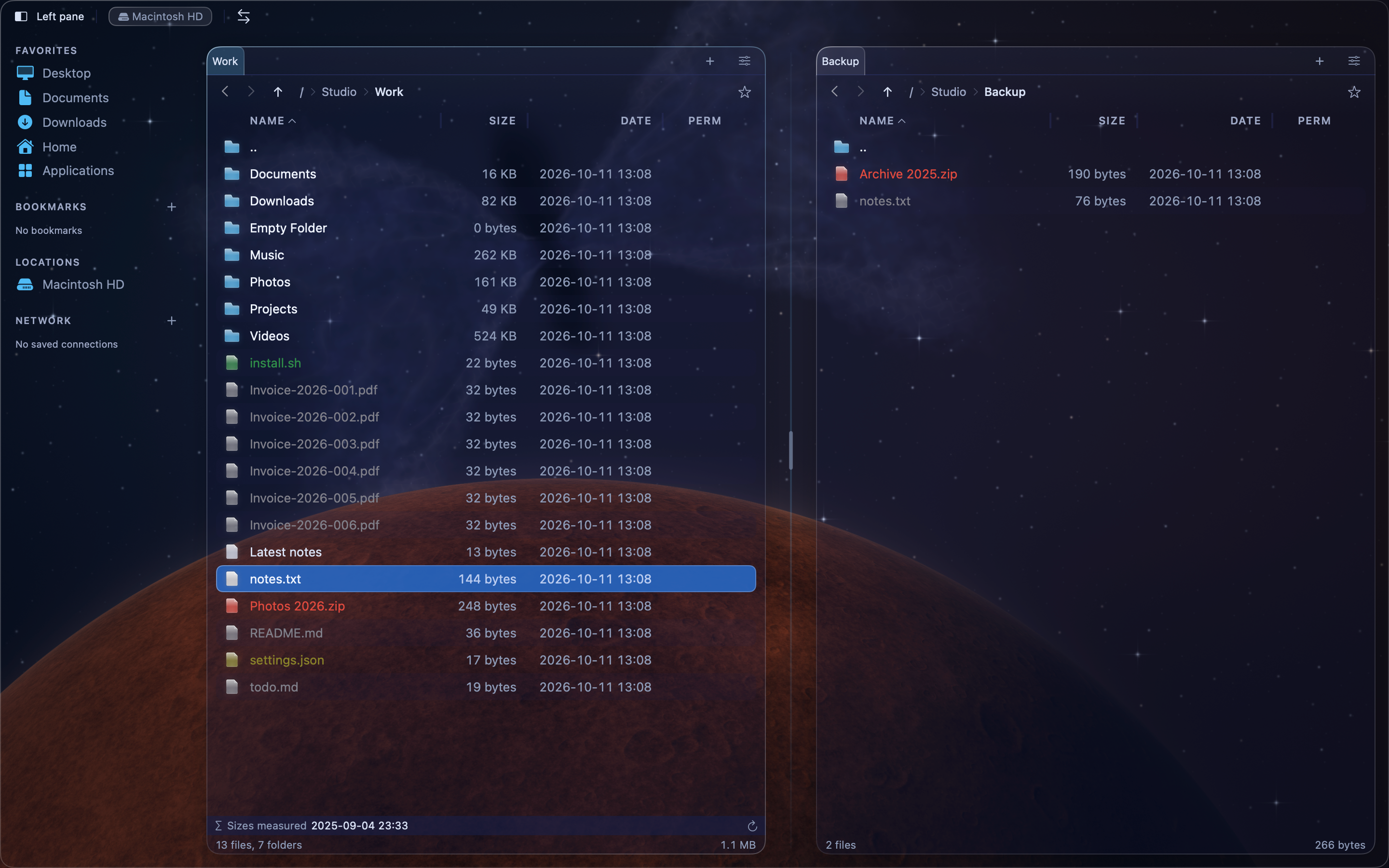
The default theme. Dark glass panels float over a generated deep-space backdrop with stars, a nebula and a planet. A sidebar on the left lists drives, bookmarks and servers.
New Era · Winter#
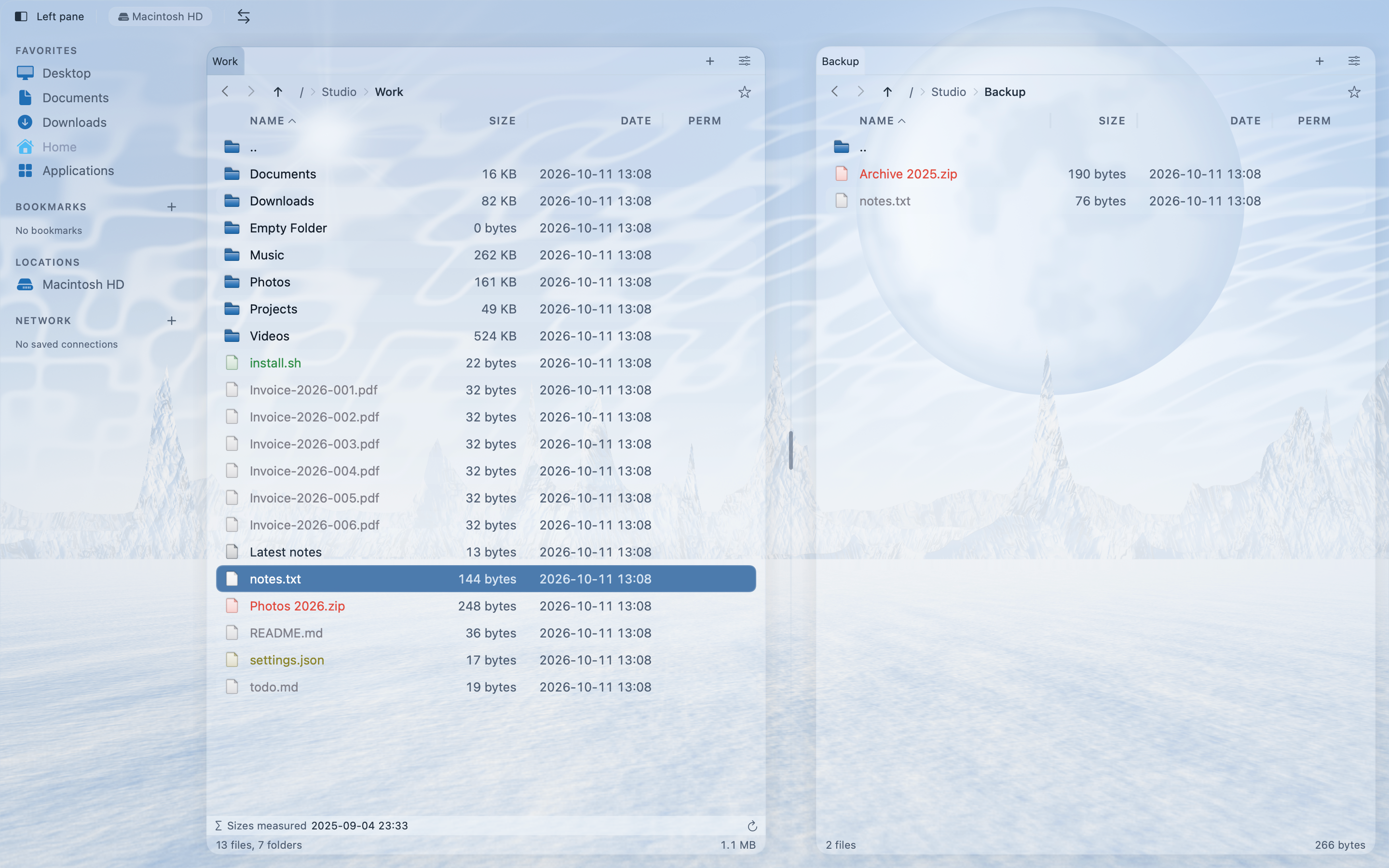
Light glass panels over a generated winter landscape. It has the same layout and sidebar as New Era · Space.
Your own version of a New Era theme#
Change any color or style option of New Era · Space or New Era · Winter, and MeiFiles makes New Era · Custom from it. The original theme stays in the list. See Build your own theme.
2000s Classic#
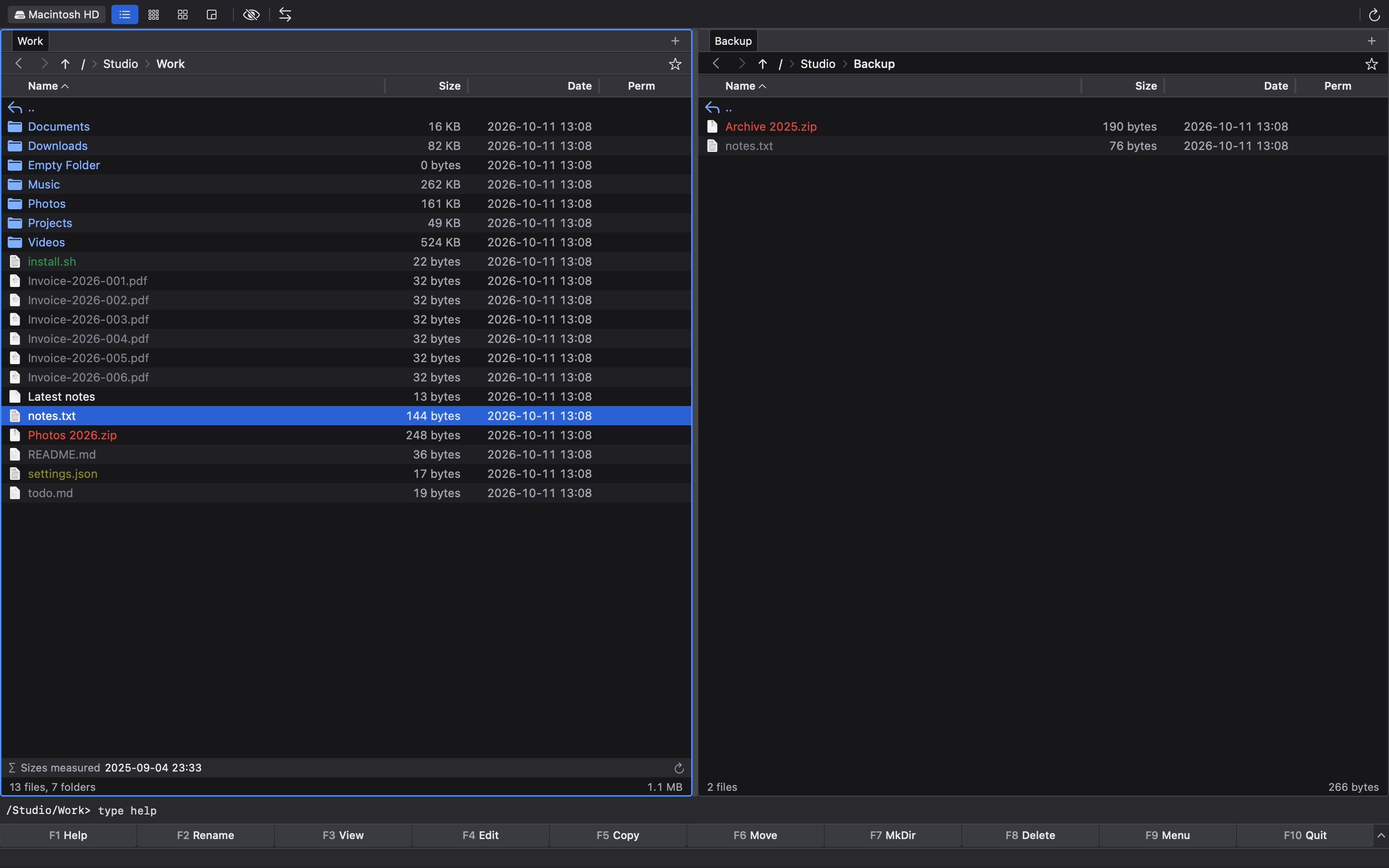
In the style of the Windows file managers of the 2000s: panels with file icons, a command line and a function-key bar at the bottom of the window.
90s Classic#
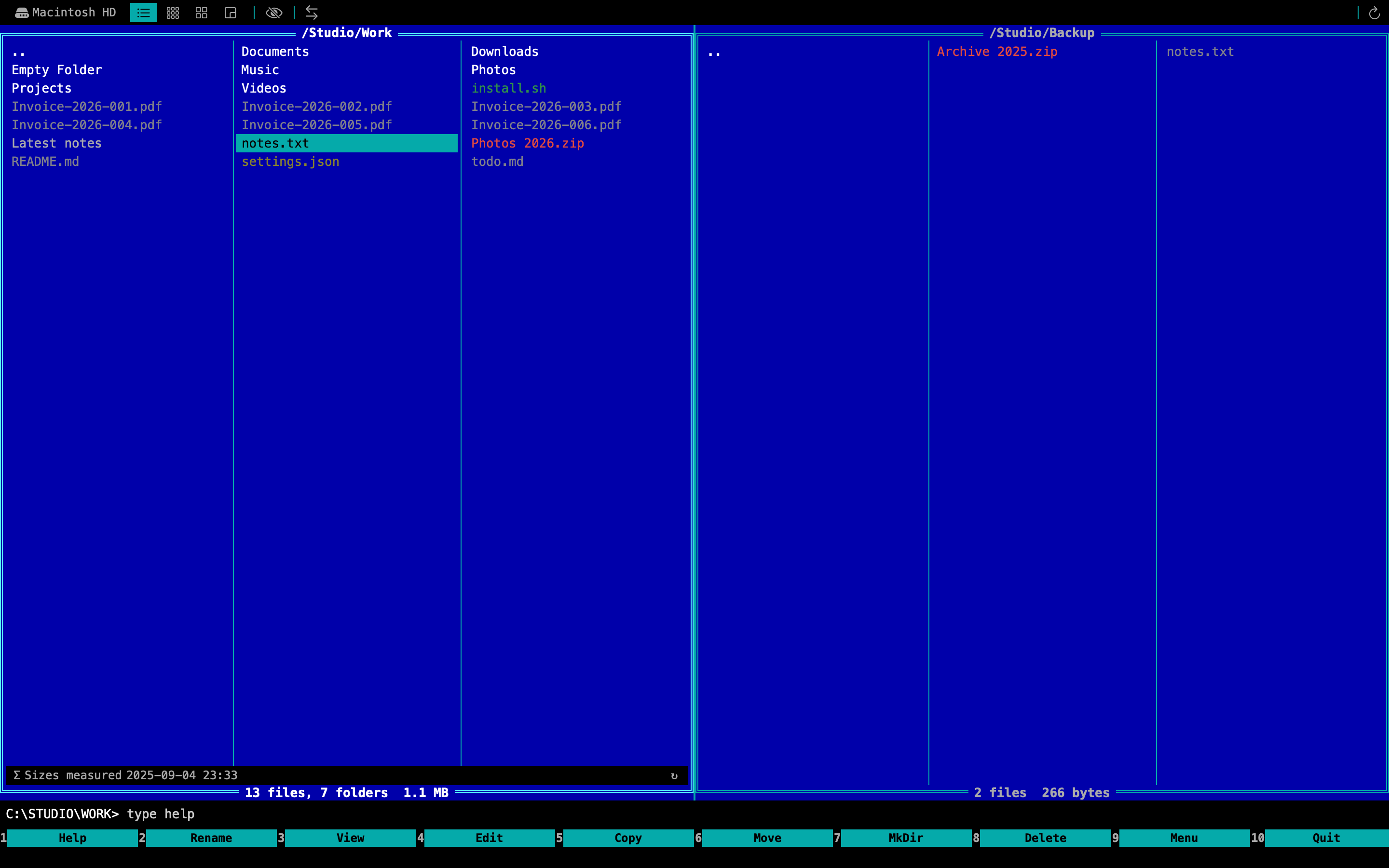
In the style of the DOS file managers of the 1990s: blue text-mode panels with double-line frames, no file icons, a command line and a function-key bar. The tab strip appears only when more than one tab is open.
What changes with the theme#
| New Era · Space and Winter | 2000s Classic | 90s Classic | |
|---|---|---|---|
| Sidebar | Yes | No | No |
| Generated backdrop | Yes | No | No |
| Command line | No | Yes | Yes |
| Function-key bar | No | Yes, can expand to three rows | Yes |
| Grid lines | No | Yes | No |
| File icons | Yes | Yes | No |
In 2000s Classic, turn grid lines on with View > Grid Lines, or in Settings > Panels > Grid Lines.
The command line answers a small set of built-in commands, such as cd, ls, mkdir and open. Type help to list them.
Note: Your file type colors stay the same in every theme. See Change colors.