
 MeiFiles
Connect to a server
Open an FTP, WebDAV or Amazon S3 server in a pane, and save the connection for next time.
Work with files on a server the same way as with files on your Mac. The server opens in the active pane, and you copy files to and from the other pane.
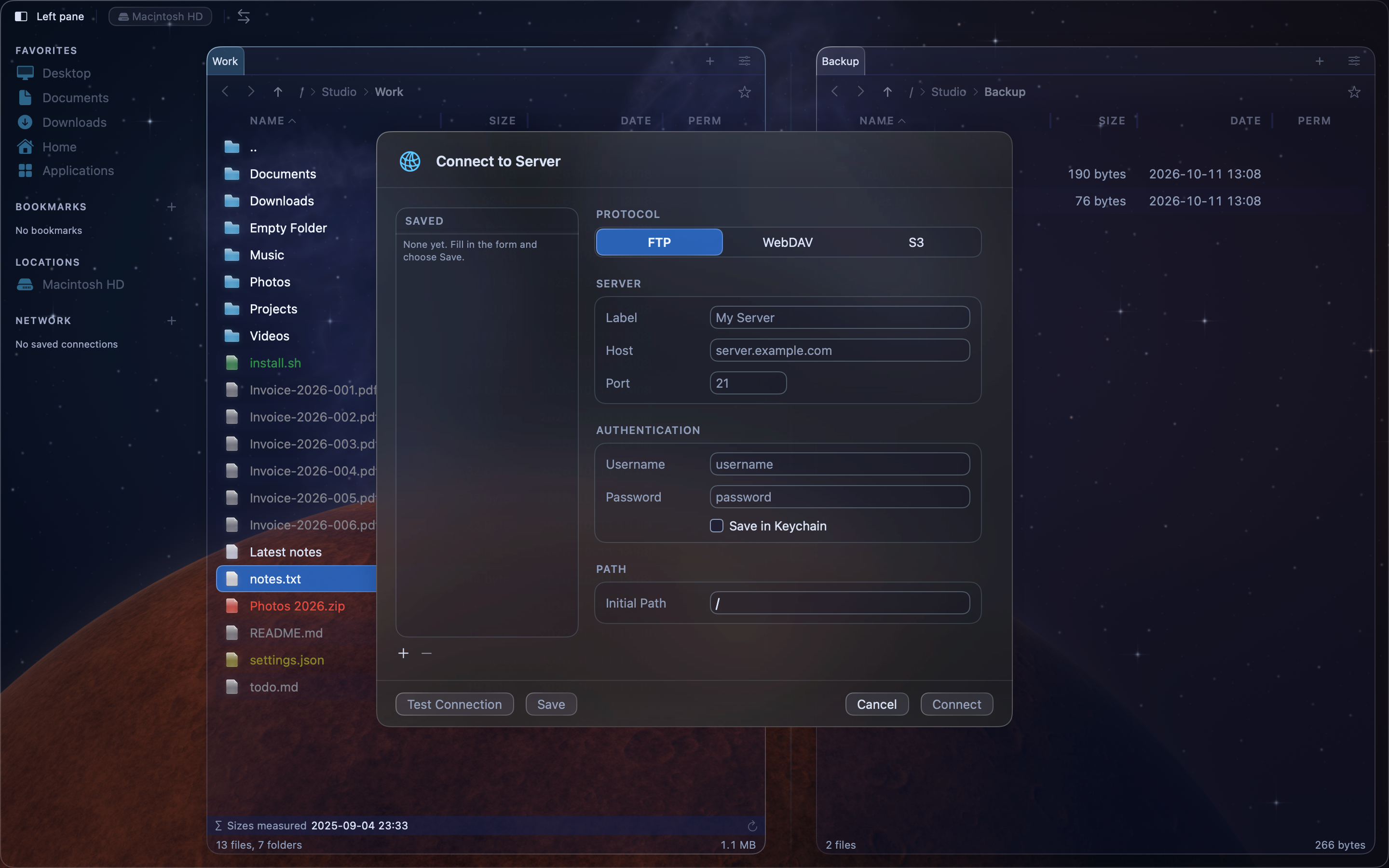
Connect to a server#
- Press Command-K (
⌘K), or choose Go > Connect to Server…. - Under Protocol, choose FTP, WebDAV or S3.
- Fill in the Server fields. Label is the name MeiFiles shows for the connection.
- Fill in the Authentication fields.
- To open a folder other than the top one, type it in Initial Path.
- Click Connect.
The server opens in the active pane. MeiFiles also adds it to the saved connections.
Tip: Click Test Connection to check the settings without leaving the form. Click Log to see each step of the attempt.
Protocols and default ports#
Leave Port empty to use the default port.
| Protocol | Default port | Settings of its own |
|---|---|---|
| FTP | 21 | Passive Mode (PASV) |
| WebDAV | 443 | Use HTTPS |
| S3 | 443 | Endpoint, Region, Bucket |
For S3, type your Access Key ID and Secret Key in place of a user name and password. S3 also works with other storage services that use the S3 protocol: type the service's address in Endpoint.
Note: The Mac App Store version does not offer SFTP and SMB. To use an SMB share, connect to it in the Finder with Go > Connect to Server. It then appears under Locations in the MeiFiles sidebar. See Give MeiFiles access to your folders.
Save the password in the Keychain#
Turn on Save in Keychain to keep the password in the macOS Keychain. Next time, MeiFiles connects without asking. If the password is not saved, MeiFiles opens the form so you can type it.
Manage saved connections#
The connection manager lists saved connections under Saved, grouped by protocol.
- Click a connection to show its settings. Change them, then click Save.
- Click + to start a new connection.
- Click − to delete the selected connection.
Saved connections also appear in the Network section of the sidebar. See Connect quickly to a saved server.