
 MeiFiles
Welcome to MeiFiles
What MeiFiles is, how it works, and what this guide covers.
MeiFiles is a file manager for macOS with two panes side by side. You browse one folder on the left and another on the right, and move files between them.
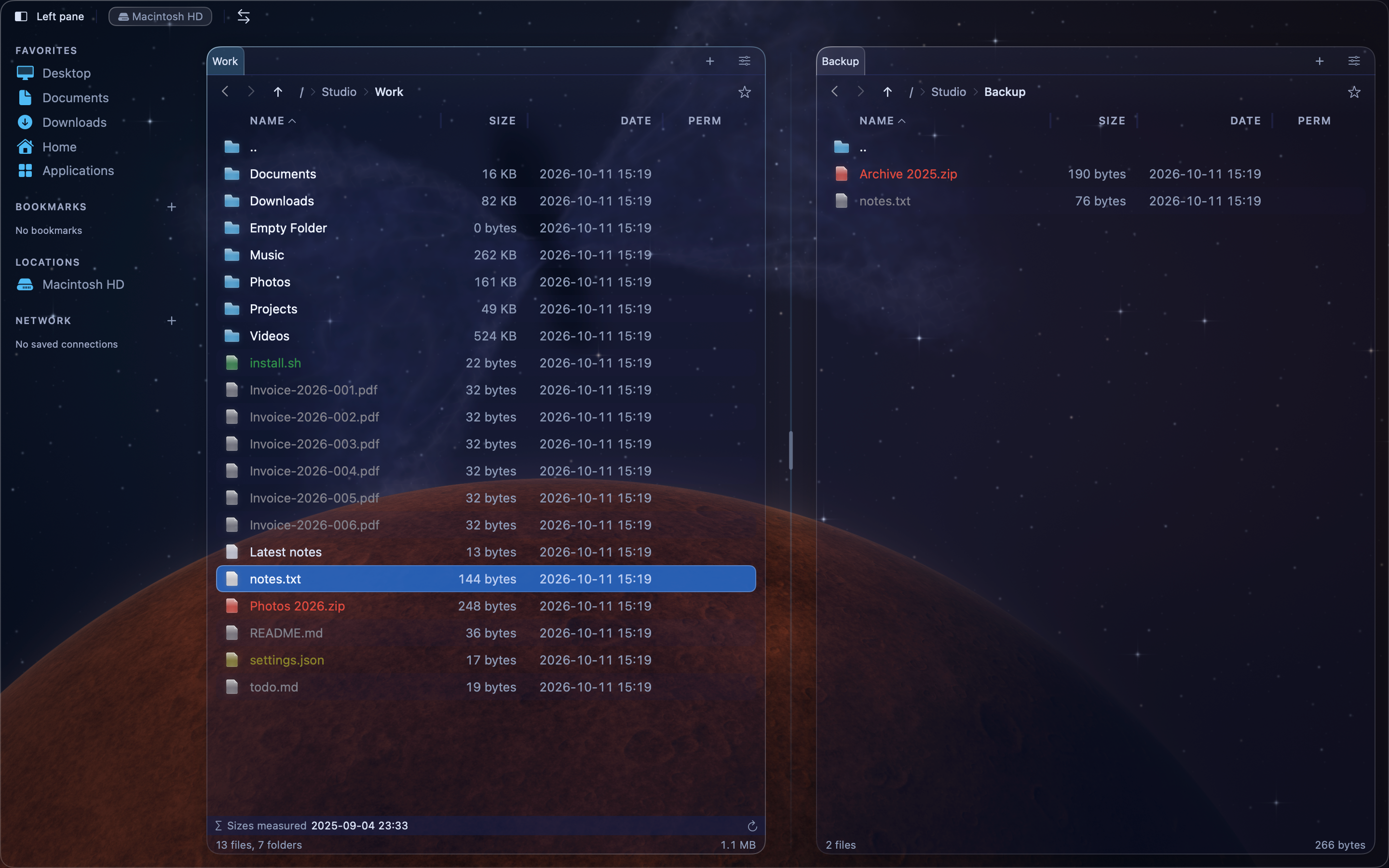
How MeiFiles works#
- Two panes. One pane is active. Commands act on the active pane, and copy or move files to the other pane.
- Keyboard first. You can do almost everything without the mouse. Press
Tabto switch panes,Returnto open, andF5to copy. - Four themes. Choose the look you like in View > Theme:
- New Era · Space (the default): dark glass over a generated space backdrop.
- New Era · Winter: light glass over a winter landscape.
- 2000s Classic: in the style of the Windows file managers of the 2000s.
- 90s Classic: in the style of the DOS file managers of the 1990s.
MeiFiles comes from the Mac App Store, so macOS lets it open only the folders you allow. The first thing to do is to give it access to your home folder.
What this guide covers#
- Get started: folder access, the main window, and the keyboard.
- Navigate: folders, tabs, bookmarks, the sidebar, and the pane layout.
- Work with files: copy, move, rename, and delete.
- View and edit: view modes, Quick View, and file properties.
- Find and compare: search, and compare or sync folders.
- Disk space, Archives, Servers, and Customize.
- Reference: all keyboard shortcuts and settings.