
 MeiFiles
Compare two files
Open two text files side by side, with added, removed and changed lines marked.
See how two versions of a text file differ. MeiFiles shows them side by side and marks each line that changed.
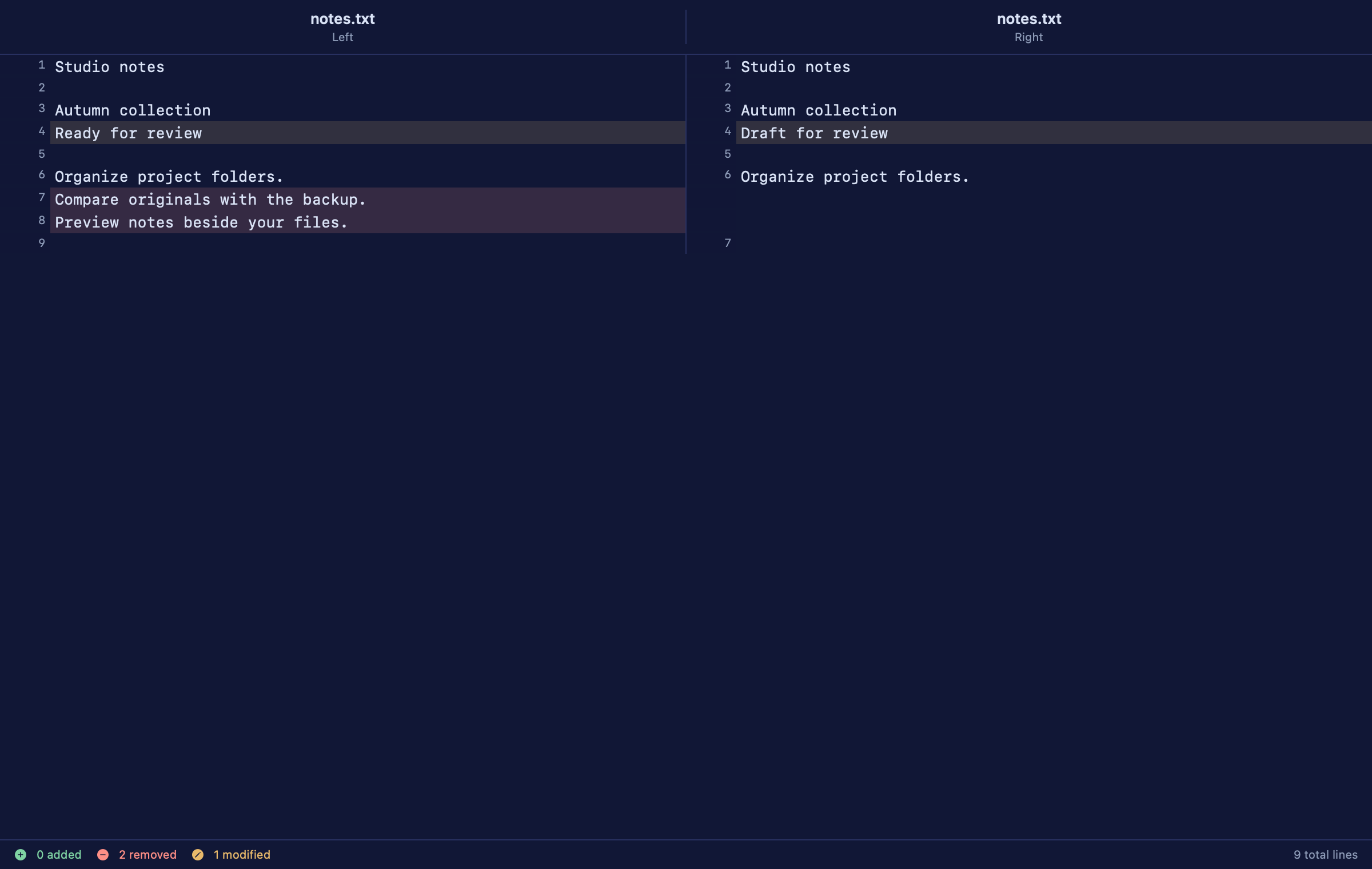
Compare two files#
- In the active pane, put the cursor on the first file.
- In the other pane, open the folder with the second file. If the names differ, put the cursor on the second file there.
- Press Option-Command-D (
⌥⌘D), or choose Tools > Compare Files….
If the other pane has a file with the same name, MeiFiles compares with that file. Otherwise it uses the file under the cursor in the other pane.
The comparison opens in its own window. The file from the active pane is on the left.
Read the comparison#
Each side shows its line numbers. Lines are colored by what changed:
- added: the line is only in the right file.
- removed: the line is only in the left file.
- modified: the line is in both files, but its text differs.
The bar at the bottom counts each kind and shows the total number of lines.
The window is for reading. To change a file, open it in an editor.
Note: Compare text files. MeiFiles reads files up to 64 MB. For larger files, or to check whether two files are exactly the same, use Verify checksums.