
 MeiFiles
Edit text and binary files
Open a file in your own editor with F4, edit text in the preview pane, or change bytes in the hex editor.
MeiFiles gives you three ways to edit a file: your own editor app, a built-in text editor, and a hex editor for binary files.
Open a file in your editor#
- Move the cursor to the file.
- Press
F4, or choose File > Open in External Editor.
MeiFiles opens the file in the app set in Settings > General > Editor. Click Choose… next to the field to pick an app, for example TextEdit or your code editor. When the field is empty, the file opens in its default app.
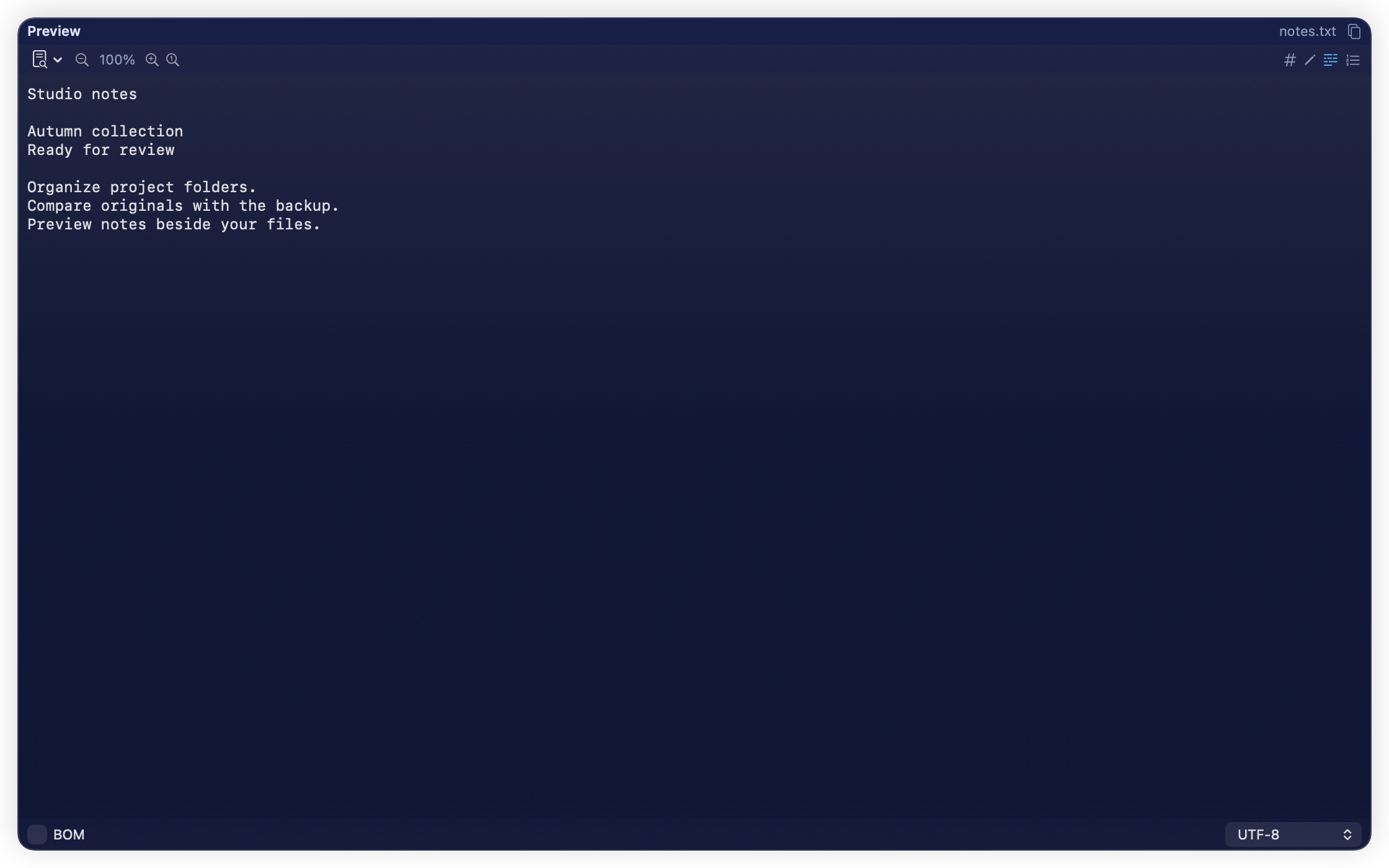
Edit text in the preview pane#
- Press
F3to open the preview pane on a text file. - Click the Edit File button (the pencil) in the pane's toolbar. The header changes to Edit.
- Make your changes. Modified appears while there are unsaved changes.
- Press
⌘Sto save. - Click the Exit Edit Mode button to go back to the preview.
If you leave with unsaved changes, MeiFiles asks you to Save, Discard or Cancel. If another app changed the file while you were editing, choose Overwrite to save your version or Reload to take the other version.
To create a new text file and start editing it at once, press ⌥⇧⌘N. See Create folders, files and links.
Edit bytes in the hex editor#
- Open the preview pane on the file.
- Click the Show Hex View button (#) in the toolbar.
- Click the Edit Hex button (the pencil).
- Change the bytes. The header counts how many are modified.
- Click Save modifications, then Exit Hex Editor.
The hex editor toolbar also has Undo, Redo, Revert all modifications and Go to Offset.
Caution: A wrong byte can make a file unusable. Keep a copy of the file before you edit it in the hex editor.