
 MeiFiles
Manage transfers and bandwidth
Watch, pause and cancel uploads and downloads in the transfer queue, and limit how much of your connection they use.
Copies to and from a server go through the transfer queue. Watch their progress there, pause them, and set how fast and how many run at once.
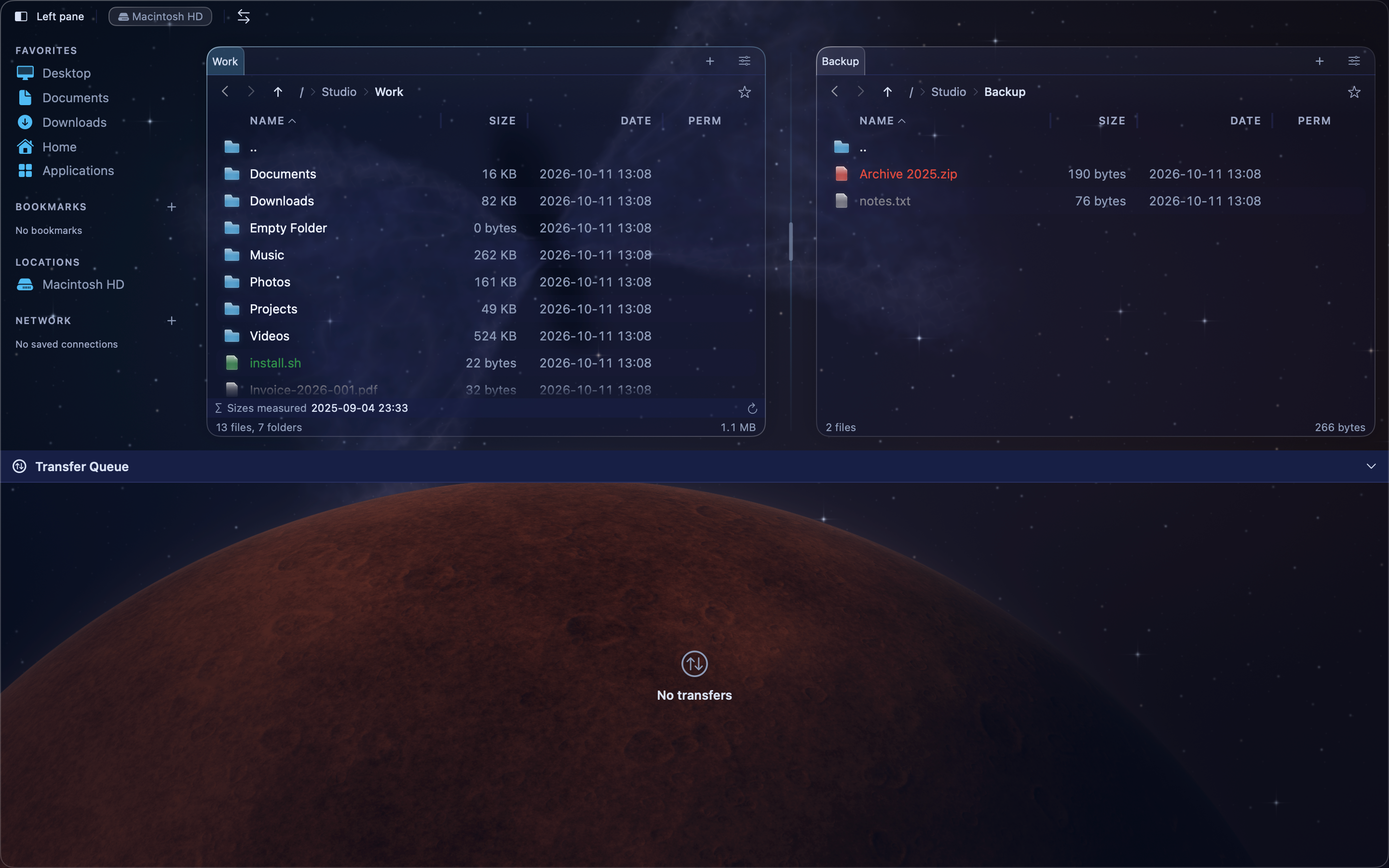
Show the transfer queue#
Press Shift-Command-U (⇧⌘U), or choose View > Transfer Queue. The queue opens below the panes.
The heading counts the active and queued transfers. To hide the queue, press ⇧⌘U again, or click the arrow at the right of the heading.
Transfers are listed under Active, Paused and Completed. Each one shows its progress. The bottom of the queue shows the total speed.
Pause, resume or cancel a transfer#
Use the buttons at the end of a transfer's row:
- Pause stops the transfer for now. Resume continues it.
- Cancel ends the transfer.
- Retry starts a failed transfer again.
To act on all transfers at once, click Pause All, Resume All or Clear Completed at the bottom of the queue.
Limit the transfer speed#
- Choose MeiFiles > Settings…, then click Operations.
- Under Bandwidth, turn on Limit transfer speed.
- Choose a Preset: Low (256 KB/s), Medium (1 MB/s) or High (5 MB/s). Or set Download limit and Upload limit yourself.
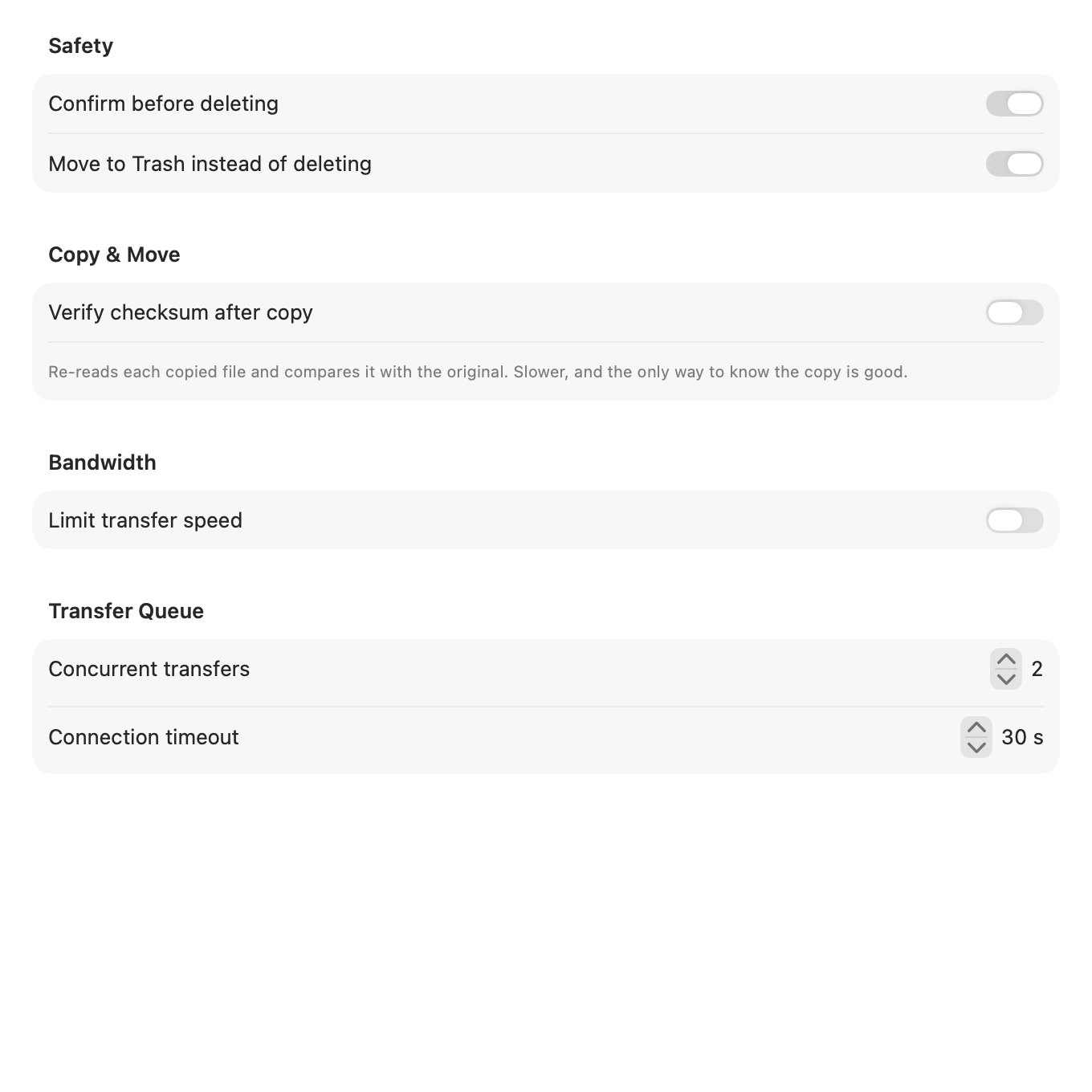
Set how many transfers run at once#
In Settings > Operations, under Transfer Queue:
| Setting | What it does | Range |
|---|---|---|
| Concurrent transfers | How many files are transferred at the same time. Default: 2. | 1–8 |
| Connection timeout | How many seconds MeiFiles waits for a server to answer before it gives up. Default: 30. | 5–120 |
Note: The queue shows only transfers to and from servers. Copies between folders on your Mac show their progress in the Copying Files sheet.