
 MeiFiles
Connect quickly to a saved server
Open a saved server with one click from the Network section of the sidebar.
Every server you connect to is saved. Open it again with one click, without filling in the form.
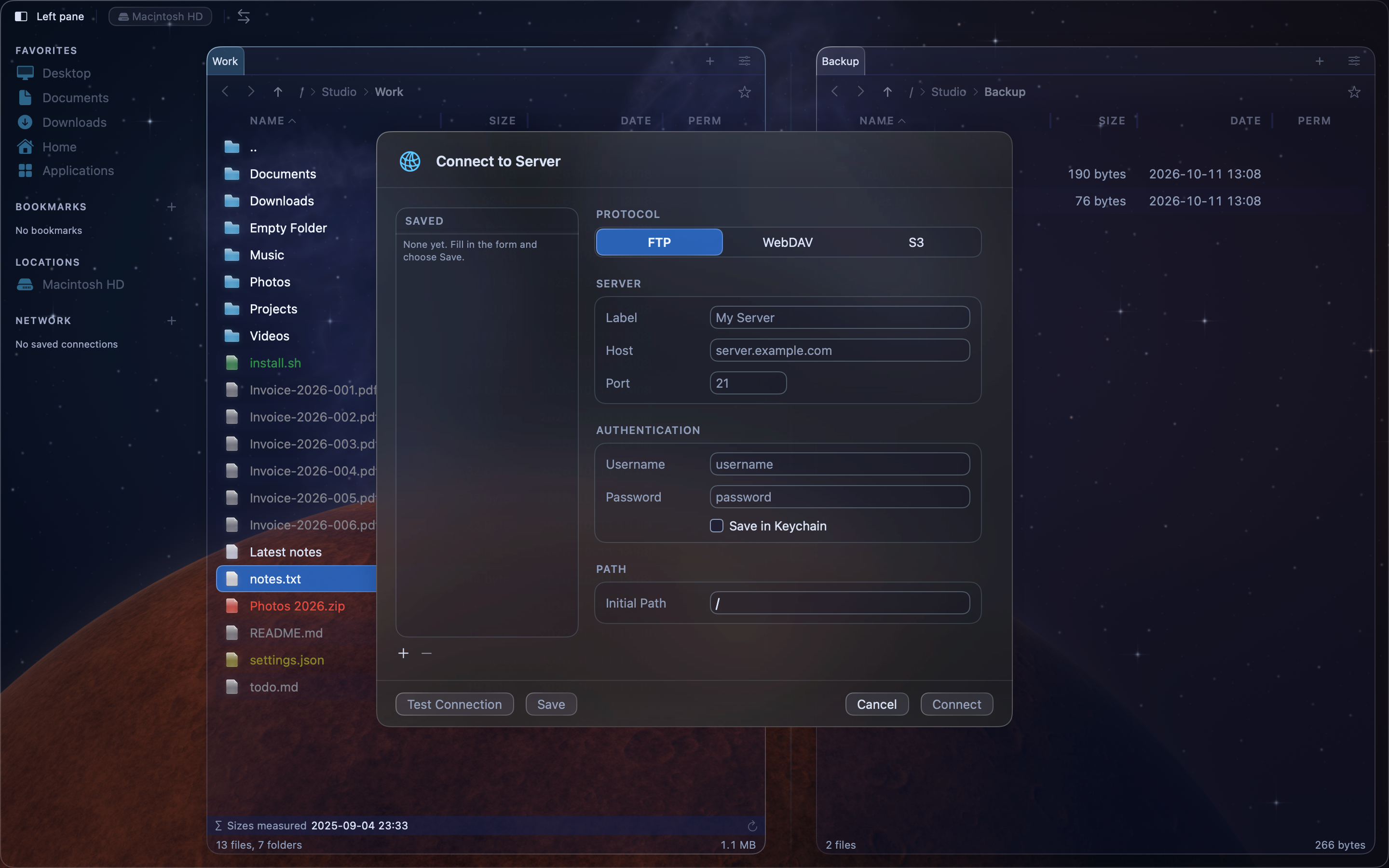
Connect to a saved server#
- Show the sidebar if it is hidden: press
⇧⌘S, or choose View > Toggle Sidebar. - Under Network, click the server.
The server opens in the active pane. A green dot beside a server means it is also mounted as a disk on this Mac.
If the password is not in the Keychain, MeiFiles opens the connection form. Type the password, then click Connect. Turn on Save in Keychain to skip this step next time.
Add, change or remove a saved server#
- Click + in the Network heading to open a blank connection form.
- Right-click a server and choose Edit… to change its settings.
- Right-click a server and choose Remove to delete it from the list.
The right-click menu also has Connect.
Tip: Give each server a short Label in the connection form. The sidebar shows the label instead of the host name.