
 MeiFiles
Settings reference
Every option in the MeiFiles Settings window, tab by tab, with what it does and its default.
To open Settings, choose MeiFiles > Settings… or press ⌘,. Settings has seven tabs: General, Appearance, Panels, Operations, Viewer, Keyboard and Toolbar. Changes take effect at once, unless a note says otherwise.
General#
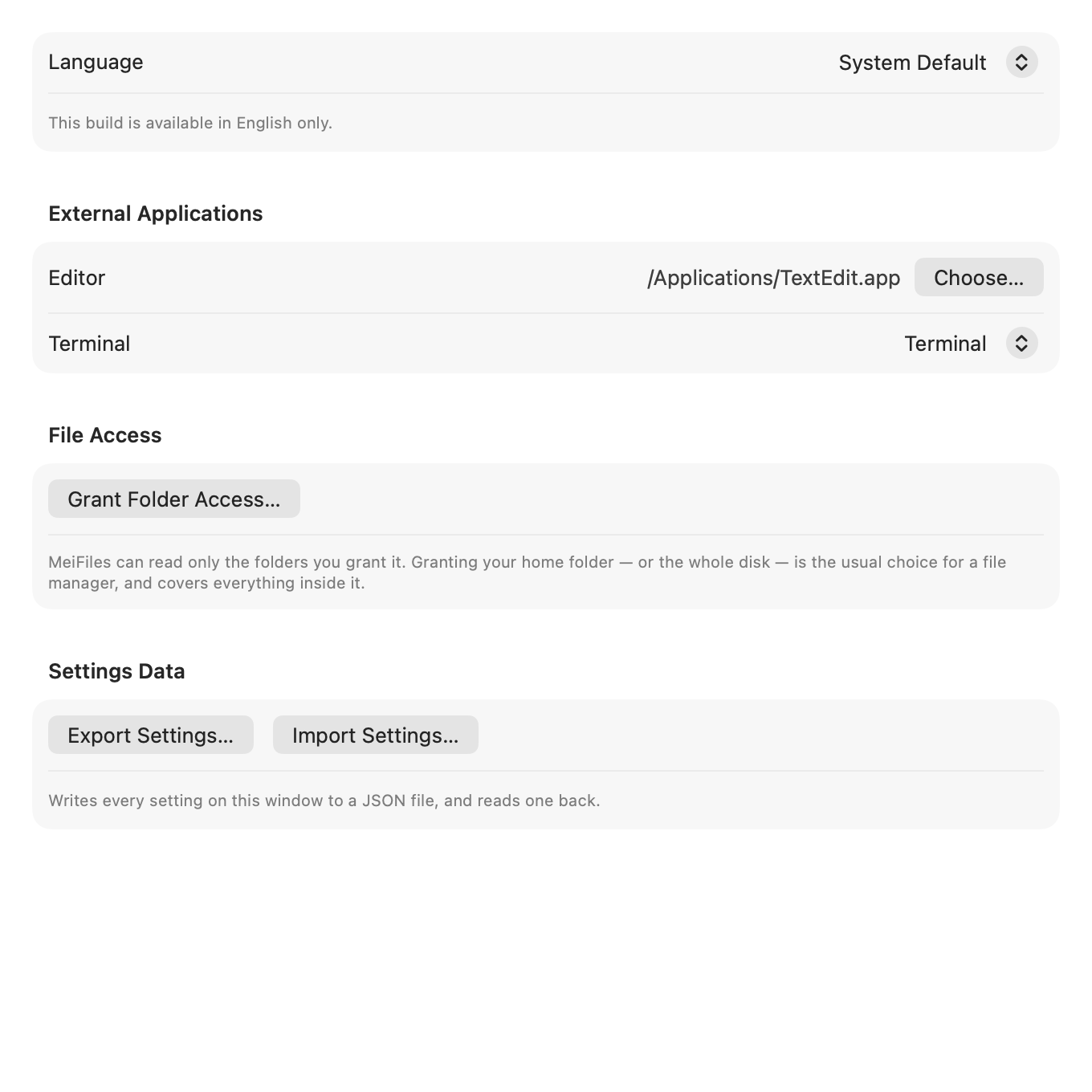
| Option | What it does | Default |
|---|---|---|
| Language | The language of the app. A change takes effect after a restart. | System Default |
| Editor | The app that opens a file when you press F4. Click Choose… to pick it. | None |
| Terminal | The app that Open in Terminal uses: Terminal, iTerm2 or Warp. | Terminal |
| File Access | The folders MeiFiles may open. Click Grant Folder Access… to add one, or Remove to give one back. Each grant covers everything inside the folder. | Empty |
| Export Settings… / Import Settings… | Save every setting to a JSON file, or read one back. See Move your settings to another Mac. | — |
Appearance#
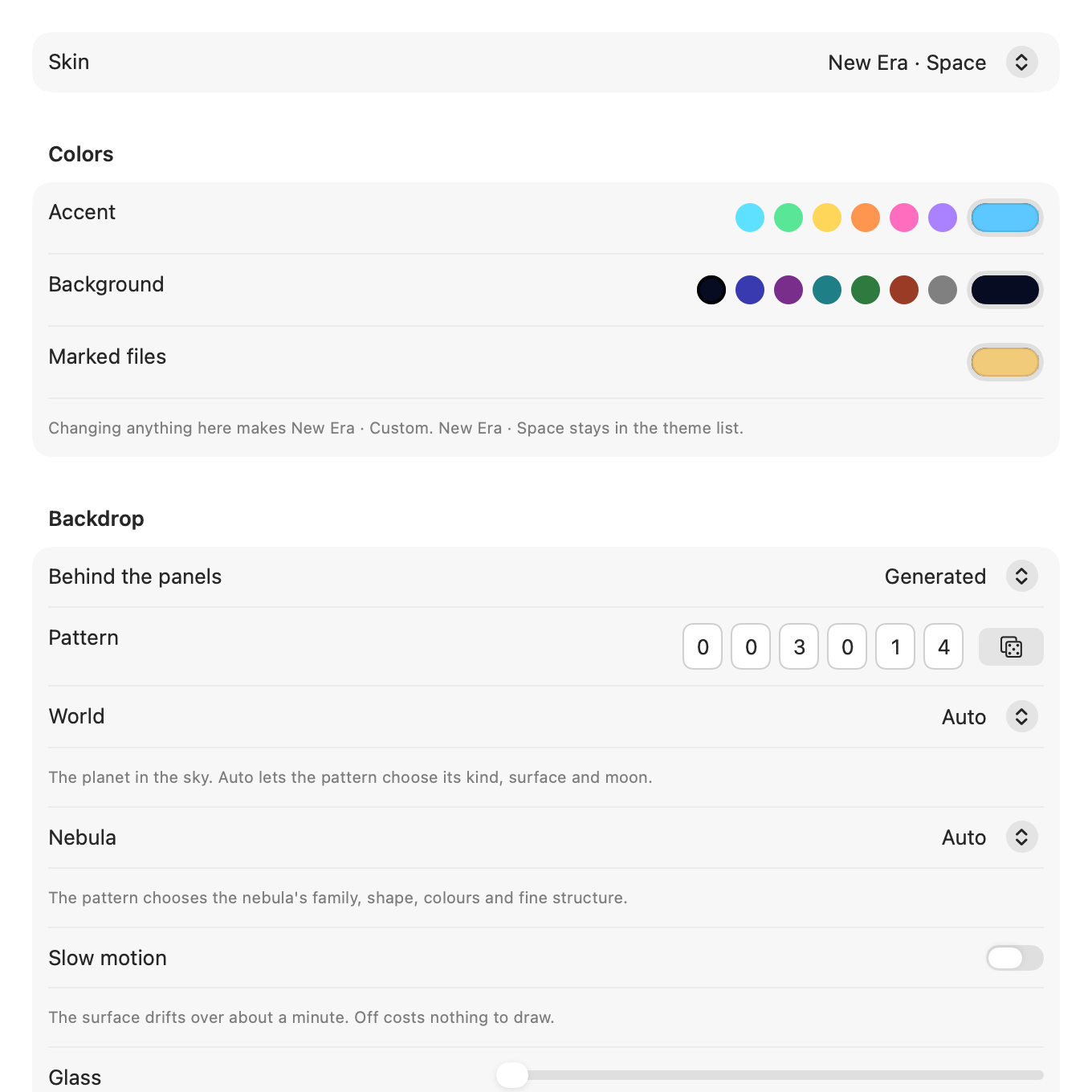
| Option | What it does | Default |
|---|---|---|
| Skin | The theme. The same list as View > Theme. | New Era · Space |
| Colors and Style | New Era themes: accent color, marked files color, rim colors and strength, corner brackets, technical labels, square corners, lit title bands. Changing any of them makes New Era · Custom. See Build your own theme. | The theme's own |
| Behind the panels | New Era only. Generated, Desktop Through Glass or Solid. | Generated |
| Pattern | New Era, Generated only. A six-digit number that picks the picture. The dice button rolls a new one. | A new number at each launch until you choose one |
| World | New Era · Space only. The planet in the sky. | Auto |
| Nebula | New Era · Space only. The kind of nebula. | Auto |
| Scene | New Era · Winter only. The kind of landscape. | Auto |
| Slow motion | Lets the backdrop drift slowly. Uses processor time. | Off |
| Glass | How much of the backdrop shows through the panels. Hidden with Solid. | About one third |
| File list font / File list size | The typeface and size of the file list, 9 to 24 pt. | System Default, 13 pt |
| Mono / editor font / Mono size | The typeface and size for text previews and code, 9 to 20 pt. | System Default, 12 pt |
| Reset to Skin Defaults | Puts the four font settings back. | — |
| Custom Colors | Eleven file list colors, such as Cursor Background and Directory Text. | The theme's colors |
| File Type Colors | Colors for twelve groups of file types, and for single extensions. | The app's colors |
| Enable haptic feedback | New Era only. Trackpad feedback on drop, tab switch and file operations. | On |
For details, see Customize the New Era backdrop and Change colors.
Panels#
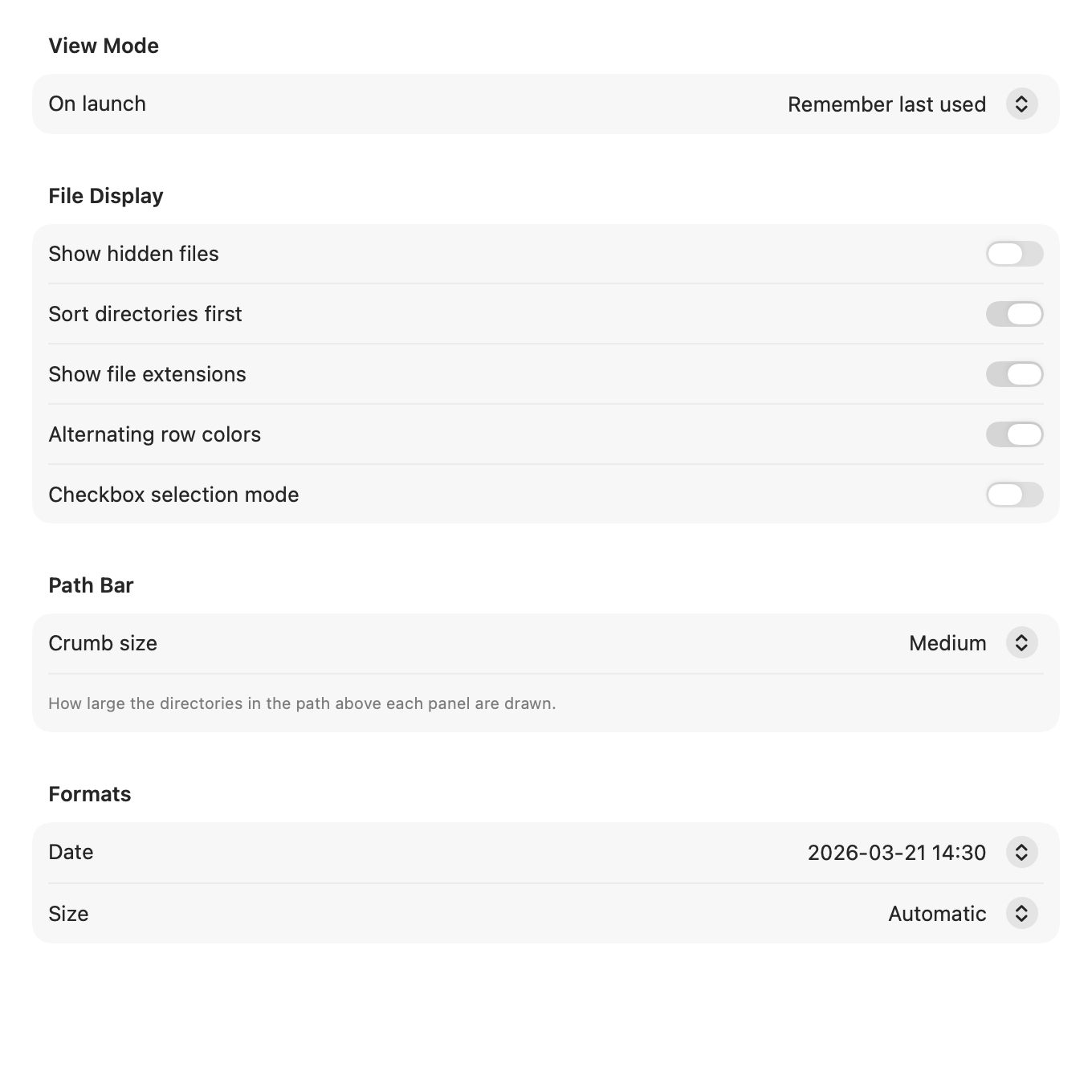
| Option | What it does | Default |
|---|---|---|
| On launch | Remember last used view mode, or Always start with a fixed mode. | Remember last used |
| Fixed mode | The view mode to start with: Detail, Brief, Thumbnail or Size view. | Detail view |
| Show hidden files | Shows files whose names start with a dot. | Off |
| Sort directories first | Lists folders before files. | On |
| Show file extensions | Shows extensions in file names. | On |
| Alternating row colors | Shades every other row. | On |
| Checkbox selection mode | Shows a checkbox on each row for marking files. | Off |
| Horizontal grid lines / Vertical grid lines | 2000s Classic only. Lines between rows and columns. | Off |
| Crumb size | The size of the folder names in the path bar: Small, Medium or Large. | Medium |
| Date | How dates are shown, for example 2026-03-21 14:30. | 2026-03-21 14:30 |
| Size | How sizes are shown: Automatic, Bytes (exact), SI (KB, MB, GB) or Binary (KiB, MiB, GiB). | Automatic |
Operations#
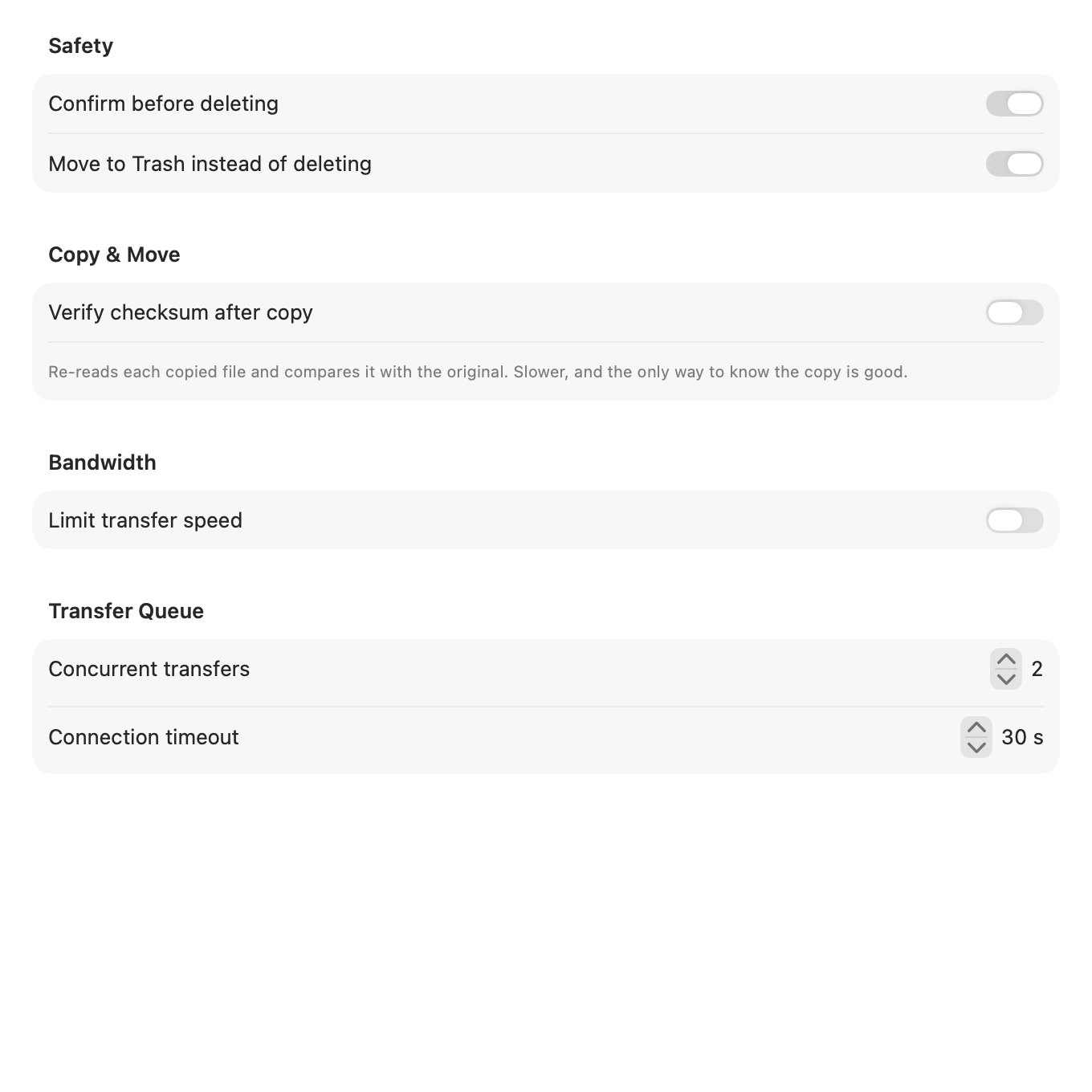
| Option | What it does | Default |
|---|---|---|
| Confirm before deleting | Asks before files are deleted. | On |
| Move to Trash instead of deleting | F8 moves files to the Trash. Off deletes them for good. | On |
| Verify checksum after copy | Reads each copied file again and compares it with the original. Slower. | Off |
| Limit transfer speed | Limits server transfers. Shows Preset, Download limit and Upload limit. | Off |
| Preset | Low (256 KB/s), Medium (1 MB/s), High (5 MB/s) or Custom. | — |
| Download limit / Upload limit | The speed limit, 64 to 102,400 KB/s. | 1024 / 512 KB/s |
| Concurrent transfers | How many server transfers run at once, 1 to 8. | 2 |
| Connection timeout | How long to wait for a server, 5 to 120 seconds. | 30 s |
Viewer#
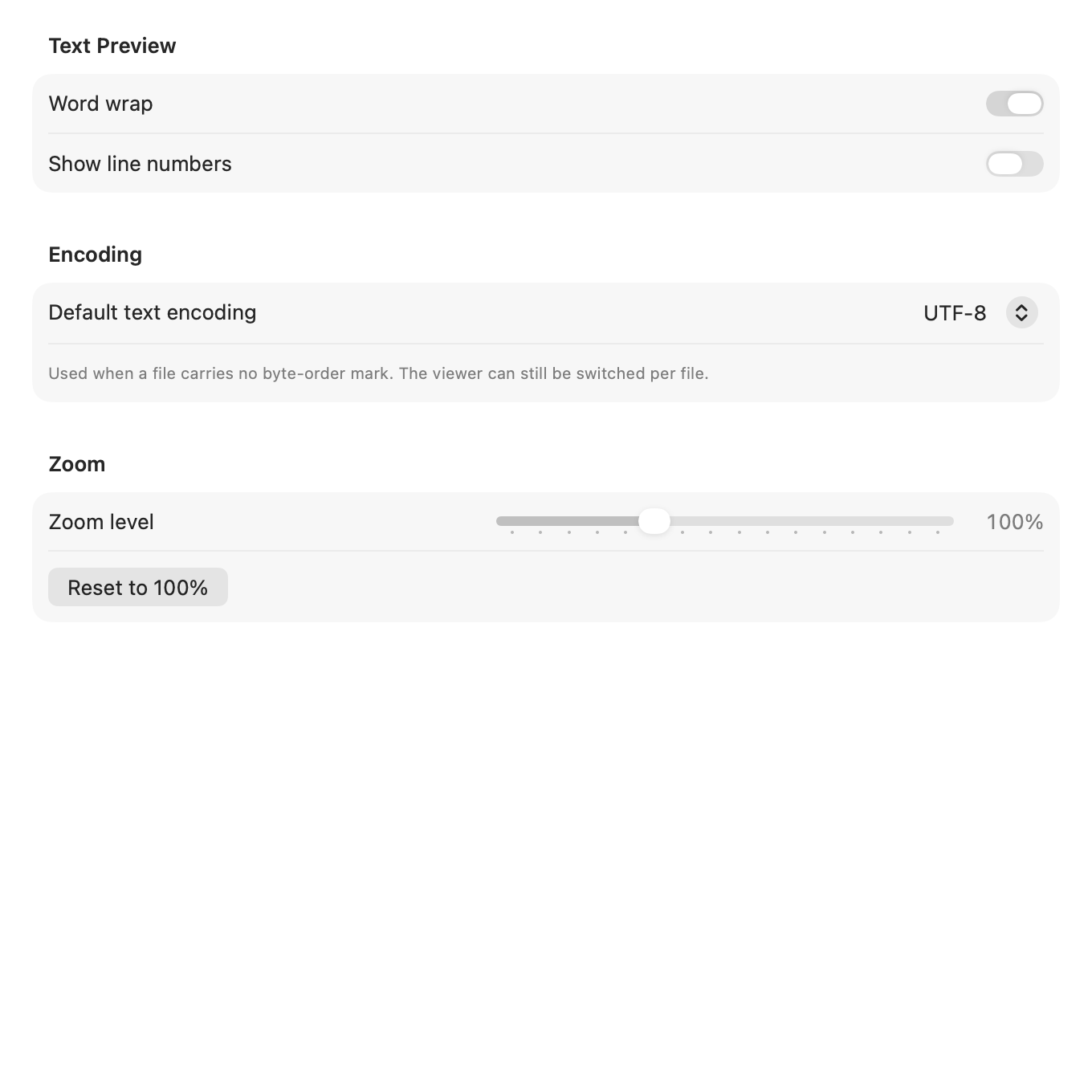
| Option | What it does | Default |
|---|---|---|
| Word wrap | Wraps long lines in text previews. | On |
| Show line numbers | Shows line numbers in text previews. | Off |
| Default text encoding | Used when a file does not say its encoding. You can still switch it per file. | UTF-8 |
| Zoom level | The preview zoom, 50% to 200%. Reset to 100% puts it back. | 100% |
Keyboard#
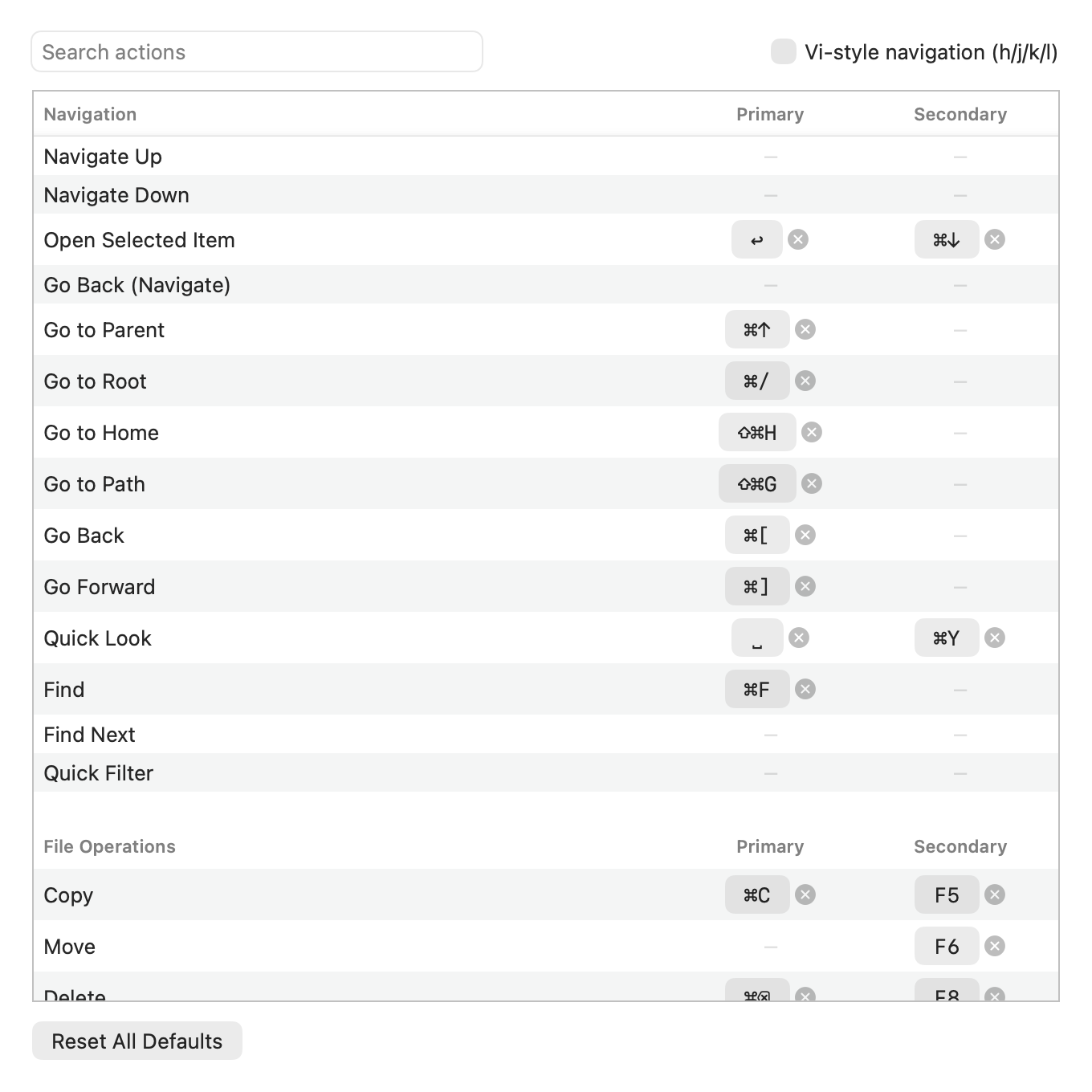
| Option | What it does | Default |
|---|---|---|
| Search actions | Filters the list by command name. | — |
| Primary / Secondary | Two shortcuts for each command. Click one to record new keys. | See Keyboard shortcuts |
| Vi-style navigation (h/j/k/l) | h, j, k, l and G move in the file list. | Off |
| Reset All Defaults | Puts every shortcut back, after you confirm. | — |
See Keyboard shortcuts.
Toolbar#
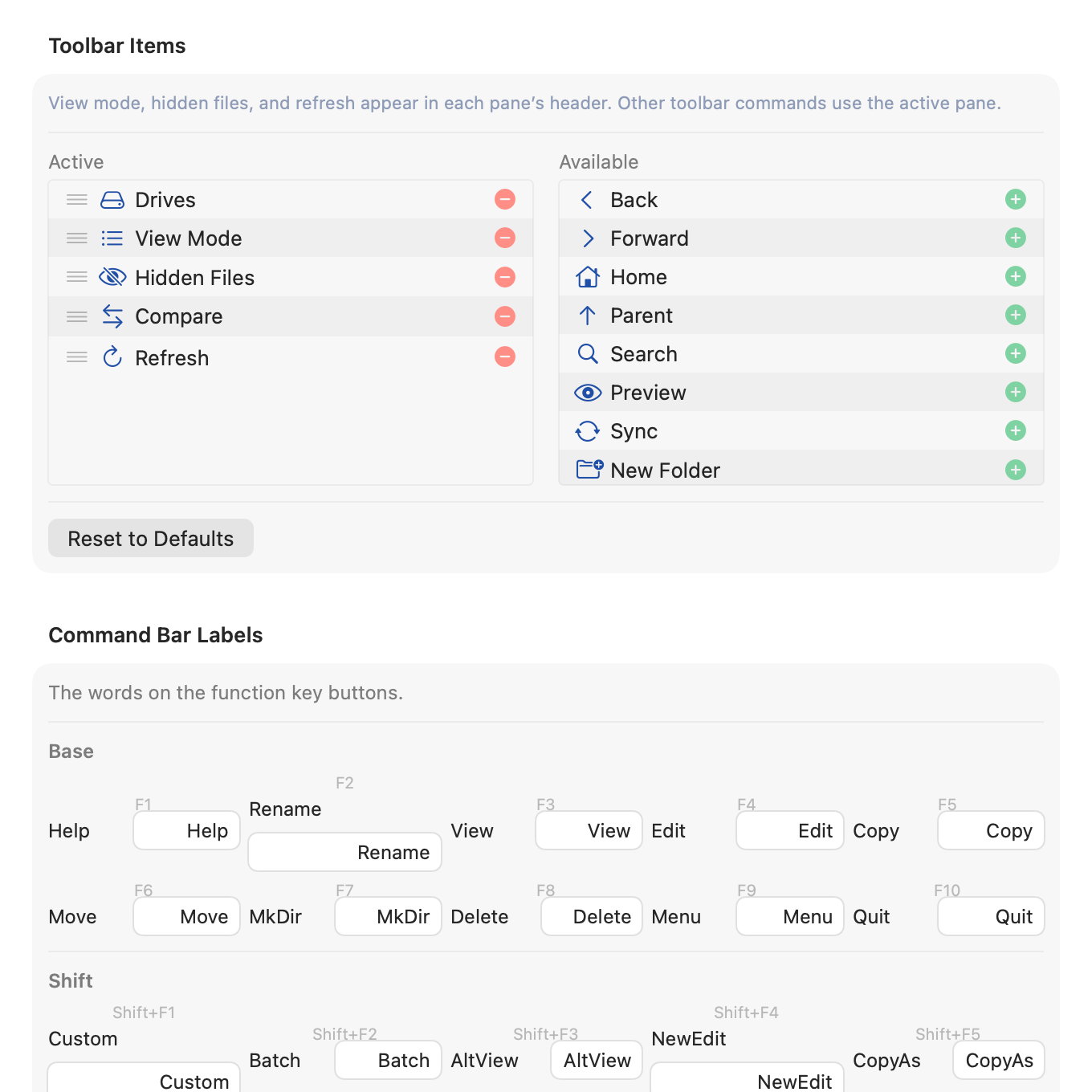
| Option | What it does | Default |
|---|---|---|
| Toolbar Items | The buttons in the toolbar. Add from Available, remove or drag in Active. | Drives, View Mode, Hidden Files, Compare, Refresh |
| Reset to Defaults | Puts the default buttons back. | — |
| Command Bar Labels | The words on the function-key bar, in Base, Shift and Alt rows. | See Customize the toolbar and function keys |
| Reset All to Defaults | Puts every label back. | — |