
 MeiFiles
Work with tabs
Keep several folders open in each pane, and rename, lock, or detach tabs.
Each pane has its own row of tabs. A tab keeps its folder, cursor, and marked items while you work in another tab. MeiFiles remembers your tabs between launches.
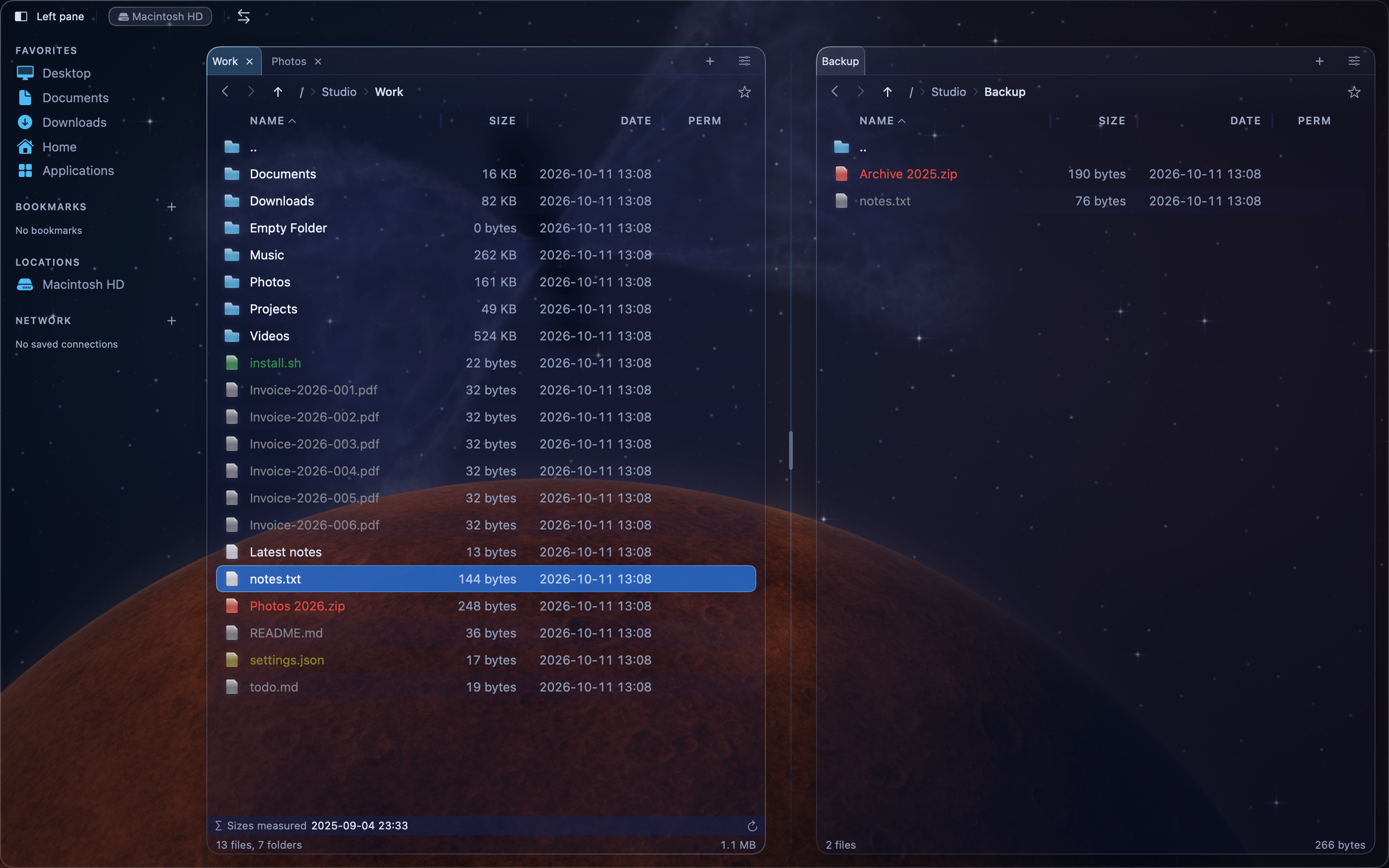
Open and close tabs#
| Action | Shortcut | Menu |
|---|---|---|
| Open a new tab with the current folder | ⌘T | Panel > New Tab |
| Close the current tab | ⌘W | Panel > Close Tab |
| Go to the next tab | ⌃Tab | Panel > Next Tab |
| Go to the previous tab | ⌃⇧Tab | Panel > Previous Tab |
You can also click + at the end of the tab row, click a tab to show it, or click the × on a tab to close it.
Note: When a pane has only one tab,
⌘Wcloses the window.
Rename a tab#
A tab shows the name of its folder. You can give it your own name.
- Double-click the tab, or Control-click it and choose Rename Tab.
- Type a name, then press
Return. PressEscto keep the old name.
The name stays when you open other folders in the tab. To show the folder name again, Control-click the tab and choose Use Folder Name.
Lock a tab#
A locked tab stays in its folder. Use it for a folder you return to often.
- Control-click the tab.
- Choose Lock Tab.
A lock icon appears on the tab. To open other folders, choose Unlock Tab, or open a new tab.
Move a tab to a new window#
- Control-click the tab.
- Choose Detach to New Window.
You can also choose Panel > Detach Tab for the current tab. A pane must have at least two tabs.