
 MeiFiles
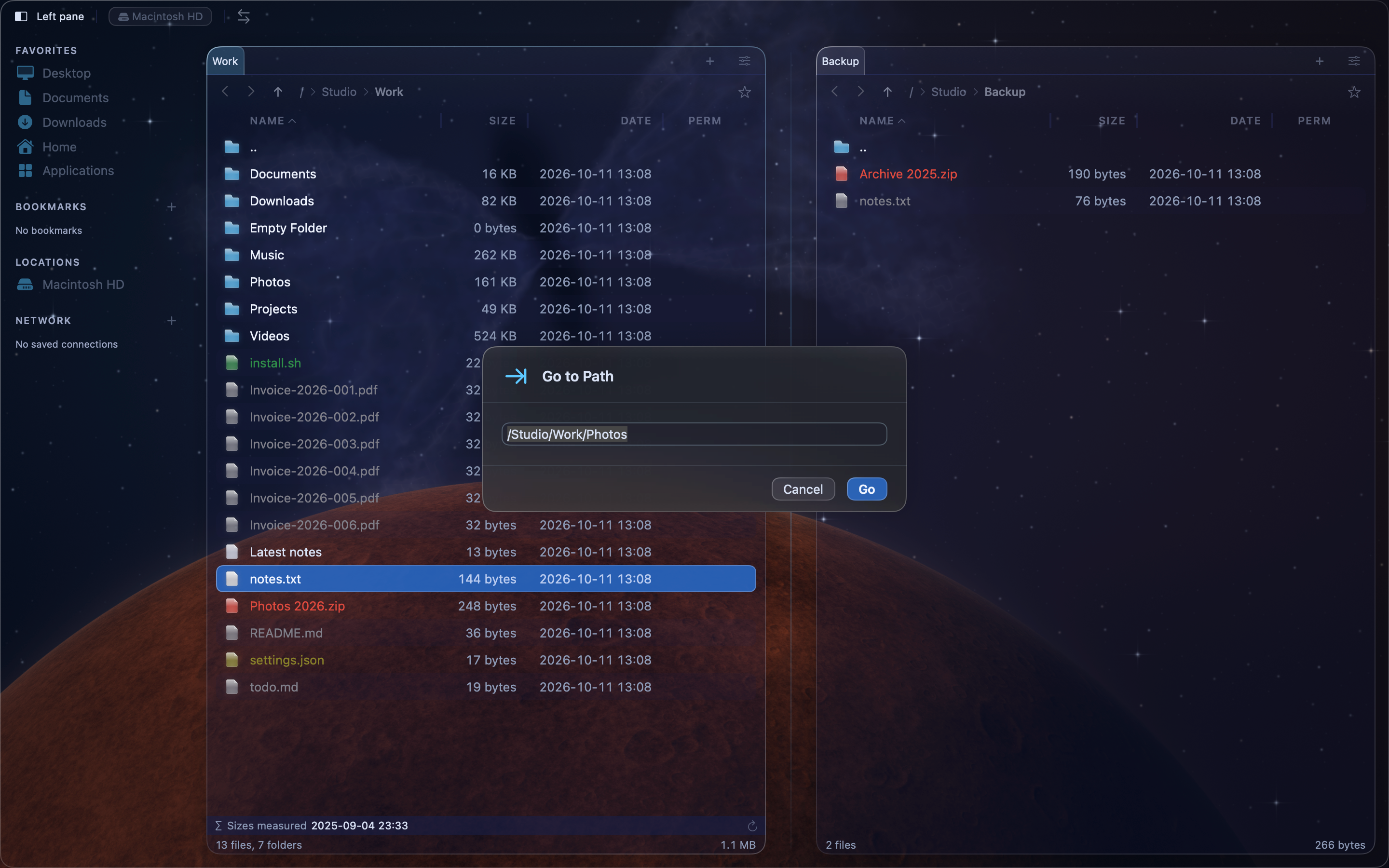
Use the path bar and Go to Path
Jump to any folder in the path, type a path, and use autocompletion.
The path bar above each file list shows where the pane is. Click a folder in it to go there, or type a path to go anywhere.
Go to a folder in the path#
- Click any folder name in the path bar.
When the path is too long for the pane, folders in the middle fold into …. The root, the disk, and your home folder always stay visible.
- Click ….
- Choose a folder from the list. You can also use the arrow keys and press
Return.
Type a path in the path bar#
- Double-click the path bar. The path becomes a text field.
- Type or change the path. Matching files and folders appear below the field.
- Press
↓or↑to choose a suggestion, then pressTabto fill it in. - Press
Returnto go there.
Press Esc, or click elsewhere, to leave the path unchanged.
Use Go to Path#
- Press
⌘G, or choose Go > Go to Path…. - Type a path. You can start it with ~ for your home folder.
- To use a suggestion, press
↓or↑, then pressReturnto fill it in. - Press
Return, or click Go.
The active pane opens the folder.
Go back through the history#
The arrows at the left end of the path bar go back and forward. Press and hold an arrow to see the folders you visited, then choose one.
Note: In the 90s Classic theme, the path appears in the top edge of the pane and there is no path bar. Use
⌘Gto type a path.