
 MeiFiles
Open folders and go back
Open folders, go to the parent folder, and move back and forward through the folders you visited.
Each pane shows one folder at a time. You open folders in the active pane, and each pane keeps its own history.
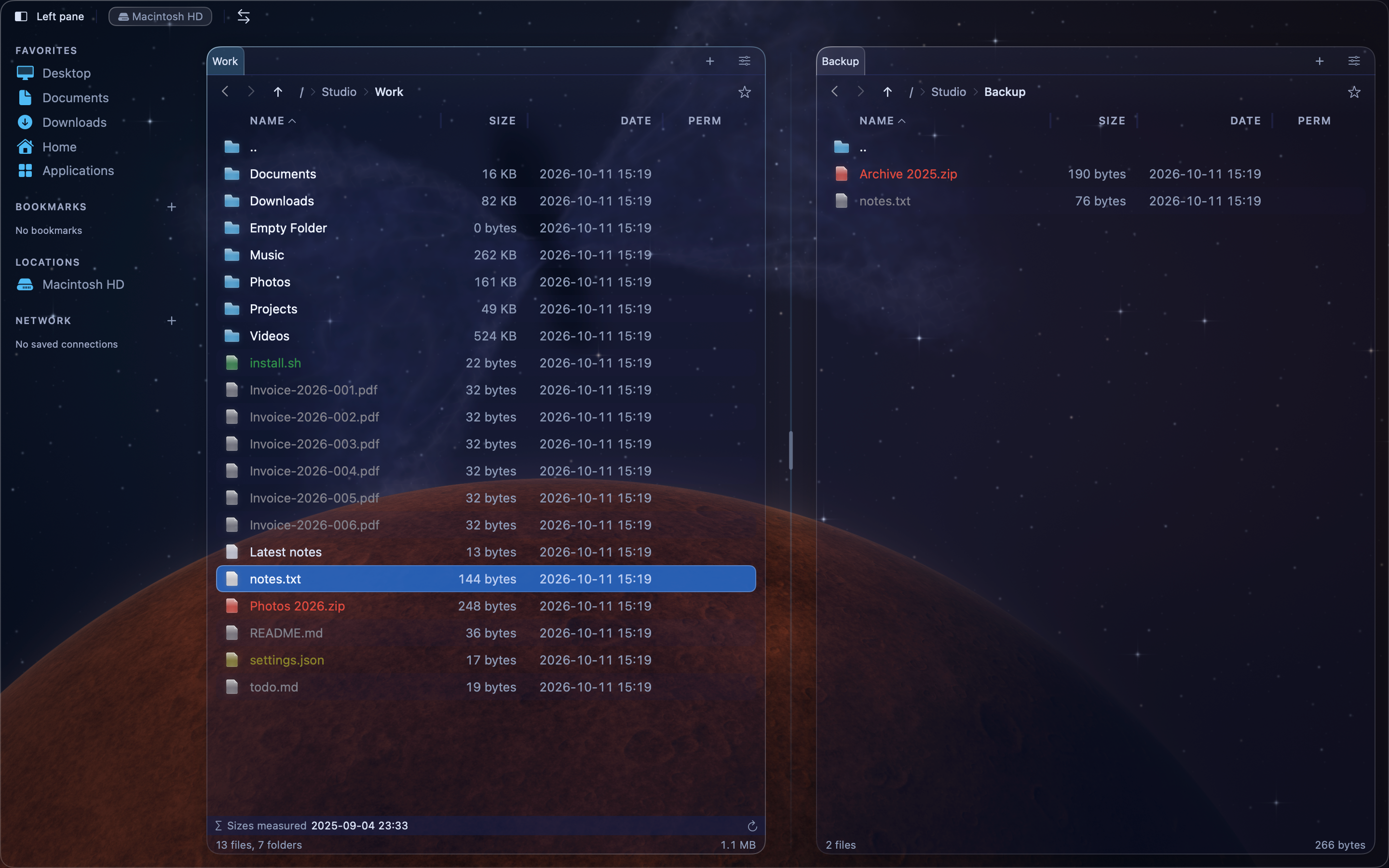
Open a folder or file#
- Move the cursor to the folder or file.
- Press
Return, or double-click it.
A folder opens in the pane. A file opens in its default app. An archive, such as a ZIP file, opens in the pane like a folder.
Go to the parent folder#
Do one of these:
- Press
⌫(Delete). - Open the .. row at the top of the list.
- Choose Go > Go to Parent.
Go back and forward#
- Press
⌘[to go back to the previous folder, or choose Go > Back. - Press
⌘]to go forward again, or choose Go > Forward.
You can also click the arrows at the left end of the path bar. Press and hold an arrow to see the list of folders and choose one.
Go to your home folder or the disk root#
| Command | Shortcut |
|---|---|
| Go > Go to Home | ⌘~ |
| Go > Go to Root | ⌘/ |
| Go > Go to Path… | ⌘G |
Find the same file in the other pane#
Go to Matching File finds an item with the same name in the other pane's folder.
- Move the cursor to a file in the active pane.
- Press
⇧⌘J, or choose Go > Go to Matching File.
The other pane becomes active, with the cursor on the item of the same name. If there is no such item, MeiFiles plays an alert sound.
Tip: Press
⌘R(View > Refresh) to read the folder again.