
 MeiFiles
Change the pane layout
Show one pane or two, split the window across or down, and swap, sync, or resize the panes.
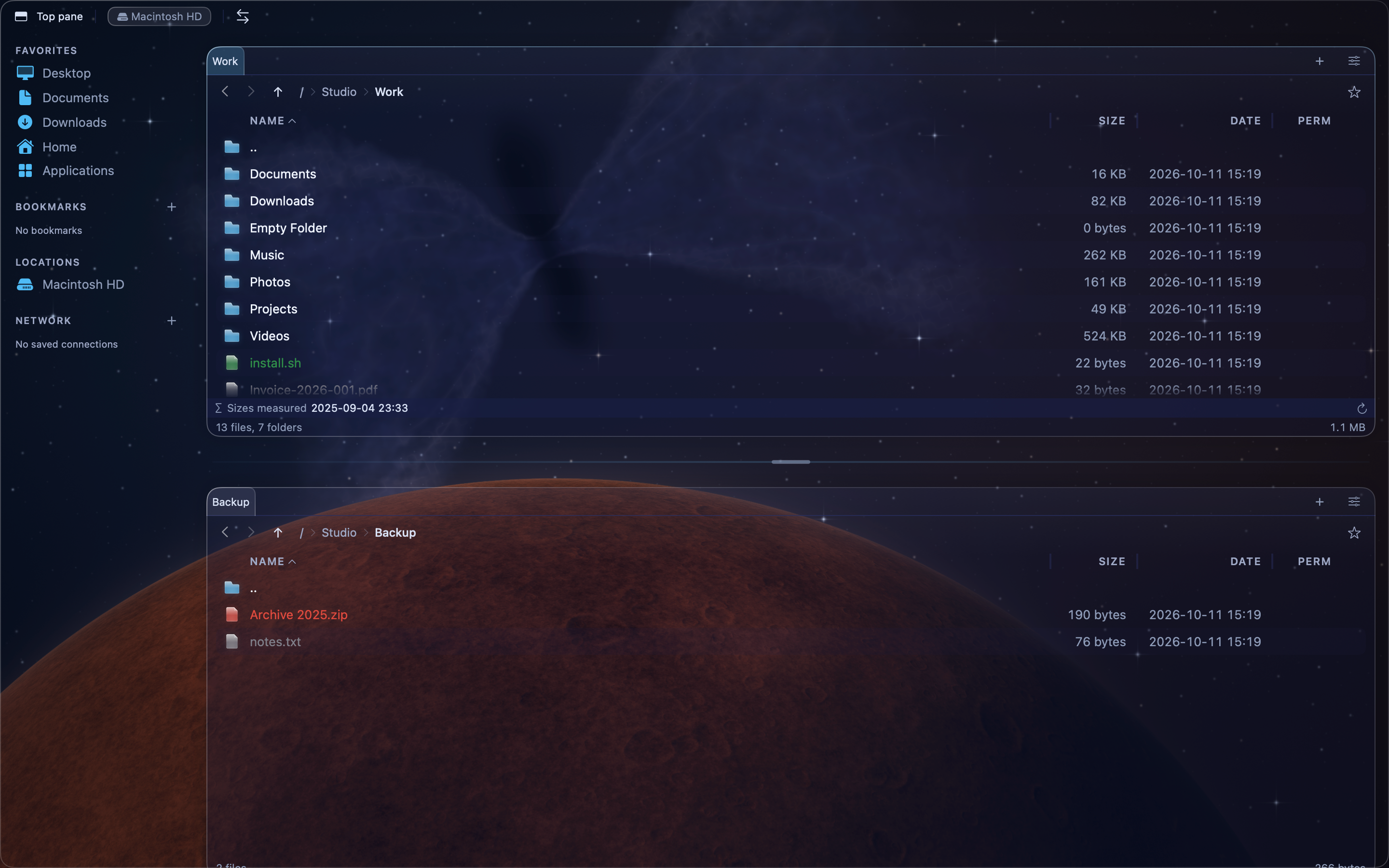
By default, the two panes are side by side and the same size. You can show one pane, stack the panes, or change their size.
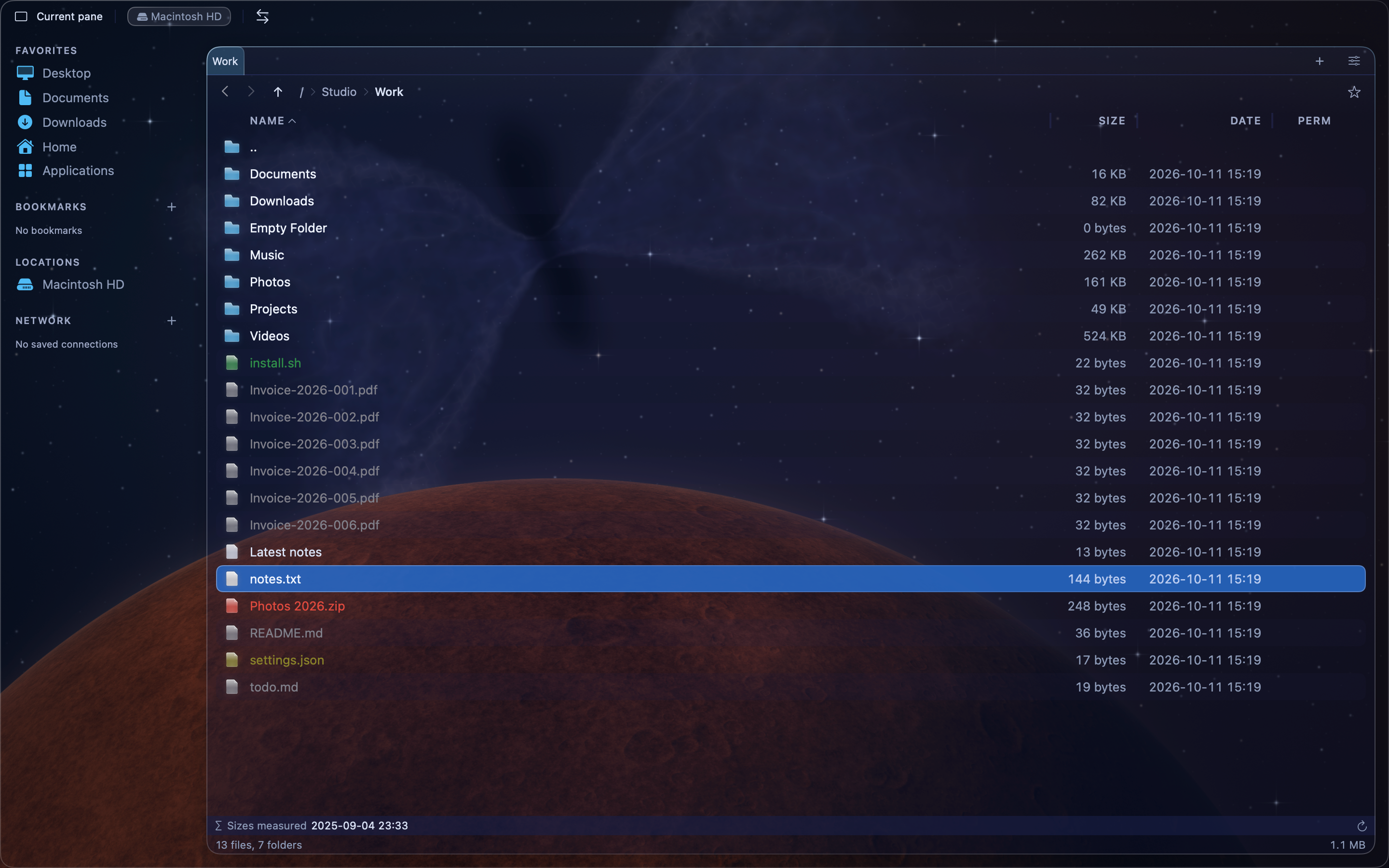
Show one pane#
- Press
⌥⌘1, or choose Panel > Toggle Single Pane.
The window shows only the active pane. Press Tab to show the other pane. Press ⌥⌘1 again to show both.
Note: When the window is too narrow for two panes, MeiFiles shows only the active pane.
Stack the panes#
- Press
⌥⌘2, or choose Panel > Toggle Horizontal/Vertical Split.
The panes appear one above the other. Press ⌥⌘2 again to put them side by side.
Resize the panes#
- Drag the divider between the panes.
- Double-click the divider to make the panes the same size.
- Press
⌘=, or choose Panel > Equal Panel Size.
Swap or sync the folders#
| Command | Shortcut | What it does |
|---|---|---|
| Panel > Swap Panels | ⌘U | Exchanges the folders of the two panes. |
| Panel > Sync Panels | ⌘Y | Opens the active pane's folder in the other pane too. |
| Panel > Switch Panel | Tab | Makes the other pane active. |