
 MeiFiles
Learn the main window
The parts of the MeiFiles window and what each one does.
The main window shows two folders side by side. This page names each part of the window, so you can find it later in the guide.
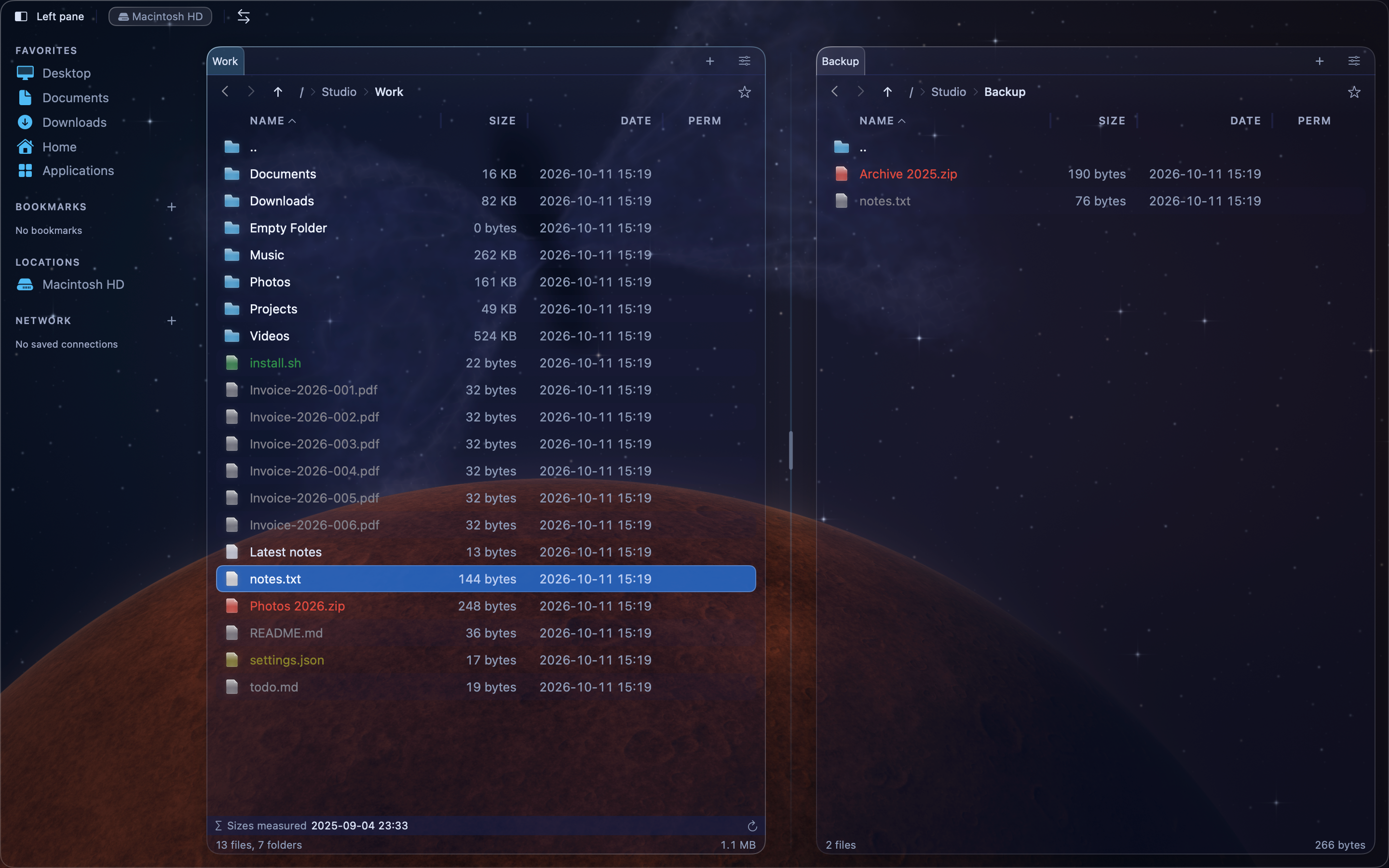
Parts of the window#
- Toolbar. Buttons for the drives, the view mode, hidden files, Compare Directories, and Refresh. You can change the buttons in Settings, in the Toolbar tab.
- Sidebar. Favorites, Bookmarks, Locations, and Network. The sidebar appears in the New Era themes.
- Tabs. Each pane has its own row of tabs. Click + to add a tab.
- Path bar. The path of the current folder. Click a folder name to go there. The star bookmarks the folder.
- File list. The files and folders in the current folder. The .. row at the top opens the parent folder.
- Pane footer. The number of files and folders, their total size, and the free space on the disk.
The two Classic themes also show these parts:
- Command line, above the function-key bar.
- Function-key bar at the bottom. Each button shows a key and its command, for example F5 Copy. Hold
⇧or⌥to see a second and third set of commands. - Status bar, which shows how many items are selected.
In the 90s Classic theme, the path appears in the top edge of each pane, not in a path bar.
The active pane#
One pane is active at a time. Commands act on the active pane. The active pane has a highlighted border and a highlighted cursor row.
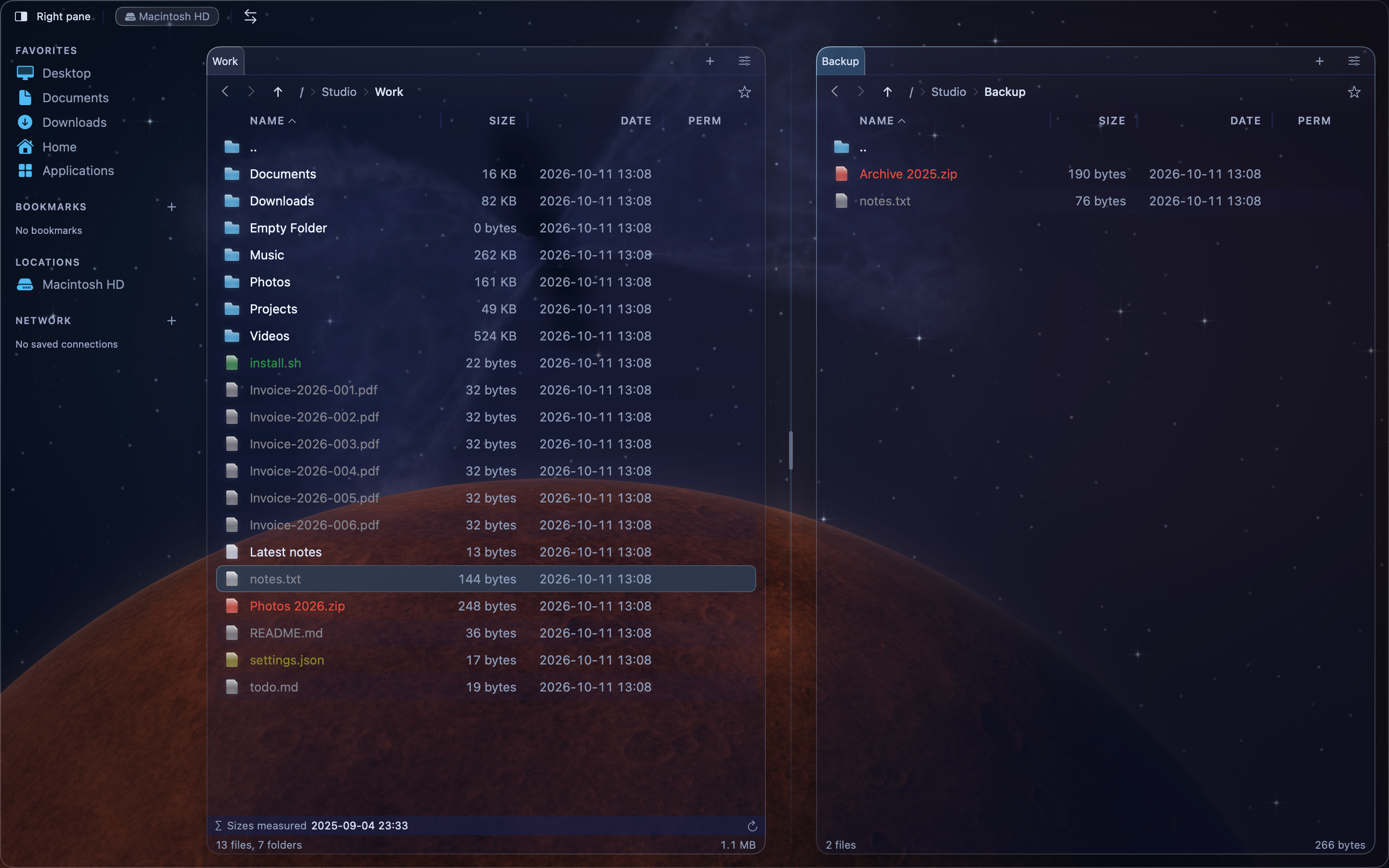
To make a pane active, do one of these:
- Click anywhere in the pane.
- Press
Tabto switch to the other pane.
Copy (F5) and Move (F6) send the files to the folder in the other pane.