
 MeiFiles
Move around with the keyboard
The keys that move the cursor, open folders, switch panes, and run commands.
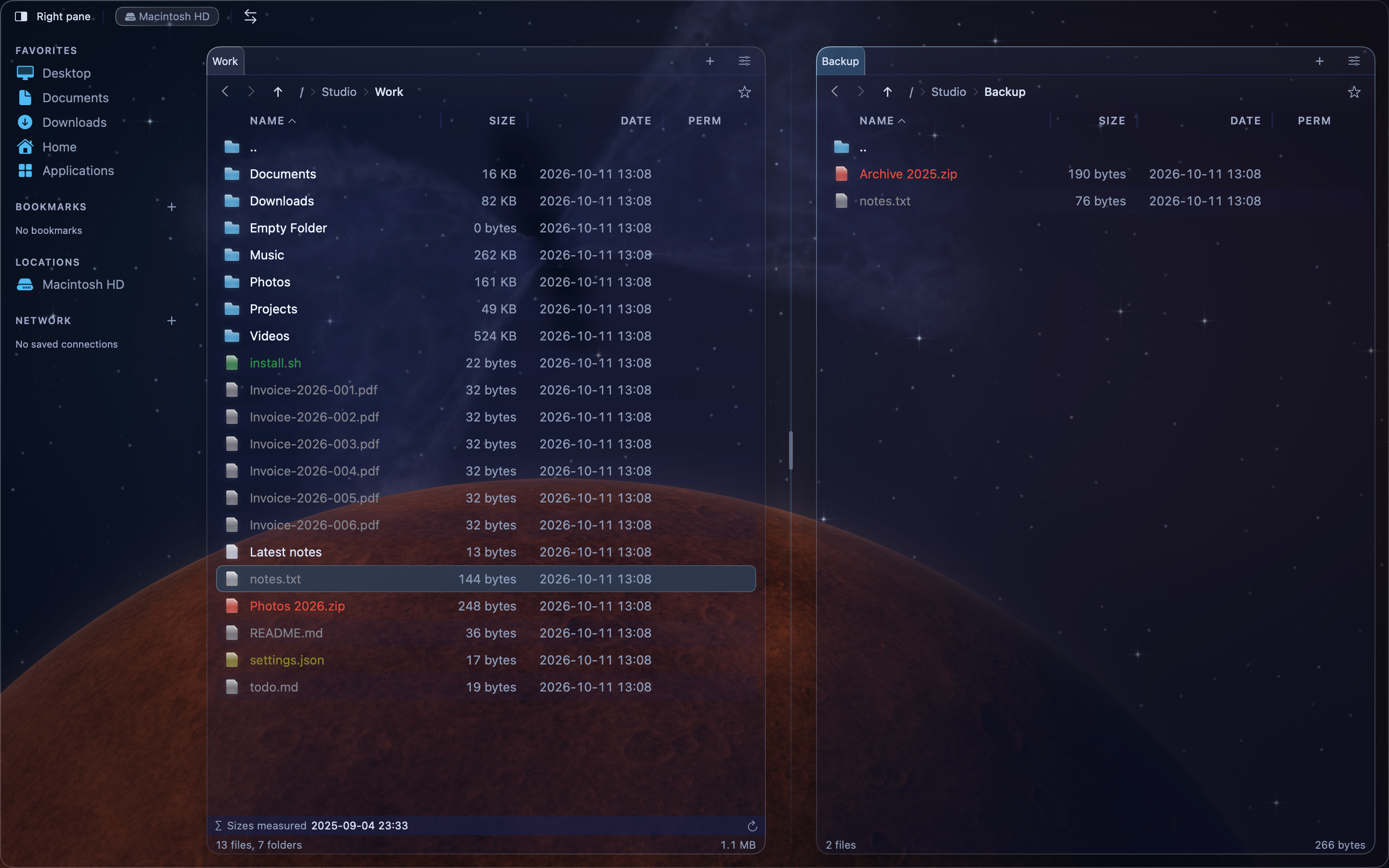
You can work in MeiFiles without the mouse. The highlighted row in the active pane is the cursor. Keys act on the cursor, or on the marked items.
Move and open#
| Key | Action |
|---|---|
↑↓ | Move the cursor up or down. |
←→ | Move the cursor left or right, in Brief and Thumbnail views. |
Return | Open the folder or file under the cursor. |
⌫ (Delete) | Go to the parent folder. |
Tab | Switch to the other pane. |
Space | On a folder: mark it and move down. On a file: show a Quick Look preview. |
To mark several files, Command-click them (⌘-click), or press ⌘A to mark all.
Use the function keys#
| Key | Command |
|---|---|
F1 | Open Settings, where the Keyboard tab lists every shortcut |
F2 | Rename |
F3 | Show or hide the preview |
F4 | Open in your external editor |
F5 | Copy to the other pane |
F6 | Move to the other pane |
F7 | New folder |
F8 | Delete |
With ⇧ or ⌥, the function keys run more commands. For example, ⇧F2 opens batch rename and ⌥F7 opens Find Files. The function-key bar in the Classic themes shows all of them.
Tip: On many Mac keyboards, the top-row keys control brightness and volume. Hold
Fnto use them as F1–F12, or turn on Use F1, F2, etc. keys as standard function keys in System Settings.
Use vi-style keys#
- Choose MeiFiles > Settings…, then click Keyboard.
- Turn on Vi-style navigation (h/j/k/l).
Then j and k move down and up, h goes to the parent folder, l opens, and G goes to the last item.