
 MeiFiles
Synchronize folders
Make two folders match by copying new and changed files, and optionally removing extra ones, after you check a preview.
Bring two folders up to date with each other. MeiFiles plans every copy and deletion first and shows them to you. Nothing changes until you click Synchronize.
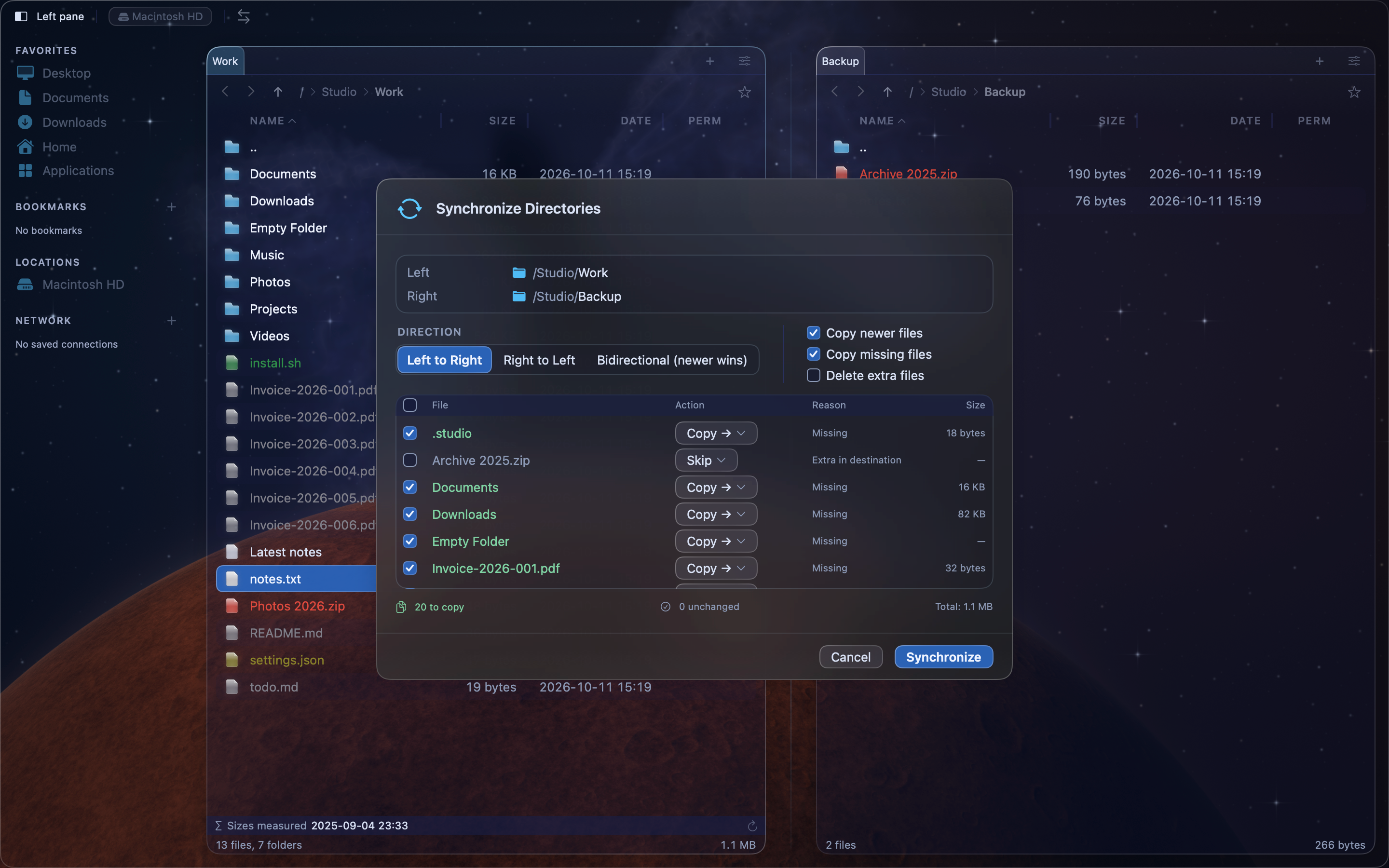
Synchronize two folders#
- Open one folder in the left pane and the other folder in the right pane.
- Press Shift-Command-Y (
⇧⌘Y), or choose Tools > Synchronize Directories…. - Under Direction, choose where the files go:
- Left to Right makes the right folder match the left one.
- Right to Left makes the left folder match the right one.
- Bidirectional (newer wins) copies each file in the direction of its newer copy.
- Choose the options. The list updates after each change.
- Check the list, then click Synchronize.
Choose what to do#
- Copy newer files copies a file when the source copy was changed more recently.
- Copy missing files copies files that are not in the destination yet.
- Delete extra files removes files from the destination that are not in the source. It is off by default.
If a server does not report when files were changed, the first option is Copy changed files. MeiFiles then compares files by size, and Bidirectional (newer wins) is not offered.
Caution: With Delete extra files on, the files go to the Trash if Settings > Operations > Move to Trash instead of deleting is on. Otherwise they are deleted permanently.
Check the plan#
Each row shows the file, its Action, the Reason and the Size.
- Turn off a row's checkbox to leave that file alone.
- Click another choice under Action to change what happens to one file: Skip, Copy →, ← Copy, Delete → or ← Delete.
The line below the list shows how many files will be copied, deleted or left unchanged, and the total size.
Only the items in the two open folders are compared. A folder that is in both panes shows Folder (not compared) and is skipped. A folder that is only on one side is copied with everything in it.
If some files fail, the sheet stays open and lists each one with the reason.