
 MeiFiles
Compare two folders
Mark which files are the same, different, or present in only one of the two panes.
Compare the folders open in the two panes. MeiFiles marks each file and counts the results, so you can see at once what is missing or out of date.
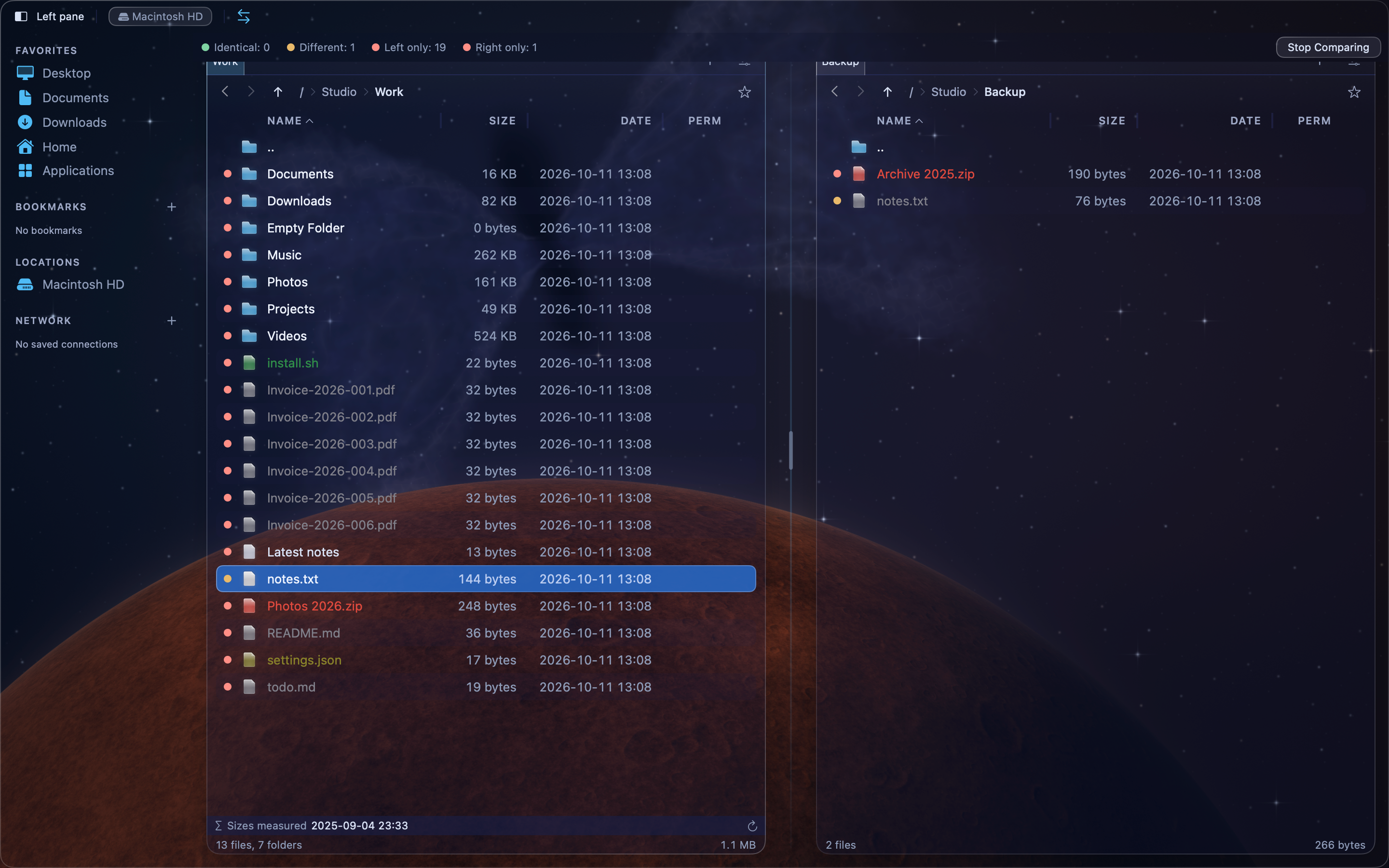
Compare by date and size#
- Open one folder in the left pane and the other folder in the right pane.
- Press Shift-Command-C (
⇧⌘C), or choose Tools > Compare Directories. You can also press⇧F3.
MeiFiles matches files by name. It is fast because it reads only the dates and sizes.
Compare by content#
Two files can have the same size and date but different contents. To check what is inside them:
- Press
⌥⇧⌘C, or choose Tools > Compare Directories by Content.
MeiFiles reads files of the same size and compares them byte by byte. This takes longer for large files. Folders are not compared by content.
Read the marks#
A mark beside each file shows the result. The legend below the panes counts each kind.
| Legend | Meaning |
|---|---|
| Identical | The file is in both folders, with the same date and size. After a content comparison: with the same contents. |
| Different | The file is in both folders, but the date, the size or the contents differ. |
| Left only | The file is only in the left folder. |
| Right only | The file is only in the right folder. |
The comparison looks only at the items in the two open folders, not inside their subfolders. When you open another folder in either pane, MeiFiles compares again.
Tip: To select the files that are newer in the active pane, press
⇧⌘M(Selection > Mark Newer Files). Then pressF5to copy them to the other pane.
Stop comparing#
Click Stop Comparing in the legend, or press ⇧⌘C again.