
 MeiFiles
Select files
Mark files with the mouse, the keyboard or a pattern, so that the next command acts on all of them.
Mark the files you want to work with, then copy, move, delete or rename them together. When nothing is marked, a command acts on the file under the cursor.
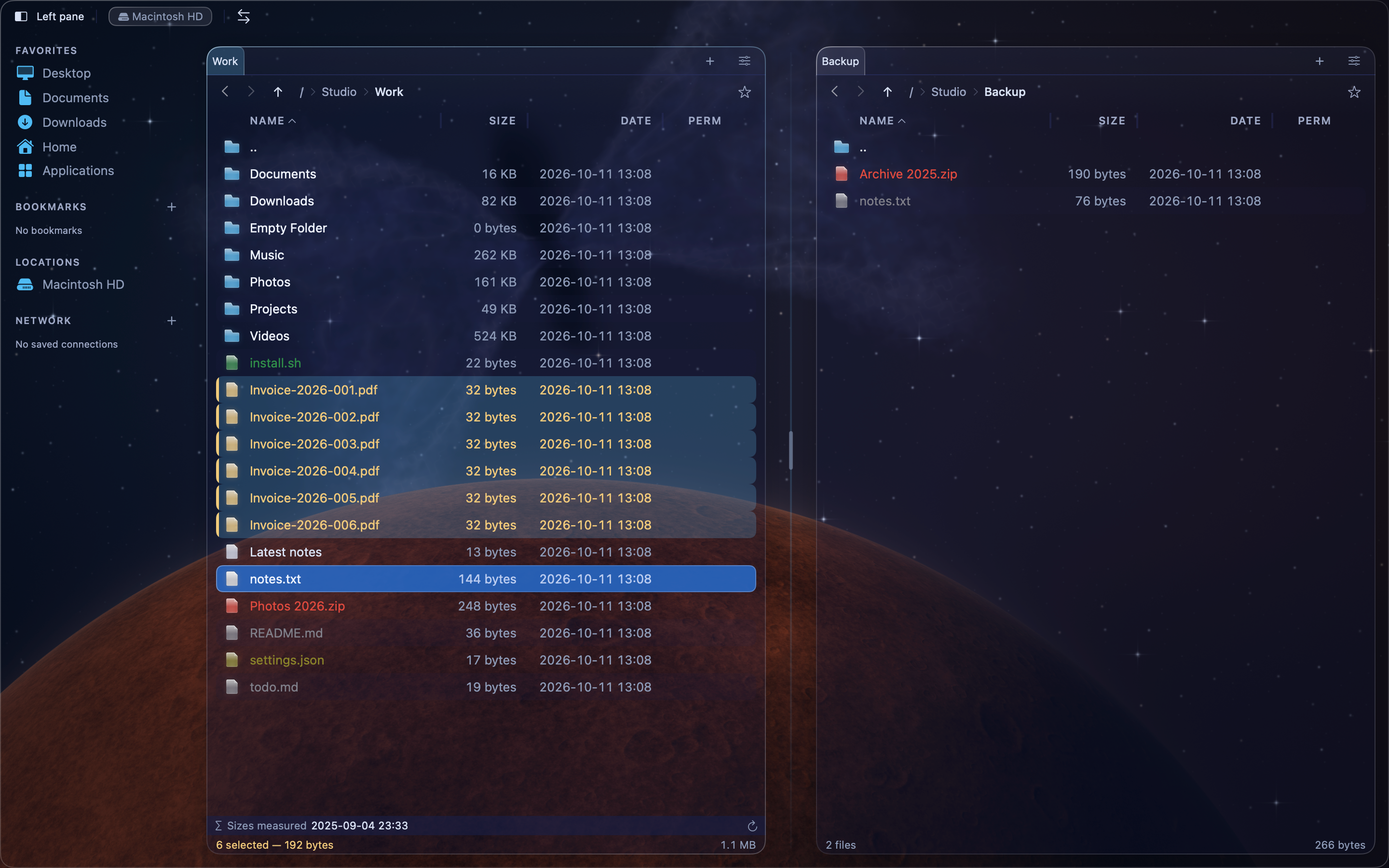
A click moves the cursor. It does not mark the file. The footer of the pane shows how many items are marked and their total size.
Mark files with the mouse#
- Command-click (
⌘-click) a file to mark it. Command-click it again to unmark it. - Double-click a file to open it, or a folder to go into it.
To mark files with checkboxes instead, turn on Settings > Panels > Checkbox selection mode. Each row gets a checkbox. The checkbox in the column header marks or unmarks every file in the folder.
Mark files with the keyboard#
| Command | Keys |
|---|---|
| Select All | ⌘A |
| Deselect All | ⇧⌘A |
| Invert Selection | ⇧⌘I |
| Restore Previous Selection | ⌥⌘R |
All four are also in the Selection menu. Restore Previous Selection brings back the marks that Deselect All removed.
Press Space on a folder to mark it and move the cursor down. On a file, Space opens Quick Look instead.
Mark files by name#
- Choose Selection > Select by Pattern…, or press
⌥⌘=. - Type a pattern, for example
*.pdforInvoice-2026-00?.pdf.*matches any text and?matches one character. Upper and lower case are the same. - Click OK.
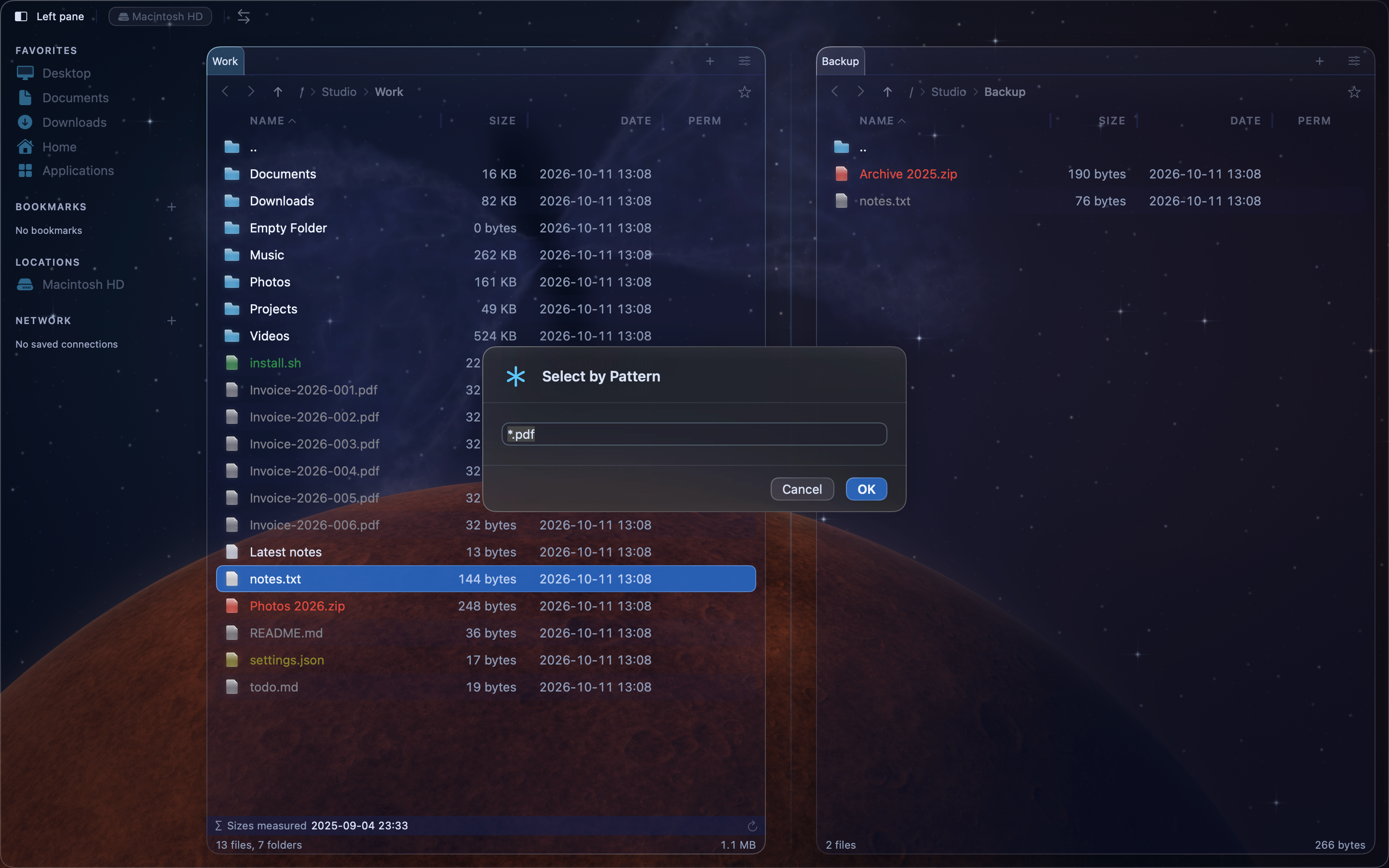
The files that match are added to the marks you already have. To remove marks by name, choose Selection > Deselect by Pattern… (⌥⌘−).
Mark files that are newer than in the other pane#
Choose Selection > Mark Newer Files (⇧⌘M). MeiFiles clears the current marks. Then it marks each file that also exists in the other pane and has a later modification date. Use it before you copy changed files to a backup folder.