
 MeiFiles
Rename a file
Give a file or folder a new name with F2, the File menu or the context menu.
Rename the file or folder under the cursor in a small dialog. The rename is recorded in the Operation Log and can be undone.
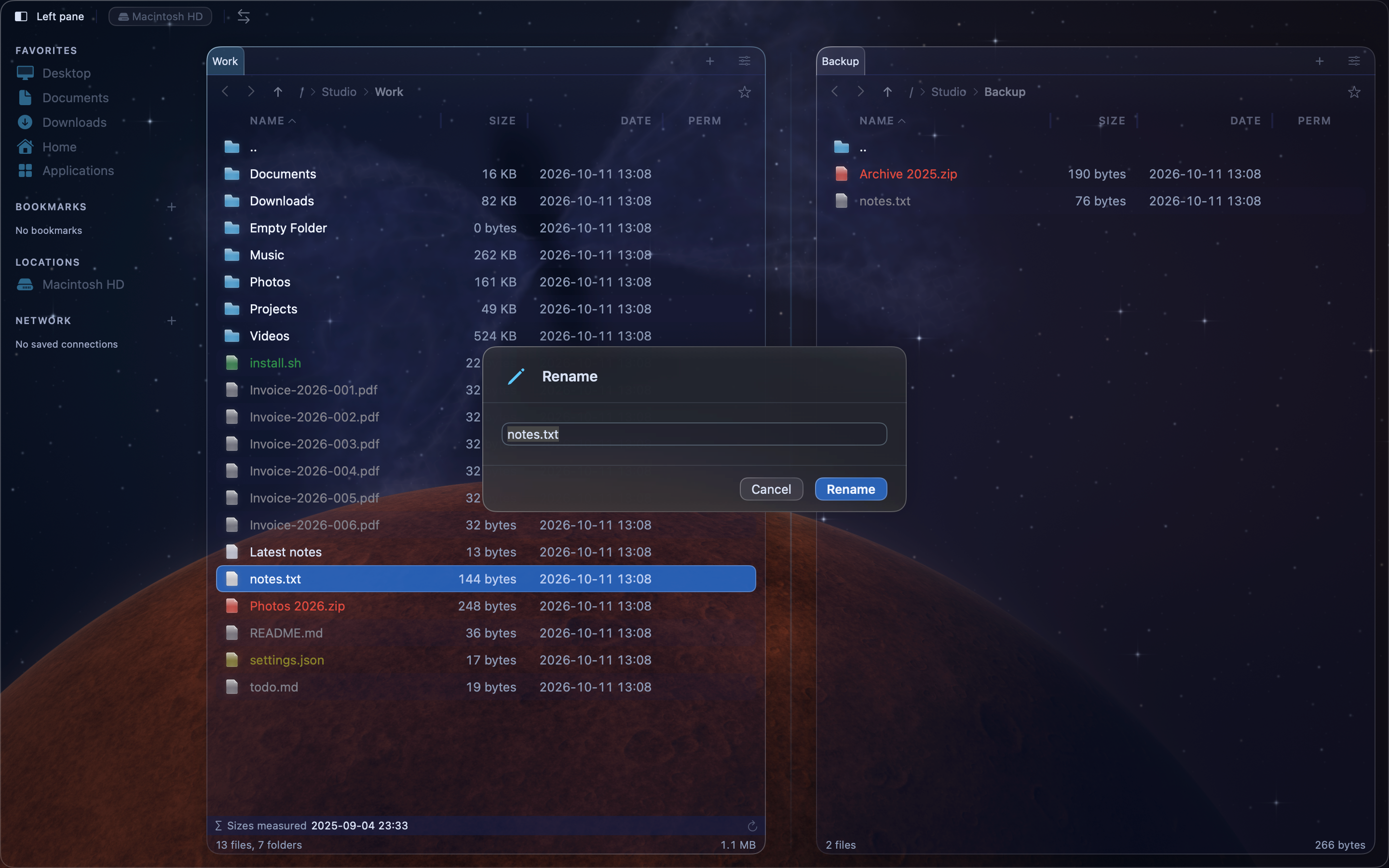
Rename a file#
- Move the cursor to the file or folder.
- Press
F2, or choose File > Rename…. You can also Control-click the file and choose Rename. - Type the new name in the New name field. The field holds the full name, including the extension.
- Press
Return, or click Rename.
To keep the old name, click Cancel or press Esc.
If another item in the folder already has the new name, MeiFiles does not replace it. It shows Rename Failed and leaves both items as they are.
Undo a rename#
Choose Edit > Undo File Operation, or press ⌘Z, and confirm. The file gets its old name back.