
 MeiFiles
Delete files and empty the Trash
Move files to the Trash or delete them permanently, choose whether MeiFiles asks first, and empty the Trash.
By default, MeiFiles moves deleted items to the Trash and asks first. You can get them back with ⌘Z or from the Trash.
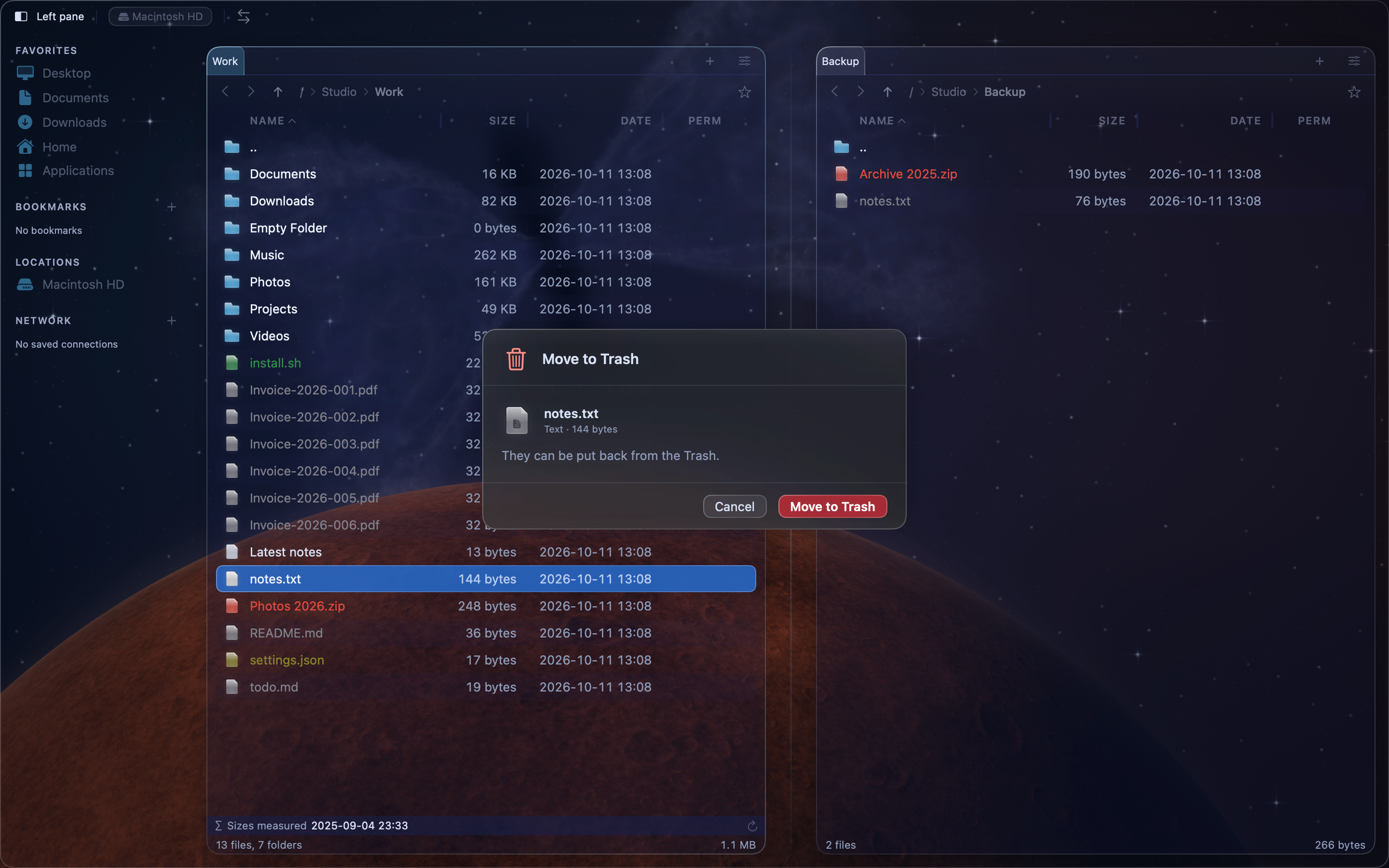
Delete files#
- Select the files. See Select files.
- Press
F8, or choose File > Delete. You can also Control-click and choose Delete. - Click Move to Trash.
A large delete shows a progress sheet with a Stop button.
To put the items back, choose Edit > Undo File Operation (⌘Z) right away.
Choose how deleting works#
Open Settings > Operations. Under Safety:
| Setting | On | Off |
|---|---|---|
| Confirm before deleting | MeiFiles asks before each delete. | Items are deleted at once. |
| Move to Trash instead of deleting | Items go to the Trash and can be put back. | Items are removed permanently. Undo cannot bring them back. |
Caution: With Move to Trash instead of deleting off, the confirmation reads Delete and the items are gone for good.
Some places have no Trash, for example many servers. MeiFiles checks this before it starts. It opens a Before Deleting sheet that says which items would be deleted permanently. You can then continue or cancel.
Empty the Trash#
- Choose File > Empty Trash…, or press Shift-F8 (
⇧F8). - Click Empty Trash. This cannot be undone.
MeiFiles asks Finder to empty the Trash. The first time, macOS asks whether MeiFiles may control Finder. Allow it. If you refused before, MeiFiles shows Could Not Empty Trash. Turn on Finder for MeiFiles in System Settings > Privacy & Security > Automation, then try again.