
 MeiFiles
Create folders, files and links
Make new folders and empty files, duplicate items, and create symbolic and hard links in the current folder.
New items are created in the folder open in the active pane. Except for New File and Edit…, each one is recorded in the Operation Log and can be undone with ⌘Z.
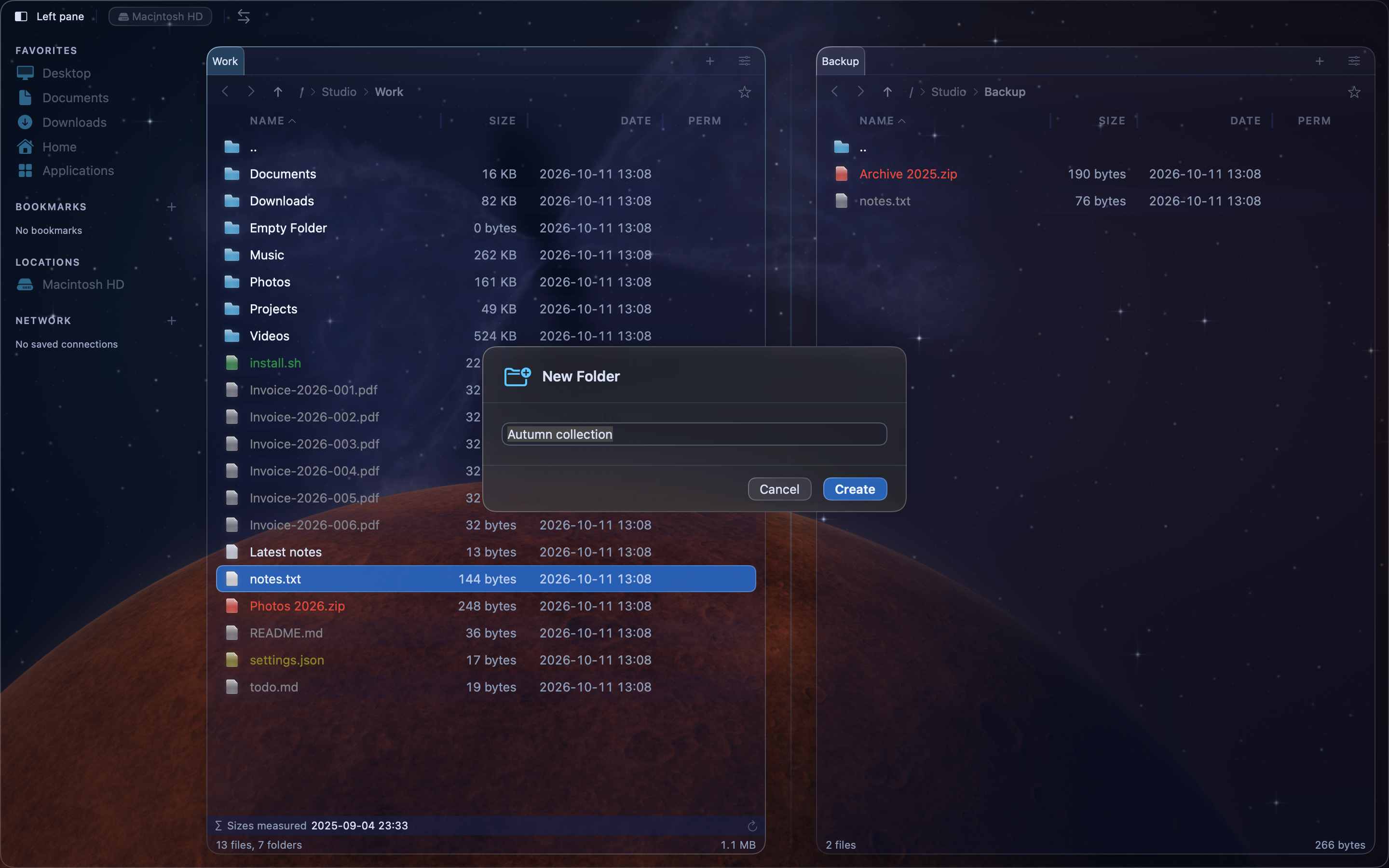
Create a folder#
- Press
F7or Command-Shift-N (⇧⌘N), or choose File > New Folder. - Type a name in the Folder name field.
- Click Create.
Create an empty file#
- Press
⌥⌘N, or choose File > New File. - Type a name with its extension, for example
notes.txt. - Click Create.
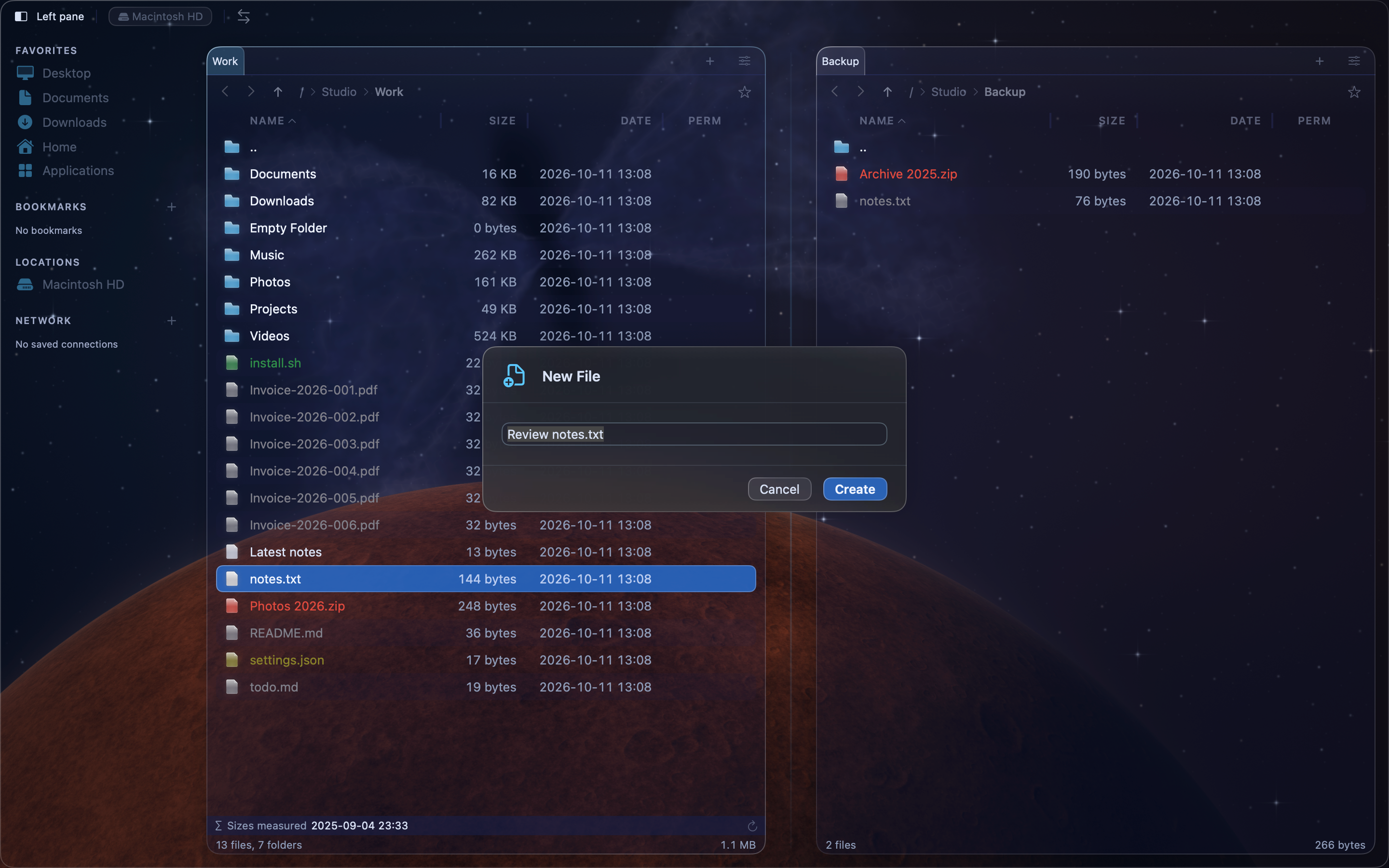
Create a file and start writing#
Press ⌥⇧⌘N, or choose File > New File and Edit…. The name starts as untitled.txt. Change it if you like, then click Create and Edit. MeiFiles creates the file and opens it in the built-in editor in the preview pane. See Edit text and binary files.
Duplicate items#
Select the items, then press ⇧⌘D or choose File > Duplicate. Each copy is placed in the same folder with copy added to its name, for example Travel plan copy.txt.
Create a link#
- Move the cursor to the file or folder you want to link to.
- Choose File > Create Symbolic Link or File > Create Hard Link.
The link is created in the same folder, with _link added to the name. For example, todo.md gets the link todo_link.md. Move the link where you need it.
| Link | Use it for |
|---|---|
| Symbolic link | A pointer to a file or folder. It breaks if the original is moved or deleted. |
| Hard link | A second name for the same file on the same disk. Folders cannot have hard links. |
Tip: To create a symbolic link somewhere else in one step, drag the item and hold
⌥⌘when you drop it.