
 MeiFiles
Copy and move files
Copy or move files to the folder in the other pane with a function key, a menu command or drag and drop.
In MeiFiles the destination is the folder open in the other pane. Open the source folder in one pane and the destination in the other, then copy or move.
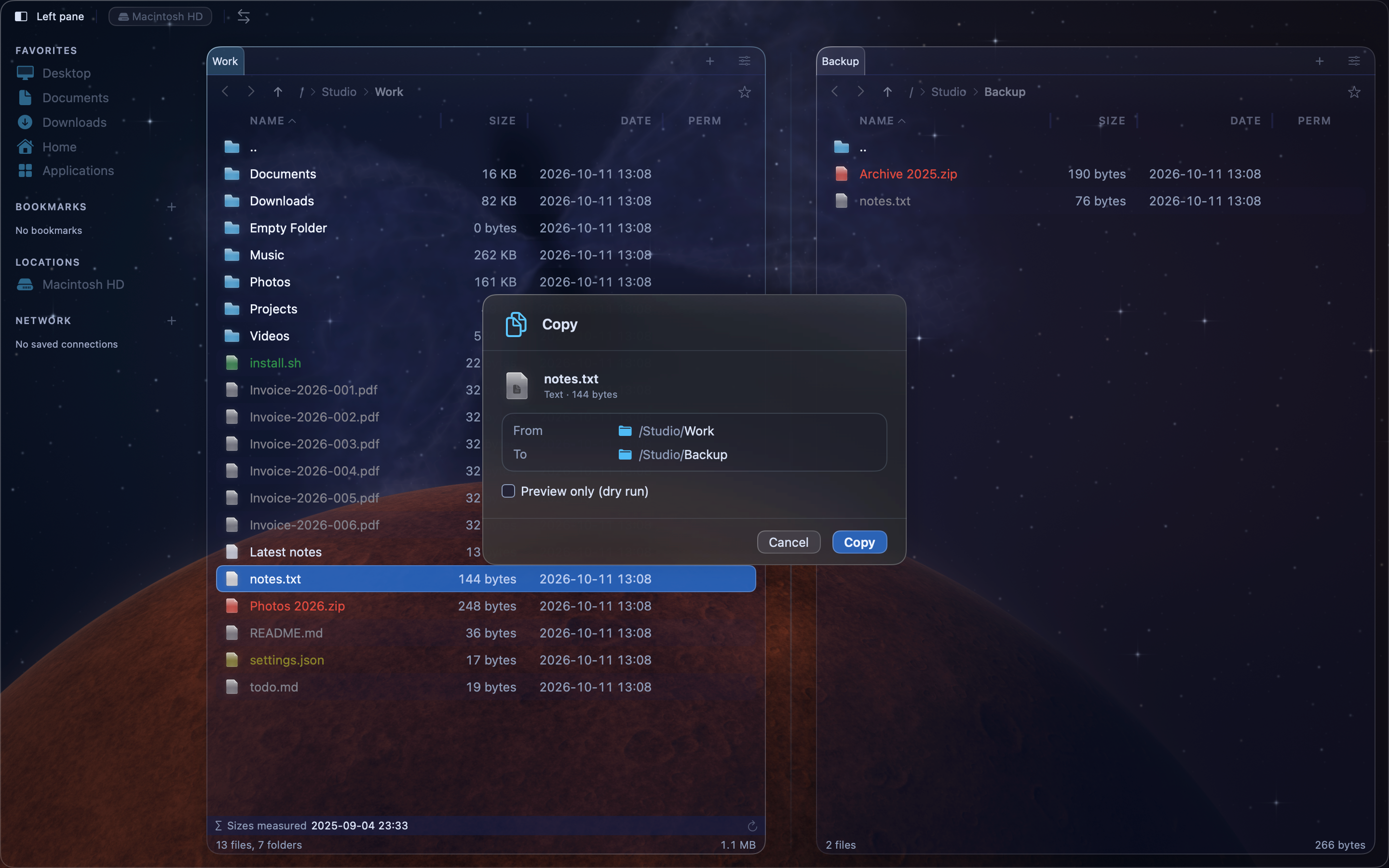
Copy files to the other pane#
- Select the files in the active pane. See Select files.
- Press
F5, or choose File > Copy to Other Panel…. - Check the folder under Destination, then click Copy.
Move files to the other pane#
- Select the files in the active pane.
- Press
F6, or choose File > Move to Other Panel…. - Check the destination, then click Move.
Both commands are also in the context menu, as Copy to Other Panel and Move to Other Panel.
Note: On many Mac keyboards, hold
Fnto use the function keys F1–F12.
Preview the operation first#
In the Copy or Move dialog, turn on Preview only (dry run) and click Preview. The Dry Run Preview lists each file, where it will go and the total size. Nothing changes until you click Execute.
Drag and drop#
Drag files onto a folder, or onto the empty space in the other pane.
| Hold while you drop | Result |
|---|---|
| Nothing | Copy |
⌘ | Move |
⌥⌘ | Create a symbolic link (alias) |
A drop runs without the dialog. It still asks about name conflicts and shows progress.
Follow the progress#
An operation that takes longer than a moment opens the Copying Files or Moving Files sheet. It shows the current file, the number of files, the size, the speed and the time left.
- Click Pause to wait, then Resume to go on.
- Click Stop to end the operation. Files already copied stay at the destination.
- If a file fails, choose Retry, Skip or Stop.
Before it starts, MeiFiles checks the operation. A missing file, a broken link or a folder it has no access to opens a Before Copying or Before Moving sheet. Click the Copy or Move button in that sheet to go on with the files that are fine. Click Grant Access… to let MeiFiles into the folder. MeiFiles also stops before it starts if the destination disk does not have enough room.
Check each copy#
Turn on Settings > Operations > Verify checksum after copy. MeiFiles then reads each copied file again and compares it with the original. This is slower. It works when both folders are on this Mac.