
 MeiFiles
Find out what filled the disk
See which files were added or grew recently, or compare two measurements of a folder to see what grew and what shrank.
When free space drops, find out which files took it. MeiFiles answers in two ways: it compares two saved measurements of a folder, or it reviews what macOS recorded about recent disk activity.
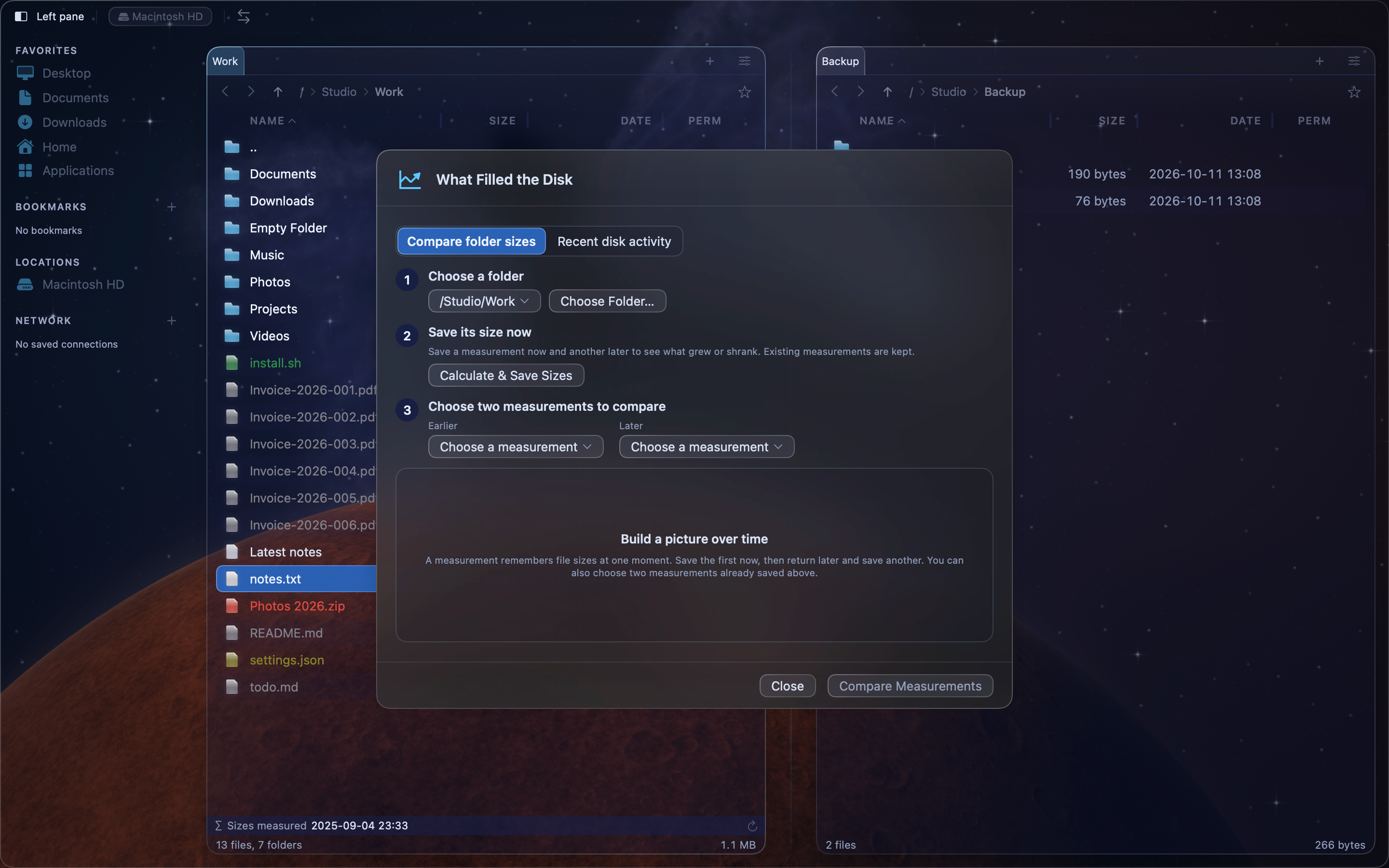
Choose Tools > What Filled the Disk…. At the top of the sheet, choose Compare folder sizes or Recent disk activity.
Compare two measurements of a folder#
A measurement records the size of every file in a folder at one moment. Two measurements show what was added, what grew and what was removed in between.
- Under Choose a folder, choose a folder that was measured before, or click Choose Folder…. The folder in the active pane is chosen at first.
- Click Calculate & Save Sizes to save a measurement now.
- Come back later, after the disk has changed, and click Calculate & Save Sizes again.
- Under Earlier and Later, choose the two measurements.
- Click Compare Measurements.
Calculate folder sizes and the size map also save measurements of the folder they measure. MeiFiles keeps the last eight measurements of each folder.
This method sees deleted files too. If one of the two measurements did not open a subfolder, that subfolder is left out, and the sheet says how many were left out.
Review recent disk activity#
- Under Look back, choose Last hour, Last 24 hours or Last 7 days.
- Click Start Review.
MeiFiles reads the change history that macOS keeps for local disks. You do not need to measure anything first. The review can take a few minutes. Click Stop to end it.
This method cannot see deleted files. A file that changed is counted at its full size the first time, because no record says how big it was before.
Read the result#
The total change is shown at the top right. The list shows the folders that changed, as a tree. Under each folder, a line counts the new, changed and removed files, and names the file that accounts for the most space.
Choose All, Added, Changed or Removed to show only one kind of change. Removed is available only when you compare measurements.
A note below the list says when the total is too small, and why.
Show a folder in the pane#
Select a folder in the list, then click Show in Panel. You can also double-click the folder. The sheet closes and the active pane opens that folder.