
 MeiFiles
Customize the toolbar and function keys
Choose which buttons the toolbar shows, and rename the buttons on the function-key bar.
You can choose the toolbar buttons and their order. In the Classic themes, you can also rename the buttons on the function-key bar. Both are in Settings > Toolbar.
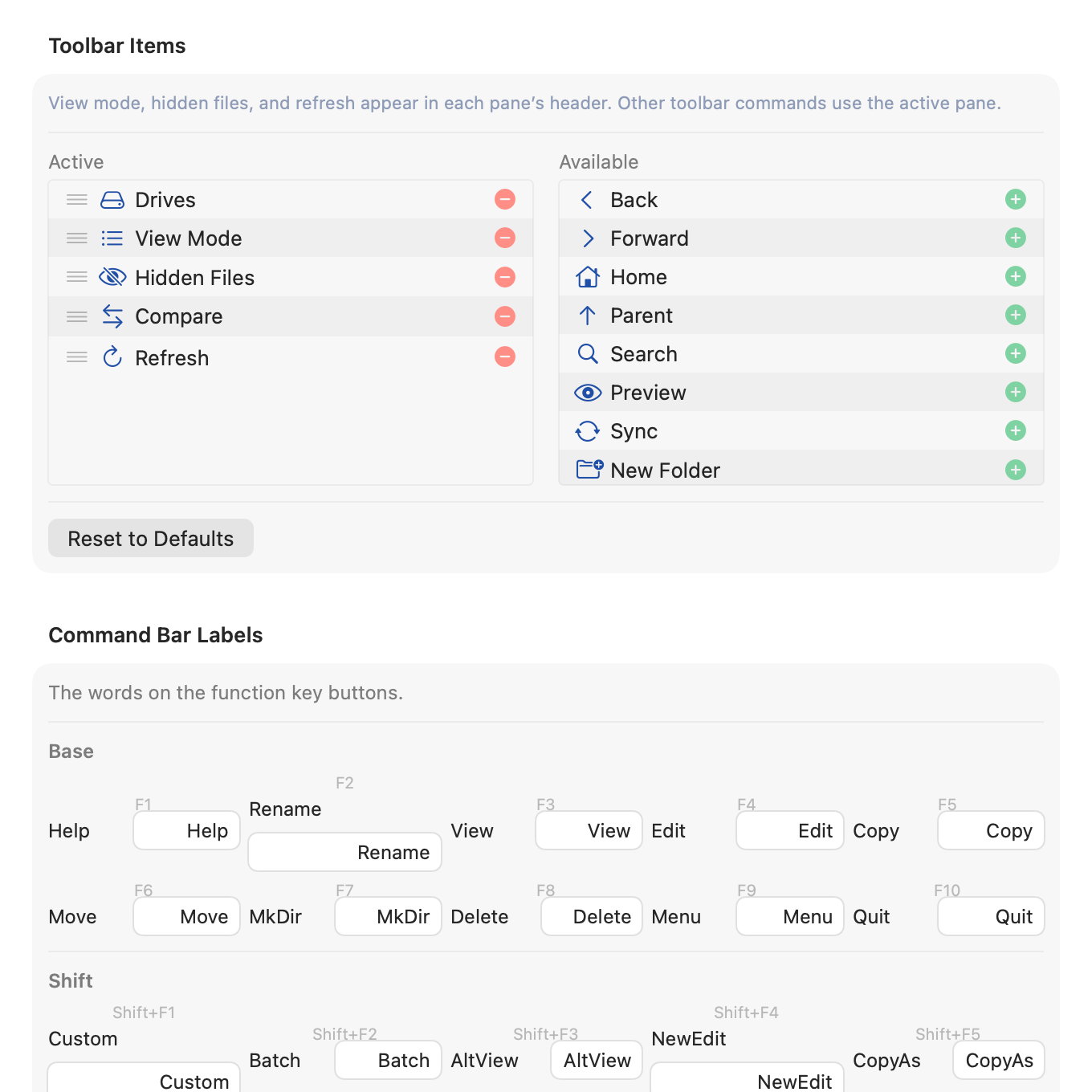
Add or remove toolbar buttons#
- Choose MeiFiles > Settings… (
⌘,), then click Toolbar. - To add a button, click the plus button next to it in Available.
- To remove a button, click the minus button next to it in Active.
- To change the order, drag a button up or down in Active.
The toolbar shows a separator between buttons of different kinds, in any order you choose.
These buttons are available: Drives, Back, Forward, Refresh, Home, Parent, Search, Preview, Compare, Sync, New Folder, New File, Terminal, Settings, View Mode, Hidden Files, Share, Connect, Transfer Queue, Tree Sidebar and Sidebar.
To go back to the original buttons (Drives, View Mode, Hidden Files, Compare and Refresh), click Reset to Defaults.
Rename function-key buttons#
The function-key bar appears at the bottom of the window in 2000s Classic and 90s Classic. Each button shows a key and a short word.
- In Command Bar Labels, find the key in the Base, Shift or Alt row.
- Type a new word in its field.
To go back to the original word for one key, clear its field. To reset every key, click Reset All to Defaults.
The bar shows these words by default:
| Key | Alone | With Shift | With Option |
|---|---|---|---|
| F1 | Help | Sizes | Drives |
| F2 | Rename | Batch | Tree |
| F3 | View | Compare | Swap |
| F4 | Edit | NewEdit | Close |
| F5 | Copy | Dupe | Pack |
| F6 | Move | Rename | Unpack |
| F7 | MkDir | MkFile | Find |
| F8 | Delete | Empty | Log |
| F9 | Menu | — | — |
| F10 | Quit | — | — |
F9 and F10 have no Shift or Option command. A new word changes only the button. The key still runs the same command.
Tip: In 2000s Classic, hold
⇧or⌥to see the second and third rows on the bar. Click the arrow at the end of the bar to show all three rows at once.