
 MeiFiles
Move your settings to another Mac
Save your settings to a file and load them on another Mac, or keep them as a backup.
You can save your MeiFiles settings to a JSON file and read them back later. Use it to set up a second Mac the same way, or to keep a backup before you try new settings.
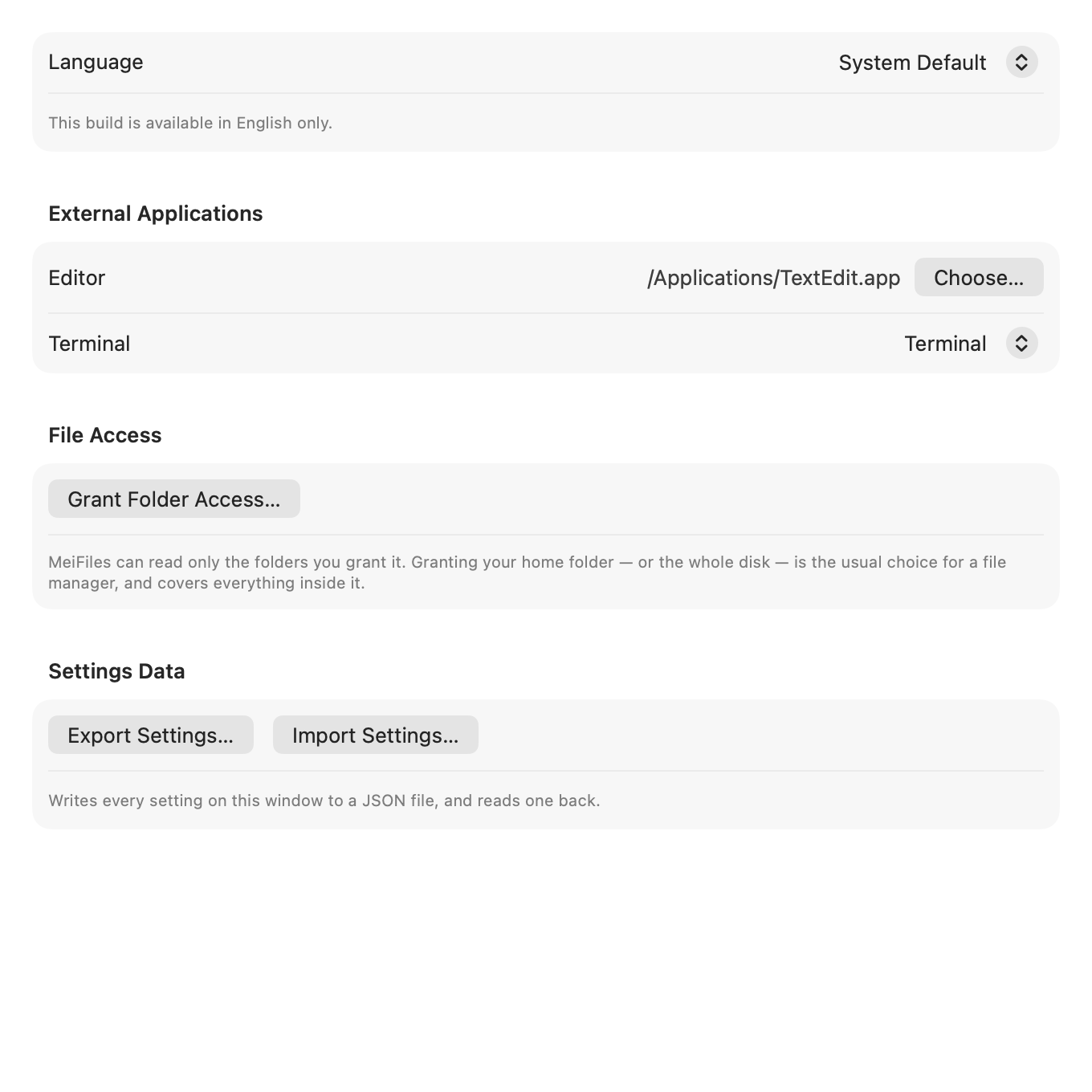
Export your settings#
- Choose MeiFiles > Settings… (
⌘,), then click General. - In Settings Data, click Export Settings….
- Choose a place for the file, then click Save. The suggested name is
MeiFiles-Settings.json.
Import settings#
- Copy the file to the other Mac.
- In MeiFiles on that Mac, choose MeiFiles > Settings…, then click General.
- Click Import Settings…, choose the file, then click Open.
Most settings change at once. The theme changes the next time you open MeiFiles.
What the file contains#
The file contains the settings on the General, Appearance, Panels, Operations, Viewer and Toolbar tabs. This includes the theme, the backdrop pattern, custom colors, file type colors, the toolbar buttons and the function-key labels. It also contains the visible columns and their order.
The file does not contain:
- Keyboard shortcuts from the Keyboard tab.
- Folder access. Grant access to your folders again on the new Mac.
- Bookmarks and saved server connections.
- Passwords. They stay in the keychain of the Mac where you saved them.
Note: A settings file from a newer version of MeiFiles cannot be imported into an older version.