
 MeiFiles
Build your own theme
Change the colors and style of a New Era theme to make New Era · Custom.
Start from New Era · Space or New Era · Winter and change what you like: the accent color, the marked-file color, the rim, the corners and the labels. Your version appears as New Era · Custom. The original theme stays as it is.
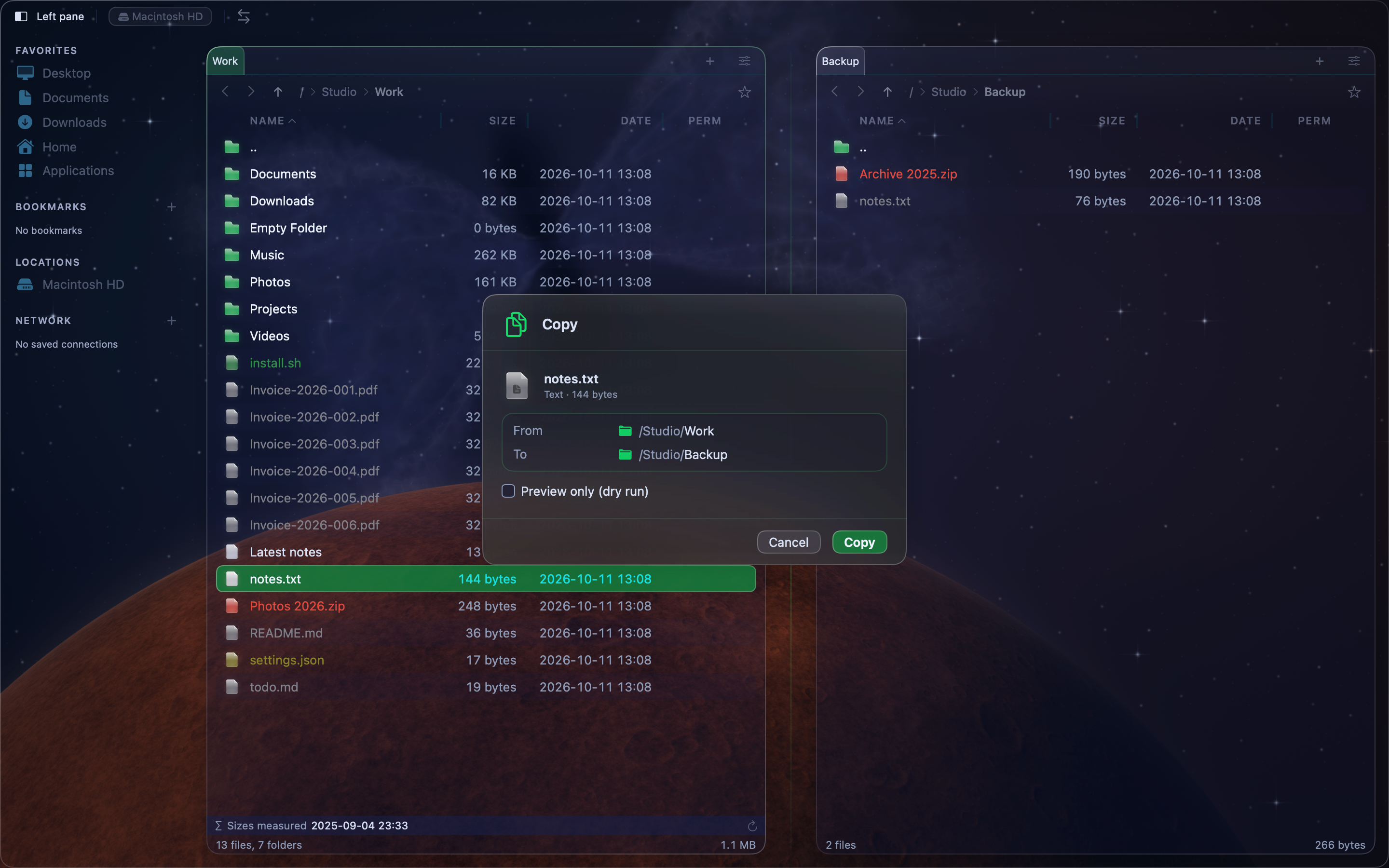
Make a Custom theme#
- Choose View > Theme, then choose New Era · Space or New Era · Winter.
- Choose MeiFiles > Settings… (
⌘,), then click Appearance. - In Colors and Style, change any setting.
MeiFiles switches to New Era · Custom, based on the theme you started from. It is now in View > Theme next to the original.
Choose the accent color#
The accent colors focus, the selected row, folder icons, the default button, the rim and the glow.
- Click a swatch: Cyan, Green, Yellow, Orange, Pink or Violet.
- Or click the color well next to the swatches and pick any color.
MeiFiles keeps every color readable. It keeps the hue you picked and adjusts its brightness to match the theme, on dark glass and on light glass.
Change the style#
| Setting | What it does |
|---|---|
| Marked files | The color of marked file names and the stripe beside them. |
| Rim, far edge | The second color of the rim. The rim runs from the accent to this color. |
| Rim and glow | How bright the rim and the glow around lit things are. |
| Corner brackets | Brackets on the pane you are working in and on every dialog. |
| Technical labels | Titles, labels, tabs and buttons in monospaced capitals. |
| Square corners | Squared panes, dialogs and buttons instead of round ones. |
| Lit title bands | A soft glow of color behind dialog titles. |
Go back to the original theme#
- To switch for now, choose the original theme in View > Theme. Your Custom theme stays in the list.
- To delete your Custom theme, choose it, then click Revert to New Era · Space (or Winter) in Colors and Style.
Note: There is one Custom theme at a time. If you change a preset while a Custom theme exists, the Custom theme is replaced.
Your Custom theme is saved with your other settings when you export them. See Move your settings to another Mac.