
 MeiFiles
Customize the New Era backdrop
Choose what shows behind the glass panels, pick a pattern number, and set how clear the glass is.
The New Era themes draw their panels as glass over a backdrop. You can change the backdrop and the glass in Settings > Appearance > Backdrop. The section appears only while a New Era theme is active.
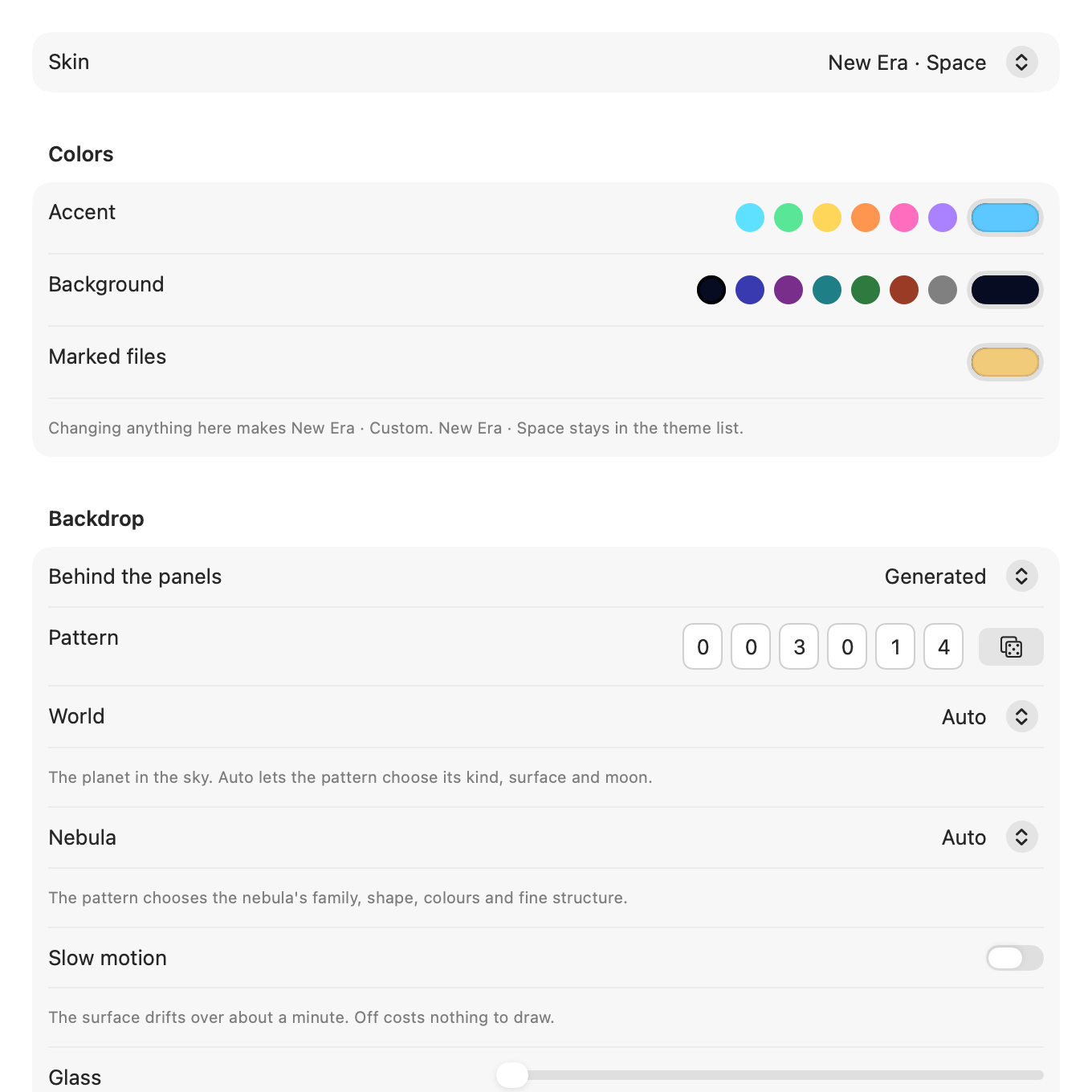
Choose what is behind the panels#
- Choose MeiFiles > Settings… (
⌘,), then click Appearance. - In Behind the panels, choose one of these:
- Generated: a picture the app draws from a pattern number. This is the default.
- Desktop Through Glass: your desktop wallpaper, blurred through the window.
- Solid: one plain color, dark in Space and light in Winter.
Choose a pattern#
With Generated, the Pattern row shows a six-digit number. Each number, from 000000 to 999999, is a different picture. Write down a number you like, or give it to someone else.
- To get a new picture, click the dice button.
- To enter a number, click a digit and type. The sixth digit or
Returnkeeps it.Escputs the old number back.
Until you roll or type a pattern, MeiFiles shows a new picture at every launch.
Choose the world, nebula or scene#
These menus let you fix one part of the picture. Auto lets the pattern decide.
- New Era · Space has World (Auto, None, Rocky, Moon, Ice, Gas giant, Ember) and Nebula (Auto, None, Emission clouds, Reflection wisps, Dust pillars, Supernova filaments, Planetary shells, Butterfly nebula).
- New Era · Winter has Scene (Auto, Peaks, Frozen lake, Snow field, Spruce forest, Pack ice, Icebergs, Ice spires).
Turn on slow motion#
Turn on Slow motion to let the backdrop drift slowly over about a minute. It is off by default. With it off, the backdrop costs nothing to draw.
Caution: Slow motion uses processor time. If the file list feels slow to follow the keyboard, turn it off.
Set the glass transparency#
Drag the Glass slider. To the left, the panels are more solid. To the right, more of the backdrop shows through. The slider is hidden when Solid is chosen.
Over Generated, every position of the slider keeps text readable. Over Desktop Through Glass, MeiFiles cannot know your wallpaper. When the glass is thinner than the app can guarantee, a note under the slider says so. If text is hard to read, move the slider to the left.
Reduce Transparency#
If Reduce transparency is on in System Settings > Accessibility > Display, MeiFiles uses the plain Solid backdrop and solid panels, whatever you chose here.